Good to know: This screen is for owners and managers.
-
1
Open Payment methods
In the back office choose Settings → Payment methods. A table lists every method the till offers.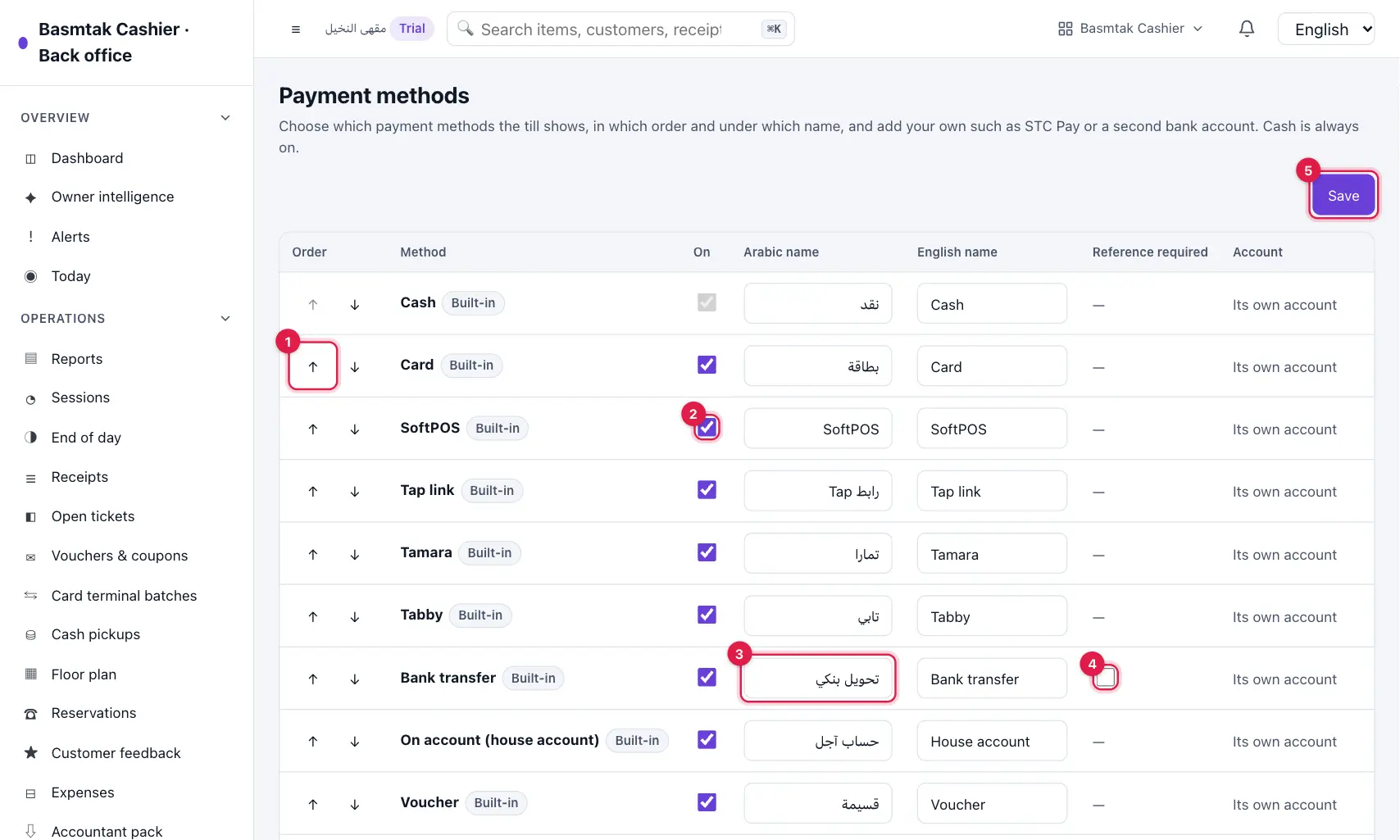
1: order arrows. 2: switch a method on or off. 3: a name of your choice. 4: make the reference required. 5: the <b>Save</b> button. -
2
Switch on what you need and order it
Clear On to hide a method from the till. Use the arrows to change the order, and type a new name if you wish.Good to know: Cash is always on and cannot be switched off. -
3
Add your own method
Under Add a custom payment method enter the Arabic name and a Code in lowercase English, such as jahez. The code cannot change after saving. Choose Where the money is booked, decide whether a reference is required, and press Add.
1: the name. 2: the code. 3: the account. 4: the <b>Add</b> button. Good to know: With these methods the cashier types the amount and a reference, with no terminal or provider. The money never counts in the drawer. -
4
Delivery apps
When a delivery platform channel is chosen on an order, an Aggregator tab shows by itself: enter the Platform order number and press Paid to the platform. For an app with no channel, add it as a custom method as in the last step and pick the Other account so its money is tracked separately.
1: the tab. 2: the platform order number. 3: the record button. -
5
Save
Press Save at the top of the page. Nothing applies before that, even after Add. The tills get the new list at their next sync.
Did this guide help?