-
1
Issue vouchers in the back office
Open Operations → Vouchers & coupons. On the Vouchers tab enter the Amount and Count. You can add an Expiry and a Note. Then press Issue vouchers.
1: the issue form. 2: the issue button. 3: the vouchers and their balances. Careful: The codes show once only, so save or print them right away. After that, only the last 4 characters show. -
2
Or sell a voucher at the till
On the till press More → Sell a voucher. Choose the amount and Paid by, then press Sell voucher. The code shows and the voucher prints.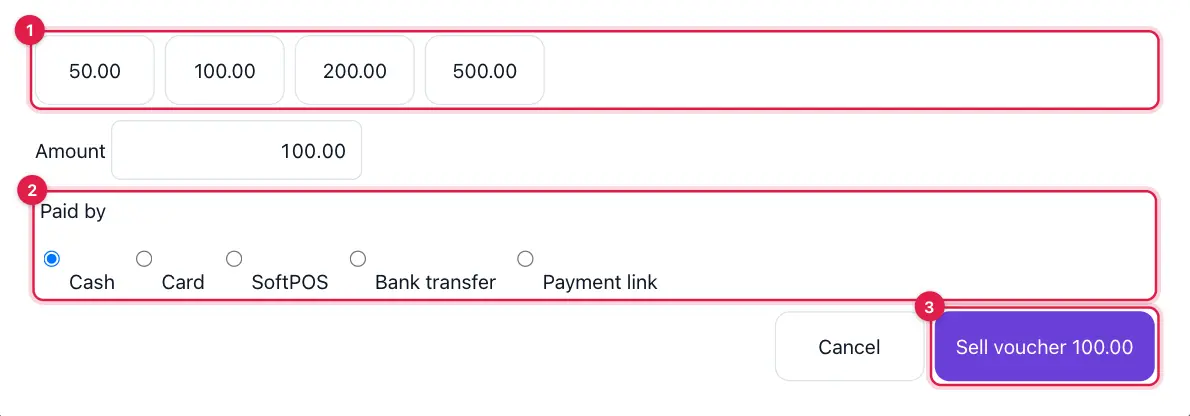 Good to know: The voucher slip is not a tax invoice, and the code is as good as cash.
-
3
Redeem the voucher at payment
Press Pay under the bill, then choose Voucher. Scan or type the code and press Check. Balance and Available show. Change the amount if needed, then press Take from voucher. Any balance left stays on the voucher, and the rest of the bill can be paid another way.
1: the <b>Voucher</b> tab. 2: the code. 3: the balance. 4: the take button. -
4
Without internet
The till accepts a voucher up to a cap you set, based on its last known balance. Set the cap on the Settings tab of the same screen. Anything above it needs a connection. -
5
A gift card from a partner
A Gift card differs from a voucher: its balance is held by an outside partner, so it always needs internet. Enter the Gift card number, press Check balance, then take the amount.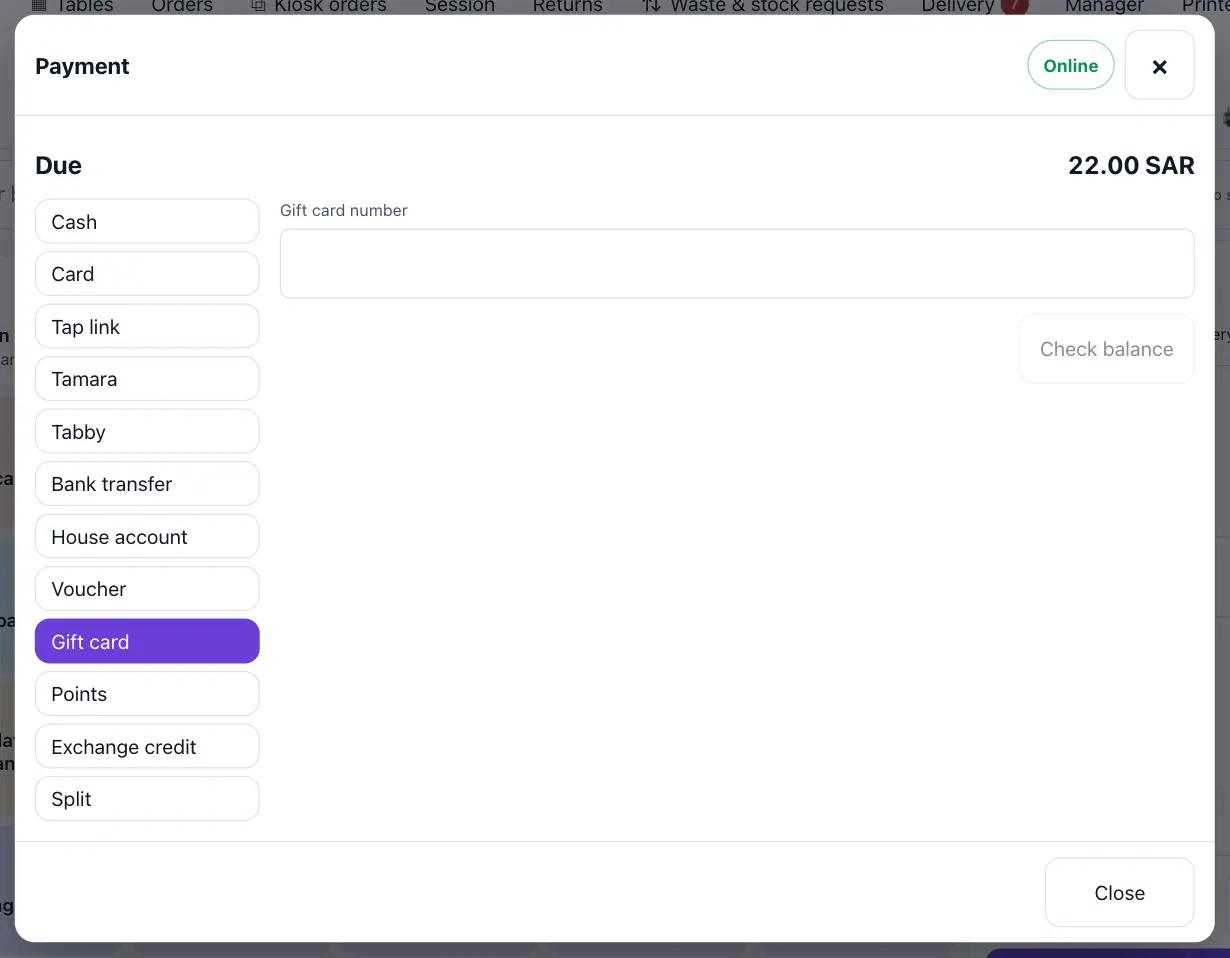
-
6
Void a voucher if needed
In the same list press Void voucher beside an active voucher and enter the reason. It cannot be used after that.
Did this guide help?