Good to know: You need an open shift and a bill with items on it.
-
1
Choose Card
Press Pay under the bill, then choose Card from the side list.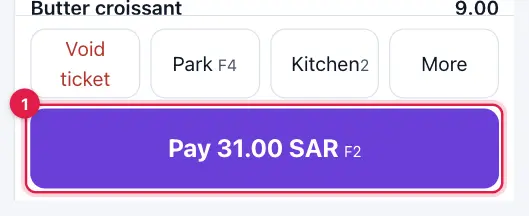
-
2
If the terminal is linked
A Pay on terminal button shows with the amount. Press it and the amount goes to the terminal, and you can keep selling while the customer pays. Once the card is approved, the payment lands on the bill.Good to know: Don't see this button? Your terminal is not linked, so follow the next step. Linking is set in the back office under Organisation → Registers. -
3
If the terminal is not linked
Key the amount on the card terminal yourself and wait for approval. Then on the till choose the Scheme (mada or Visa, for example) and type the Last 4 digits from the terminal slip. The RRN and approval code are optional.
1: the <b>Card</b> tab. 2: the card scheme. 3: the last 4 digits. 4: the record button. -
4
Record the payment
Press Record card payment. If the amount covers the whole bill, the sale completes. If it is less, the rest stays under Due to pay another way.Careful: Never record a payment the terminal did not approve. Never type the full card number: the till only asks for the last 4 digits. -
5
If the card is declined
With a linked terminal, a Card declined message shows and no payment is added. Try again or ask for another payment method. If The terminal did not answer shows, check the result before sending the amount again.
Did this guide help?