Good to know: You need an open shift and a bill with items on it.
-
1
Open the payment screen
After adding the items, press Pay under the bill, or press F2. The screen opens on Cash, and the amount shows beside Due.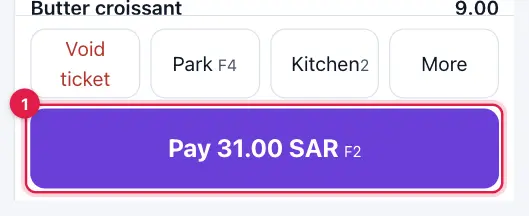
-
2
Press the amount the customer gave you
Ready buttons appear: Exact and the nearest round amounts. One press finishes the payment straight away.
1: ready amounts. 2: cash received and change. 3: the <b>Take cash</b> button. Tip: If the customer pays with several notes, press and hold each amount to add it to the typed amount. -
3
Or type the amount yourself
Type the amount on the number pad. Change shows at once above the buttons. Then press Take cash. -
4
Give the customer the change
The Change due screen shows the amount in large figures, with the order number and the receipt number. With no change, it says Paid in full. Press New sale to start the next bill, or Print copy if the customer asks for a copy.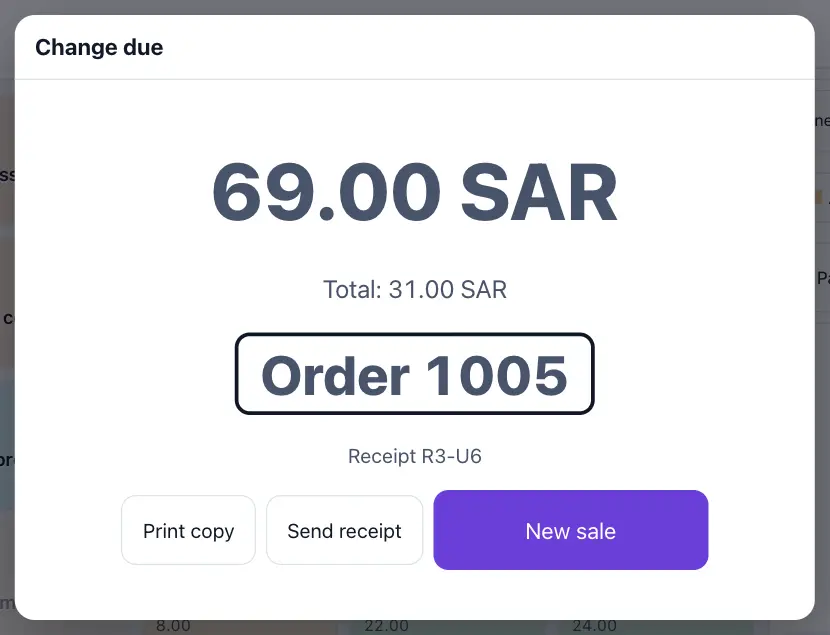
Did this guide help?