Good to know: You need a manager PIN, the internet while linking, and access to the Fatoora portal. Each device is linked once, with its own code.
-
1
Open the linking screen
On the till, press Printers, then the ZATCA tab, or press the ZATCA notice at the top of the screen. Enter the manager PIN if asked.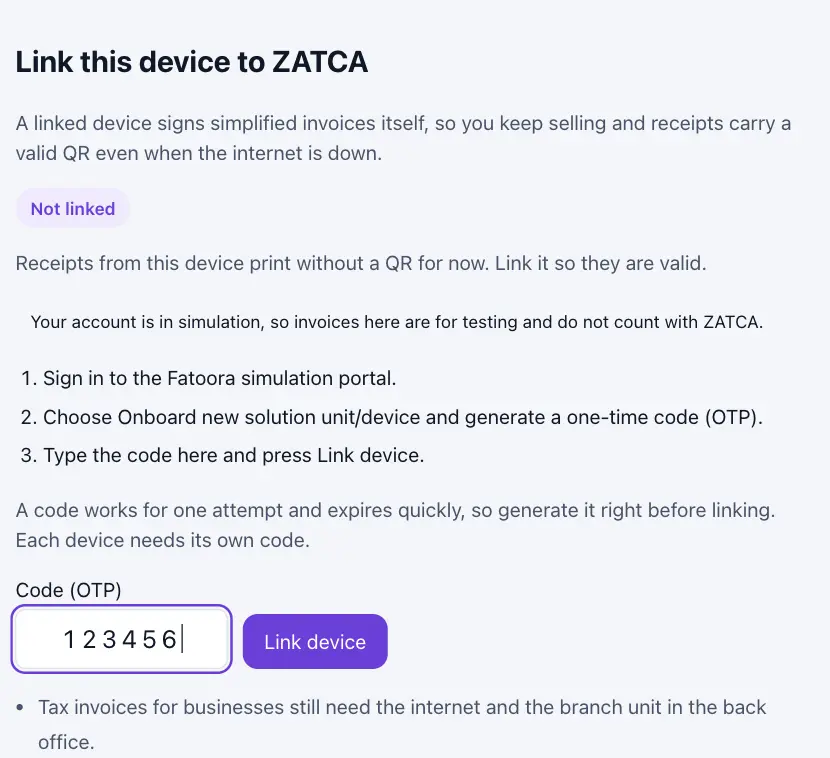
The device linking screen on the till. -
2
Generate a code on the Fatoora portal
Sign in to ZATCA's Fatoora portal, choose Onboard new solution unit/device, and generate a one-time code (OTP). The screen names the right portal for your account.Careful: A code works for one attempt, even a failed one, and expires quickly. Generate it right before linking, and use one code per device. -
3
Type the code and press Link device
The device creates its own signing key, sends sample invoices to ZATCA for checking, and receives its certificate. This takes about a minute, so keep the screen open.Good to know: If ZATCA refuses, the screen shows its reason as it came. Generate a new code and try again. -
4
Check that the device is linked
Linked: signs offline shows with how long the certificate is valid. From now on simplified invoices are signed with a valid QR even offline, and they upload and reach ZATCA by themselves when the connection returns.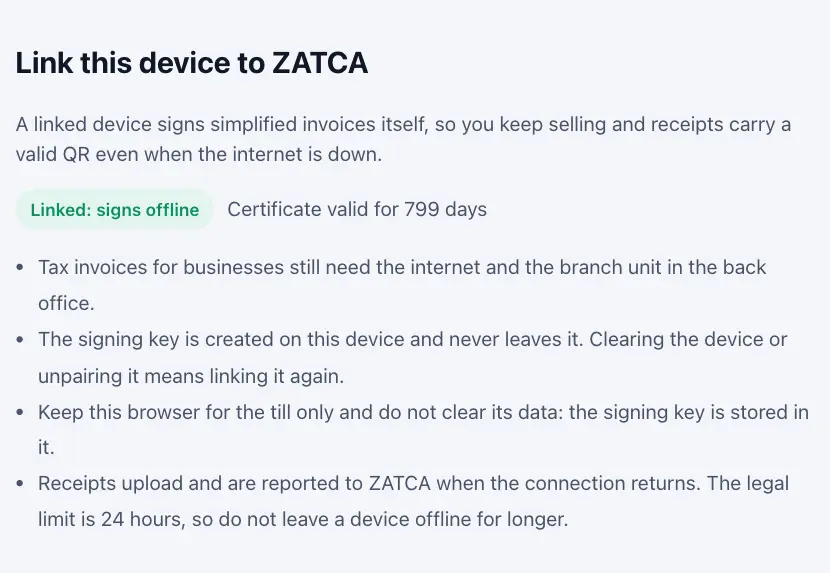
A linked device that signs offline. -
5
Know the limits
- Tax invoices for businesses still need the internet and the branch unit in the back office.
- The legal reporting limit is 24 hours, so do not leave a device offline for longer.
- The signing key lives only on the device. If you clear its data or unpair it, link it again with a new code, and first make sure All synced shows.
- In a browser, keep a profile for the till only and do not clear its data.
- Renew the certificate on the same screen before it ends. If it expires, the device needs the internet again.
Did this guide help?