-
1
See that the connection dropped
When the internet drops, Offline shows at the top instead of Online. Next to it is the number of operations waiting to upload, such as 3 unsynced.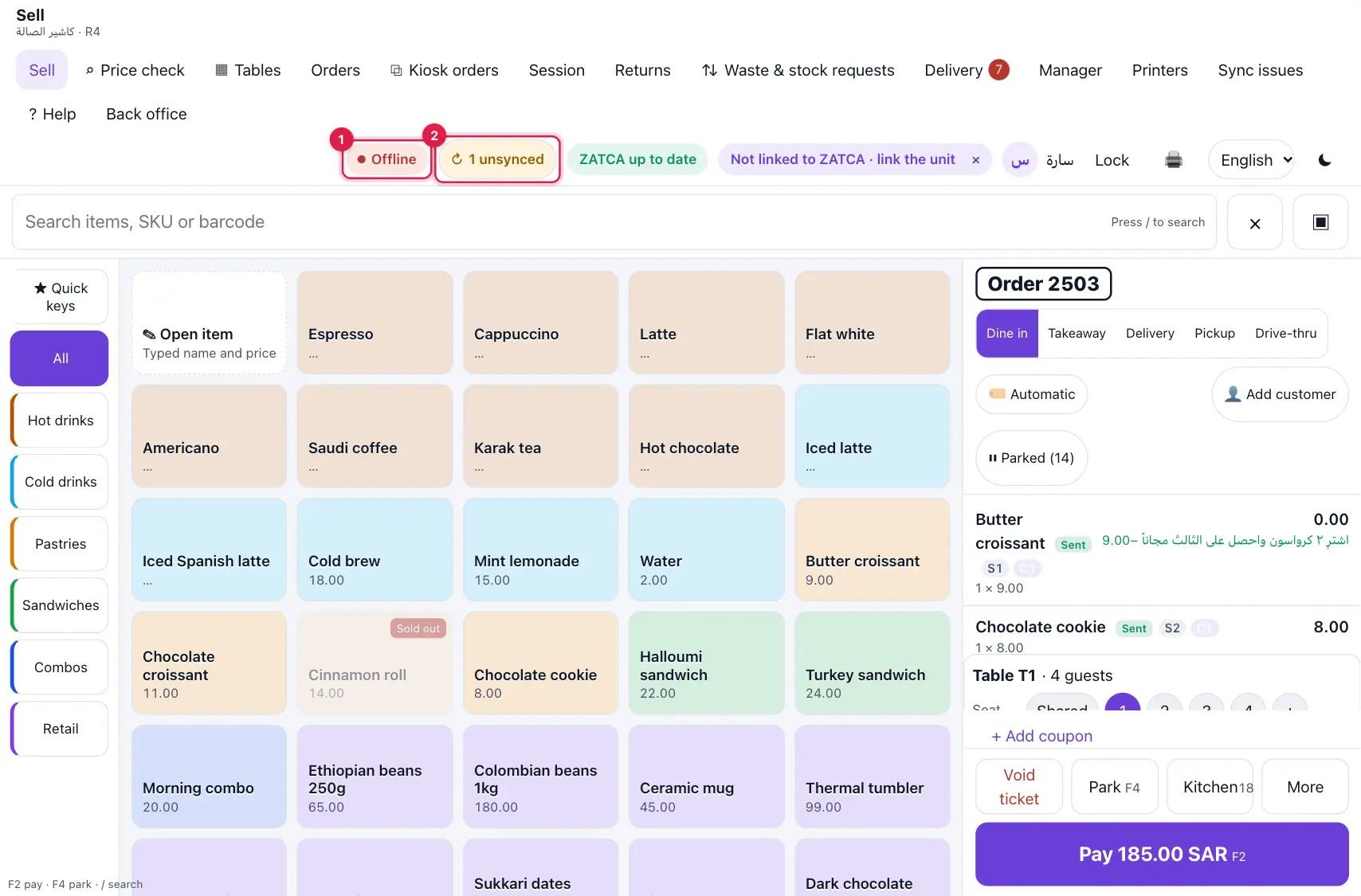
1 The connection status. 2 The operations not uploaded yet. -
2
Know what keeps working
This depends on how the till is linked:- Linked from Printers → ZATCA: it signs simplified invoices itself, so selling, printing and closing the shift keep working with a valid QR.
- Relying only on the branch unit: the server signs every invoice, so you cannot finish a sale until the connection is back. Keep the ticket open and complete it then.
- Not linked: selling continues, but receipts print without a QR.
-
3
Know what needs the internet
These need the internet: payment links such as Tap, Tamara and Tabby, tax invoices for businesses, creating a new customer, finding a customer not stored on the device, server reports, and saving printer settings.
-
4
When the internet returns
Operations upload by themselves and the counter turns to All synced. To upload straight away, press the counter itself.
1 Online. 2 Press here to sync now. Careful: Do not clear browser data or reset the device before All synced shows, or sales not uploaded yet are lost. -
5
Check the sync issues
If the server refuses an operation, a red rejected by the server badge shows. Press Sync issues in the top bar to see why. If the screen says Nothing was rejected, all is well. Otherwise press Report to support (download JSON) and send the file to support. Careful: A rejected operation is not retried. Do not issue the same receipt again; support will settle it.
Did this guide help?