Good to know: Add the item first, as in the article on adding a new item.
-
1
Open the Variants tab
From Catalogue → Items open the item, then press the Variants tab. A variant is a version of the same item, such as small, medium or large. An item with one variant is simply the item itself.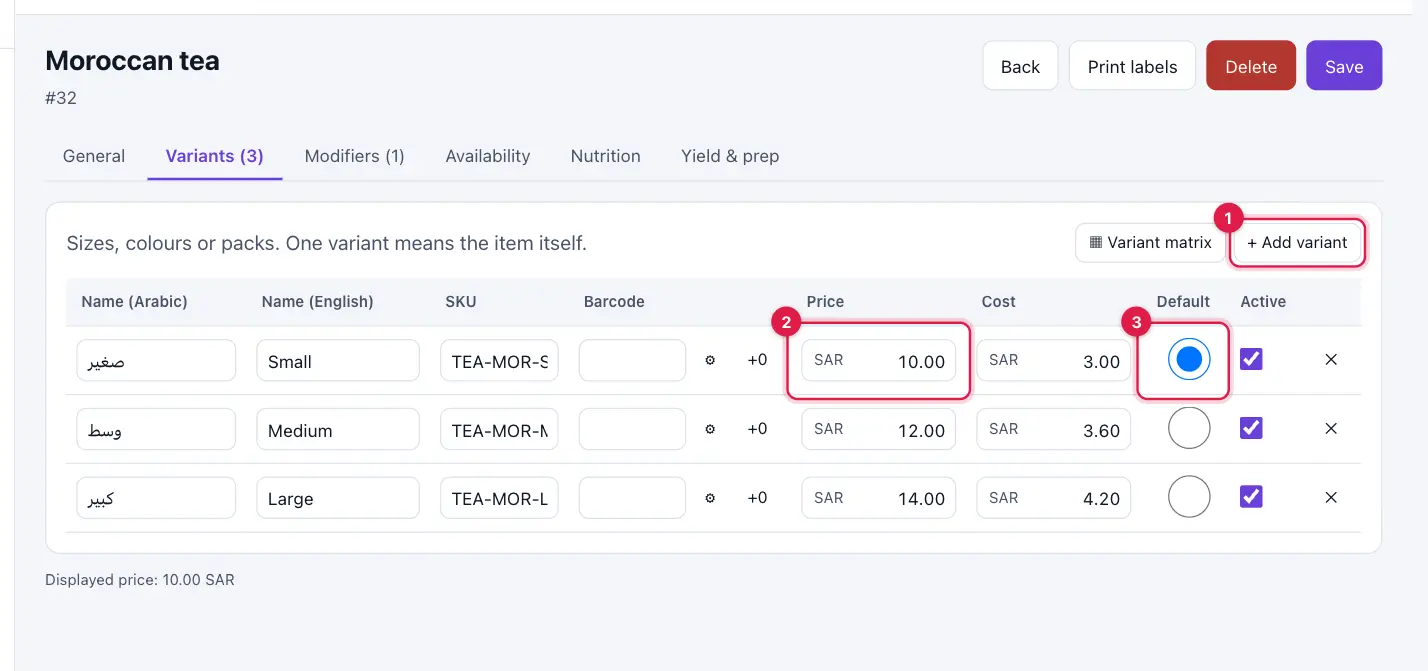
1: Add a variant. 2: The price of each variant. 3: The default variant. -
2
Add each size
Press + Add variant, type the Arabic name, such as «كبير», then the Price. Each variant also has its own Cost, Barcode and SKU, your internal item code. Repeat for each size.Good to know: With more than one variant, the price field on the General tab becomes Price from and shows the lowest price only. You change prices on the Variants tab. -
3
Pick the default variant
Select the circle in the Default column for your most popular size. It appears first in the list the cashier picks from. To hide a size without deleting it, untick Active on its row.
-
4
Create many variants at once
If you have sizes and colours together, press Variant matrix. Type an axis, such as size, and its values separated by commas, then add a second axis, such as colour. The system shows every combination; then press the create button. This button appears once the item is saved.
The variant matrix window. Good to know: The limit is three axes, 20 values per axis and 100 combinations. Existing combinations are skipped. -
5
Save and try a sale
Press Save. When the item is tapped on the sell screen, the Choose a variant window opens so the cashier picks the size, and it is added at that size's price.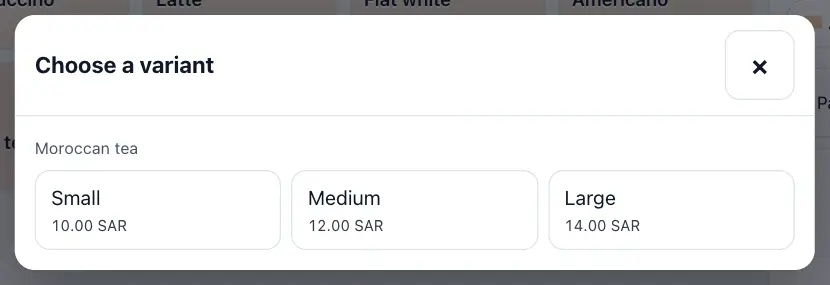
The size picker on the till.
Did this guide help?