Good to know: You need at least two branches, and an owner or manager role.
-
1
Create the transfer
Open Stock → Transfers and press + New transfer. Choose the sending branch under From and the receiving branch under To. Search for each item and type its quantity under Sent.
1 From, 2 To, 3 Sent, 4 Send. Tip: Goods not ready yet? Press Save draft, and stock does not change until you send. To drop it, open it and press Cancel transfer. -
2
Send the transfer
Press Send and confirm. The stock leaves the sending branch at once and the status becomes In transit. Quantities cannot be changed after sending.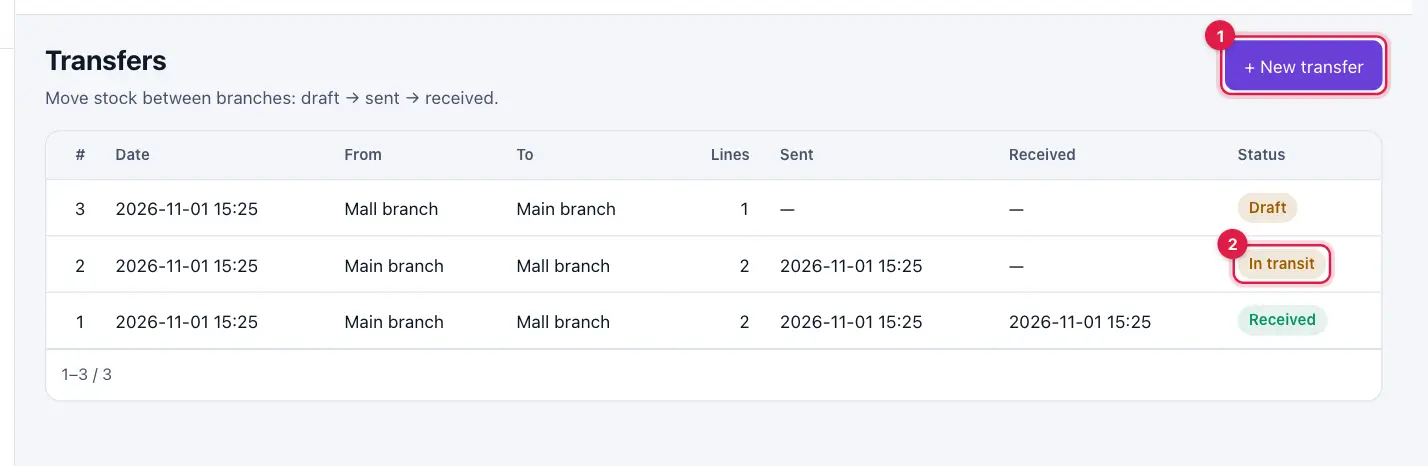
1 New transfer, 2 A transfer in transit. -
3
Receive it at the other branch
When the goods arrive, open the transfer from the table. Received shows the quantity sent, so change it if less arrived. Press Receive, and the stock enters the receiving branch at its cost when sent.
1 Received, 2 Receive, 3 Return to sender. Careful: If you receive less than was sent, the shortfall is recorded as waste at the receiving branch. You cannot receive more than was sent. -
4
If the goods will not arrive
Open the transfer and press Return to sender, then confirm. The stock goes back to the first branch at the cost it left at, and the status becomes Returned.Good to know: A transfer that came from a request at the till is received from Stock → Requisitions, not from this screen.
Did this guide help?