Good to know: You need an owner or manager role, and your items and raw materials already added.
-
1
Pick the route that suits you
A purchase order is optional. If you order from the supplier and then check what arrives, follow this guide. If you already hold the supplier's invoice and want to key it in, use a purchase invoice, which brings the goods in by itself. -
2
Add the supplier
Open Stock → Suppliers and press + New. Type the Name, then the VAT number, Phone, Email and Lead time (days). Press Save.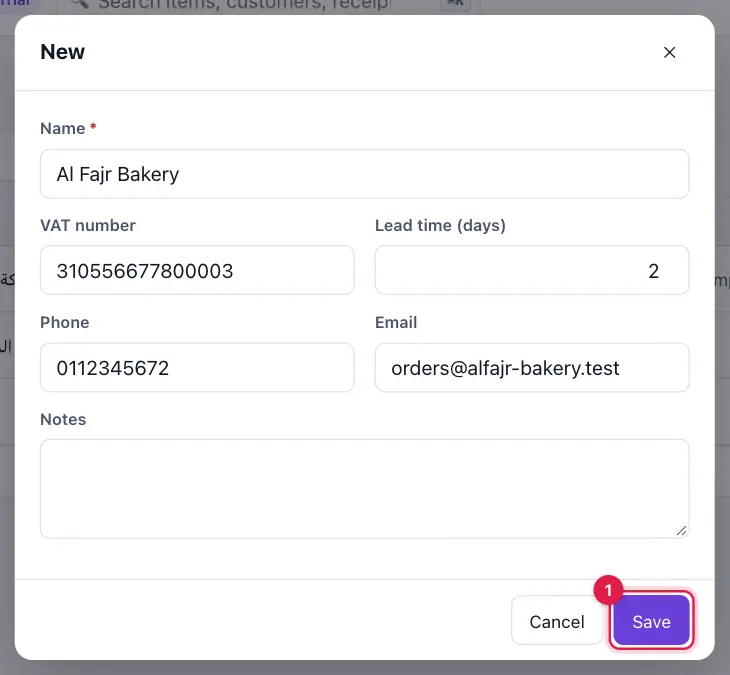
-
3
Create the purchase order
Open Stock → Purchase orders and press + New purchase order. Choose the branch, the supplier and the Expected date. Search for items, or press Suggest from reorder points to add low items at the quantity that reaches their par level. Adjust Ordered and Unit cost.
1 Suggest, 2 How to send, 3 Send to supplier. -
4
Send it to the supplier
Under Send to the supplier by, choose E-mail, WhatsApp or both, then press Send to supplier. With both unticked, the order is marked Sent and no message goes out. Lines cannot be changed after sending. If you are not ready, press Save draft.
1 New purchase order, 2 The Receive goods button, after sending. -
5
Receive the goods
When the goods arrive, press Receive goods beside the order in the table. Lines are filled with what is still due. Check the quantity and Unit cost, and type the Supplier invoice no., plus Expiry and Lot / batch if any. Press Post receipt: the quantity goes up and the average cost is recalculated.
1 Supplier invoice no., 2 Quantity, 3 Post receipt. Good to know: If only part arrives, receive just that: the status becomes Partially received, and you can receive the rest later. Receiving more than is still due is refused; an owner or manager can override it with Receive anyway. -
6
Receive without a purchase order
Open Stock → Goods receipts and press + Receive goods. Choose the branch and the supplier, search for the items, type the quantities and costs, then press Post receipt. Careful: A supplier invoice is booked once. If you type a number already booked, the system stops you. Fix the number, or press Book as the next delivery of that invoice if one invoice covers several deliveries.
Did this guide help?