Good to know: This needs a plan that includes loyalty. See the pricing page.
-
1
Create the program
Open Loyalty & CRM → Programs & tiers and press New program. Pick the type: Points or Stamps. Only one program is active at a time.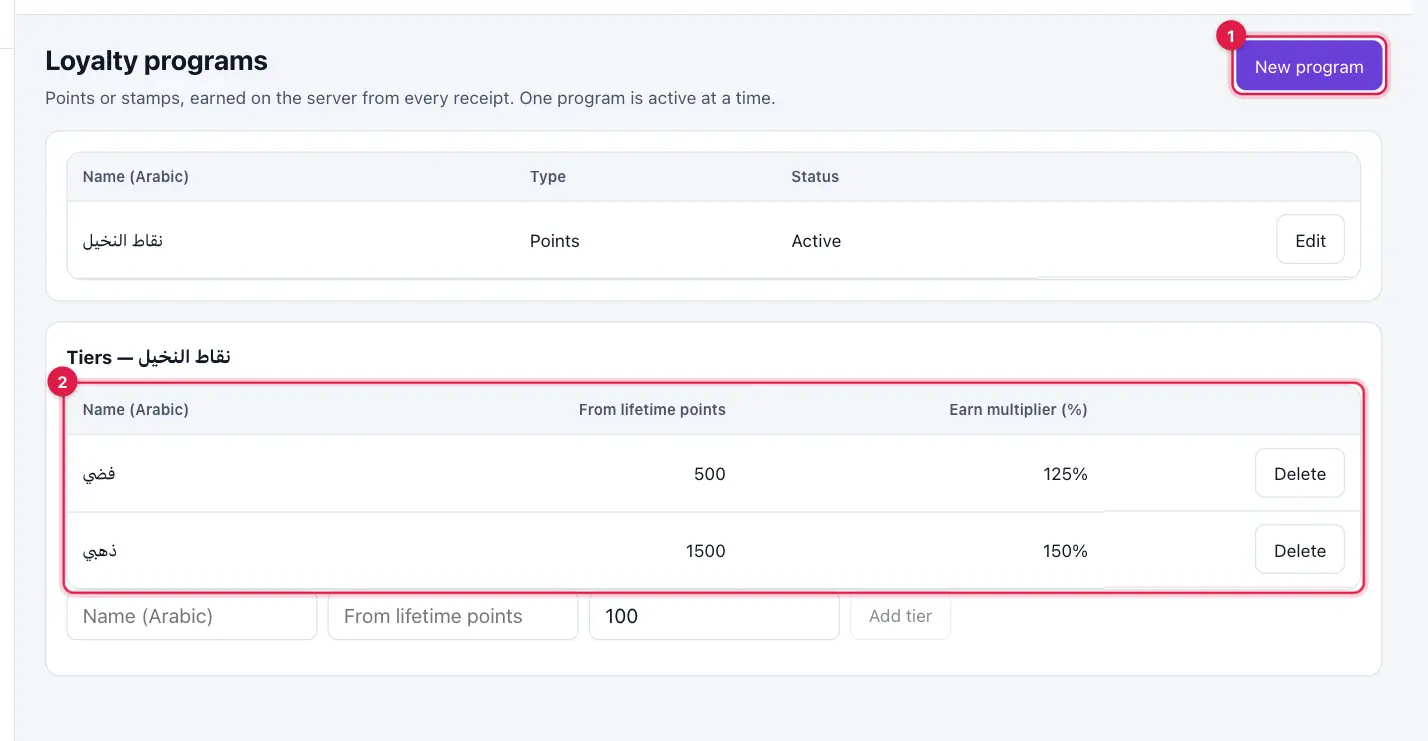
1 new program, 2 the tiers table. -
2
Set earning and redeeming
Under Earn type the points and For every amount, such as 1 point per riyal. Under Redeem type the points and what they are worth, such as 100 points = SAR 5. You can also set the minimum to redeem, when points lapse, and referral and welcome points. Press Save. Good to know: Points lapse only if you enter days in Points lapse after days without activity. Stamps never lapse.
-
3
Add tiers
At the bottom of the page type the tier name, From lifetime points and Earn multiplier (%). For example, 150 means the member earns one and a half times. Press Add tier. Members move up automatically when they reach the level. -
4
Enrol and attach the customer
On the till, a Loyalty section shows under the order. Add the customer, press Join loyalty, optionally type a birthday and a referrer's card, then Enrol. The card code appears. For an existing member, type the Card code or phone and press Find. Good to know: Points are added automatically after each receipt for a member on the order. A refund reverses what that receipt earned.
-
5
Redeem points at payment
Press Pay, then the Points tab. The available amount shows. Press Pay with points. Spending points needs the card code: a phone number alone only earns.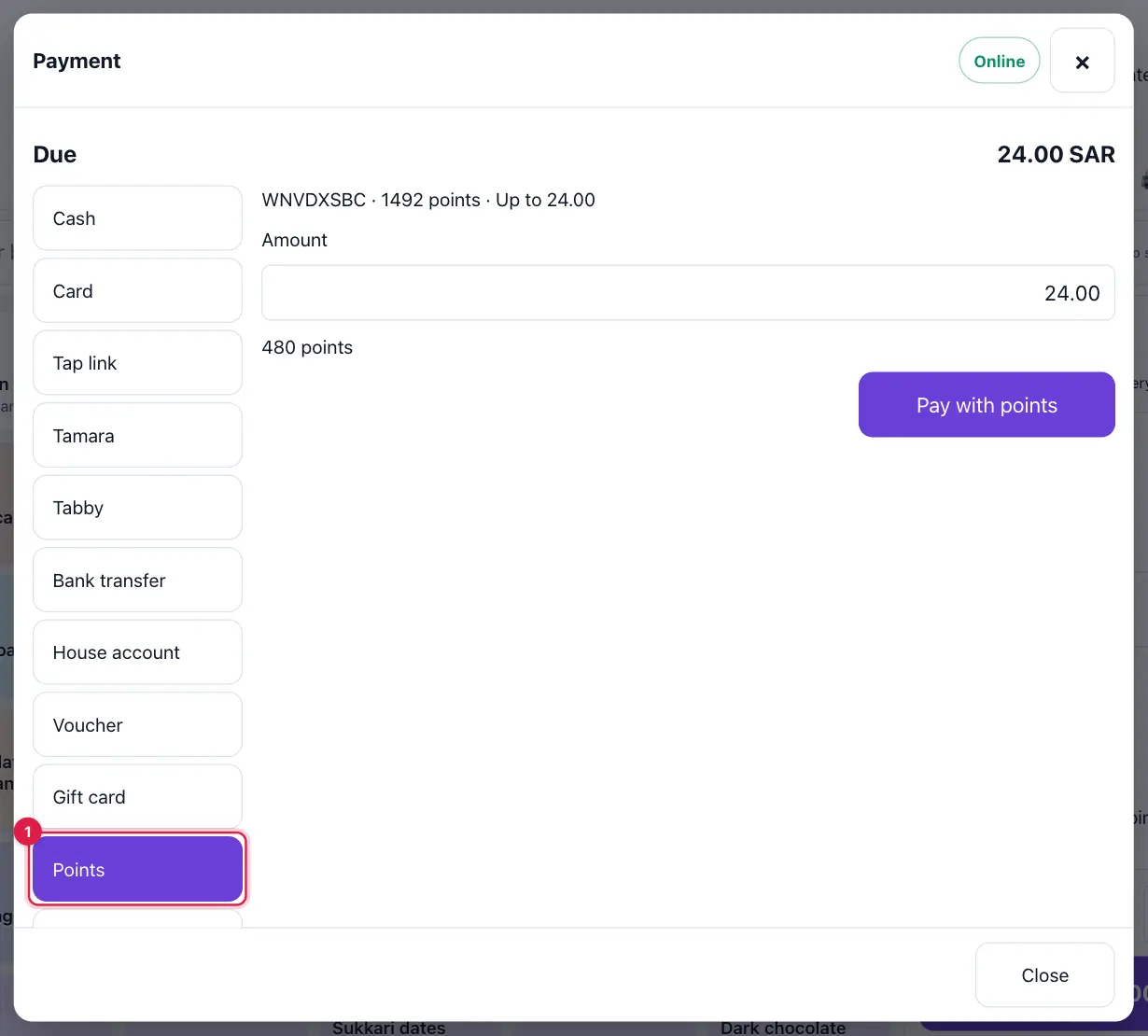 Good to know: Offline, redemption stops at the Offline redemption limit per sale set in the program.
-
6
Review members and adjust
Open Loyalty & CRM → Members. Press Ledger next to a member to see every earn and redemption. To adjust, type Points (+/-) and a Reason, then press Adjust.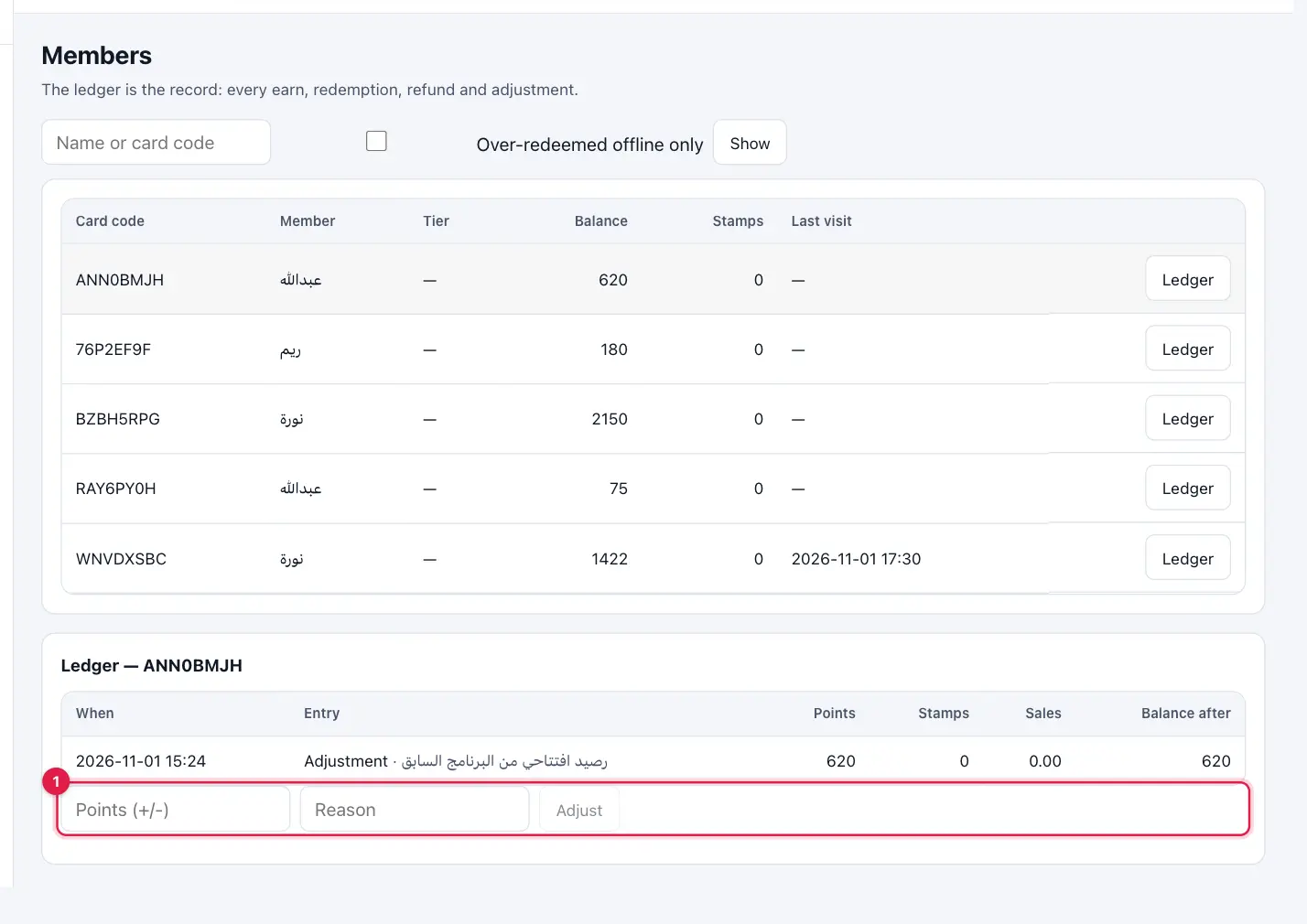
Did this guide help?