-
1
Open the receipts list
Choose Operations → Receipts. You see every issued document: simplified invoices, standard invoices and credit notes.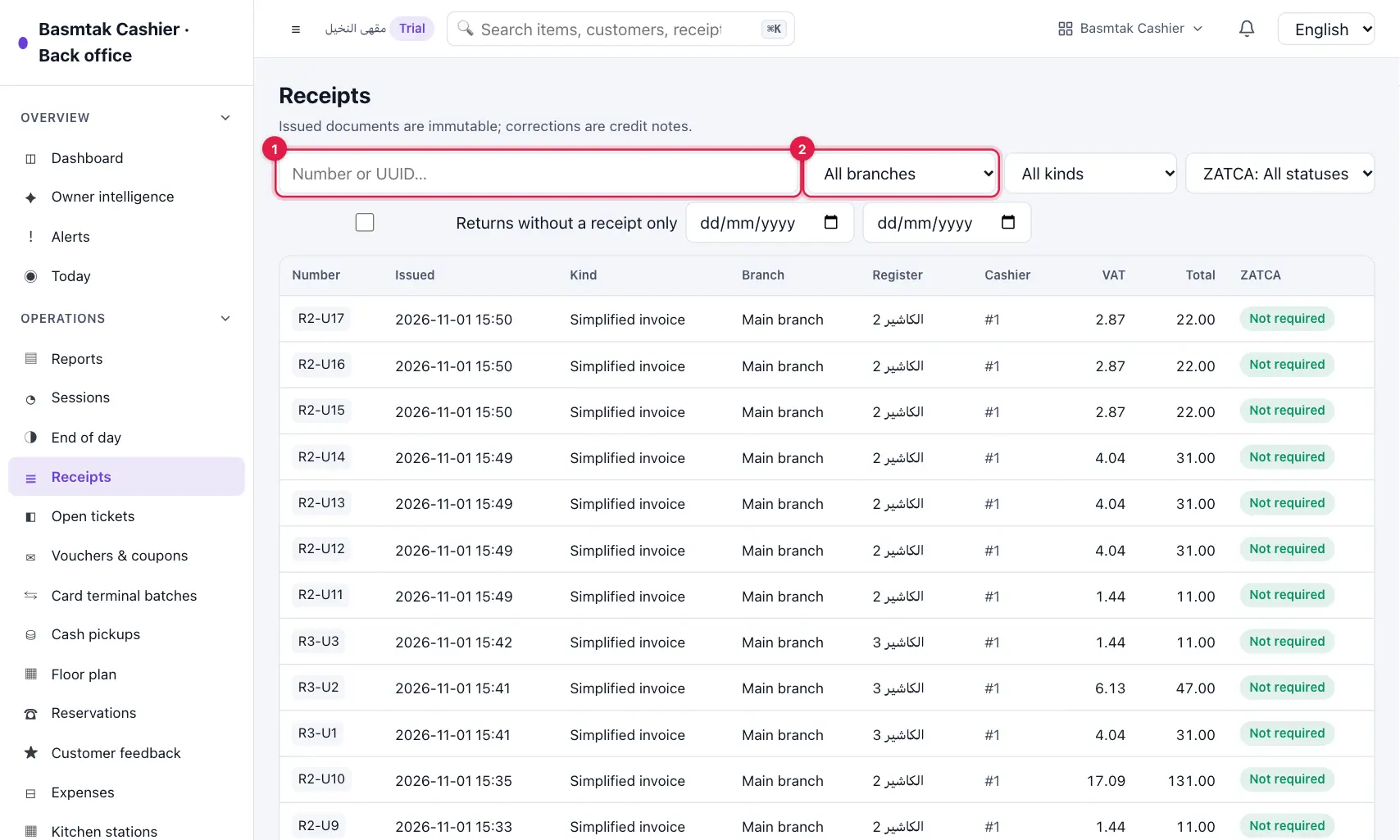
1 Search by number 2 Filter by branch, kind and status -
2
Search or filter
Type the receipt number as printed into the search box. Or pick the branch, the kind, the ZATCA status and the dates to narrow the list.
-
3
Open the receipt
Click the receipt's row. At the top you see the total, VAT and discounts, its ZATCA status, the cashier who issued it and the order type.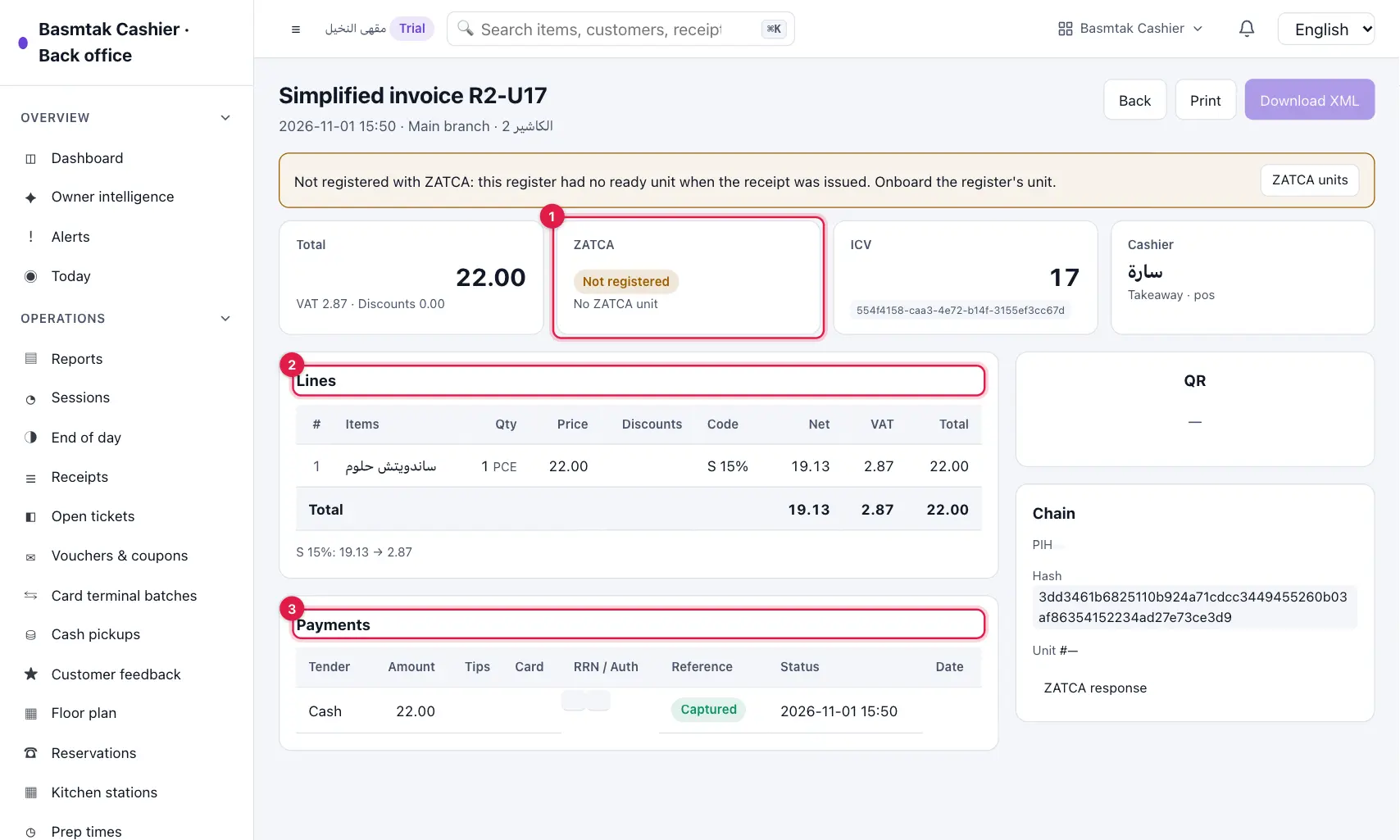
1 ZATCA status 2 Items 3 Payments -
4
Check the items and the payment
Lines shows each item with its quantity, price, discount and VAT. Payments shows the method, the amount and the time, and the last card digits for a card payment. -
5
Understand what happened to it
An issued receipt is never edited: a correction is a credit note. A credit note shows a link to the original receipt. A message appears at the top of the page if ZATCA rejected the receipt or it was not registered.
Did this guide help?