Good to know: Every user can see the page. Only an owner or a manager can retry or re-issue.
-
1
Open the submissions
Choose Compliance → ZATCA submissions. At the top you see how many are Pending, Pending over 2 h and Failed. Filter the list by status or date.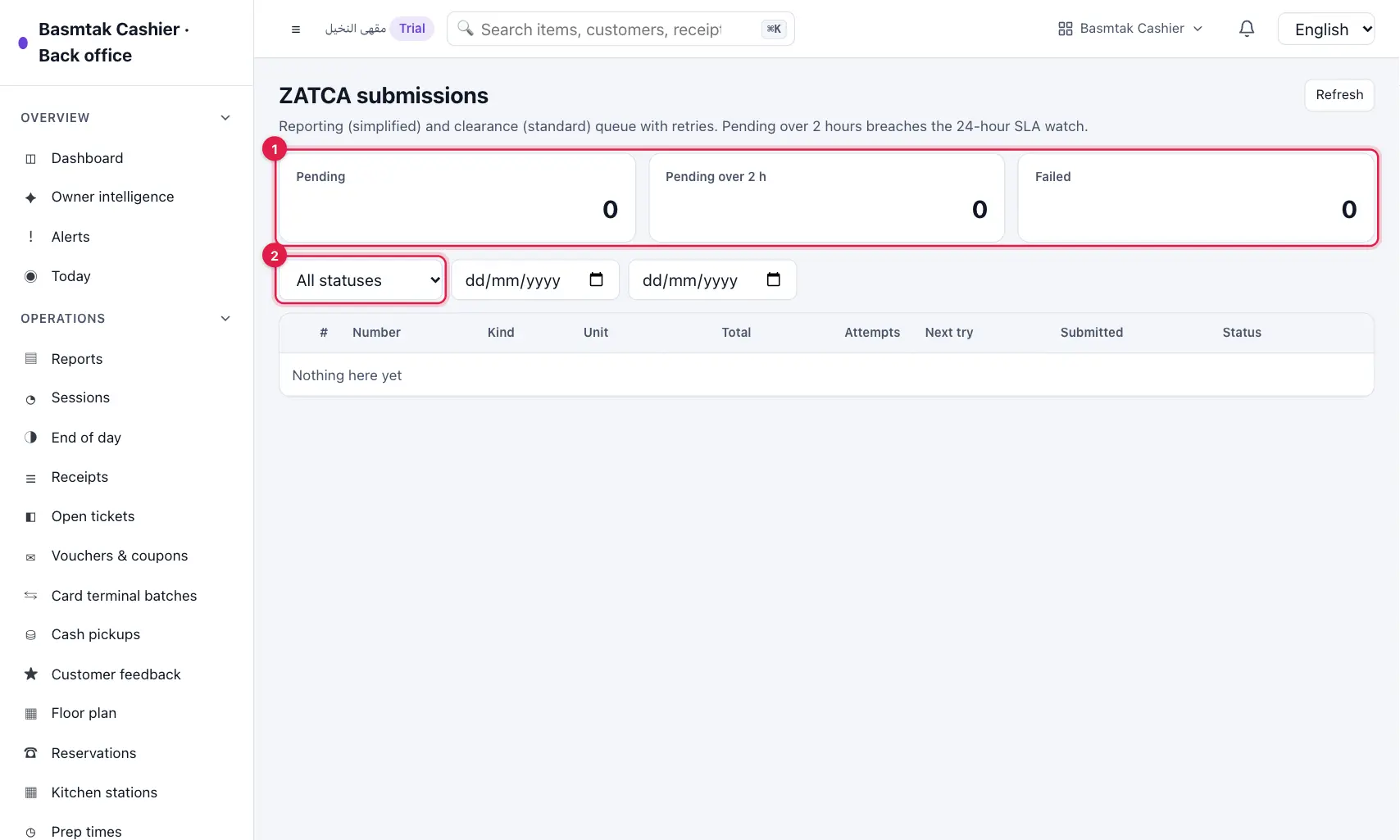
1 The counters 2 Filter by status -
2
Understand the statuses
- Queued: waiting to be sent.
- Clearing: a tax invoice waiting for ZATCA's answer.
- Accepted: done.
- Warning: accepted with notes from ZATCA.
- Failed: no answer from ZATCA after all attempts.
- Rejected: ZATCA read it and refused it.
- Superseded: replaced by a re-issued document.
-
3
Read ZATCA's message
Click the row to open the submission. ZATCA's errors and warnings show in a list. The full reply is under Technical details if support asks for it. -
4
If the status is Failed
This means ZATCA gave no answer, so the document was not read. The system retries by itself first. If it stops and shows Failed, check that the unit is Ready, then press Retry on the row. -
5
If the status is Rejected
Sending the same document again will not help: it would be refused again. Read the reason and fix it first, such as the branch address or an exemption reason. Then press Re-issue on the row to open the receipt, press it again and confirm.
1 Filter receipts by ZATCA status Good to know: Re-issuing needs a ready server unit for the branch. The server signs a new document, and the rejected one stays in the archive. If the amount or the items were wrong, correct them with a credit note and a new receipt.
Did this guide help?