Good to know: You need an owner or manager account in the back office.
-
1
Add the channel
A channel is any route a delivery order reaches you by: an app such as Jahez, or your own drivers. Open Delivery → Delivery channels. Pick the app under Add a channel… and press Add. A new row appears in the table.
1 the channels you can add, 2 the add button, 3 edit an existing channel. Tip: Add Own delivery too if you have your own drivers. -
2
Set the payment and prices
Press Edit next to the channel. Under Settlement choose Prepaid if the customer pays the app, or Cash on delivery, or Card on delivery. If your prices on the app are different, pick its Price list.
1 settlement, 2 price list, 3 commission (for your reference only). Good to know: Commission (bps) is written in basis points: 2000 means 20%. -
3
Choose the branches
In the Branches table in the same window, enable the branches this channel serves. For each branch you can turn on Auto-accept, type a Prep time and enter the Platform store ID. Press Save. Good to know: After saving, Delivery appears in the till's menu for that branch. You may need to reopen the screen.
-
4
Link the app, or key its orders in
Open Delivery → Direct platforms. The Link column shows each platform's state. Press Connect directly, enter the link details the platform gives you and your store id for each branch, then Save. A Webhook URL then appears: give it to the platform so orders reach you.
Press <b>Connect directly</b> next to the platform. Good to know: A channel with no link shows Keyed in at the till: the cashier picks it when ringing a Delivery order. HungerStation is linked from Edit under Delivery channels, in the Provider field. -
5
Enter the link details
The fields differ per platform: an API key, or a client id and secret. Copy them exactly as the platform gave them, and type the store id next to each branch. Careful: The screen says these platforms' formats are verified in each sandbox before go-live. Send a test order before you rely on the link.
-
6
Publish your menu to a linked app
Under Delivery channels, a linked channel has a Menu button. Press it to see the item counts and what changed since the last publish, then press Publish.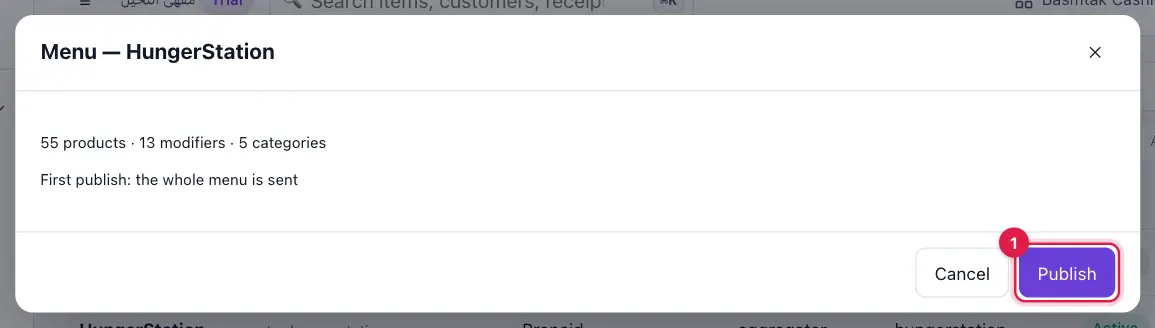
-
7
Send a test order
Open Delivery → Platform orders and press Test order. Pick the channel and branch, then Send. The order appears on the branch till with a TEST tag. It never goes to the kitchen and is never invoiced.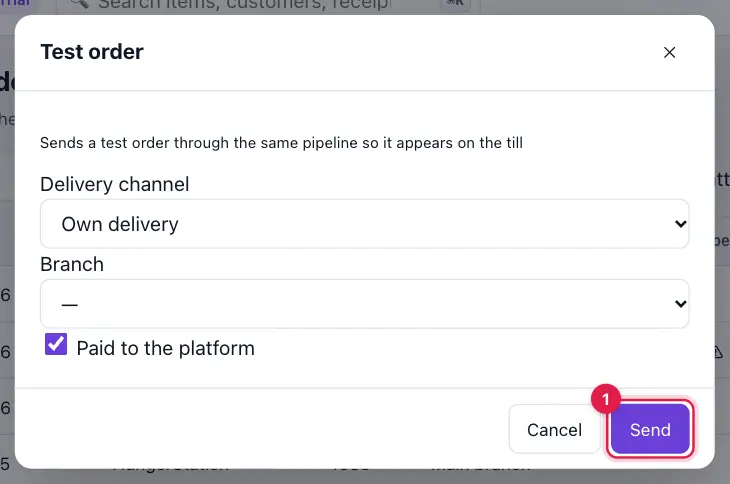
Did this guide help?