-
1
Open the dashboard
In the back office choose Overview → Dashboard. The Today, live page opens with the numbers of the current business day.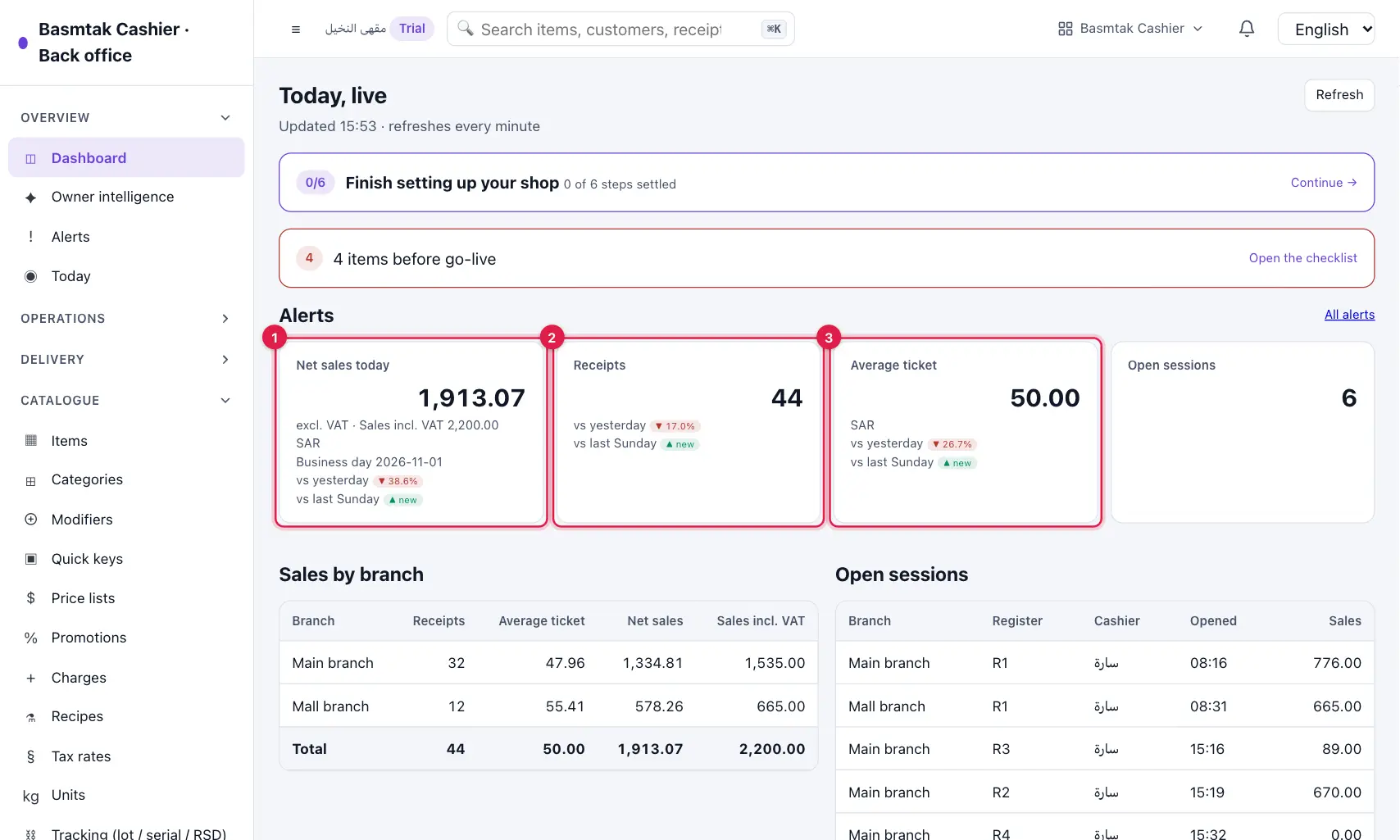
1 Net sales 2 Number of receipts 3 Average ticket -
2
Read the cards at the top
Net sales today is the amount excluding VAT, with the total including VAT under it. Average ticket is what a customer usually pays on one receipt.Good to know: A business day starts at the cutoff you set in settings, which may not be midnight. -
3
Compare with yesterday and last week
Under each card you see the change vs yesterday and against the same weekday last week. The comparison is fair: it counts those days only up to this same time of day. -
4
Follow branches and shifts
Scroll to Sales by branch to see each branch, and Open sessions to see who is working now. Click a session to open its details. By hour shows how sales moved through the day.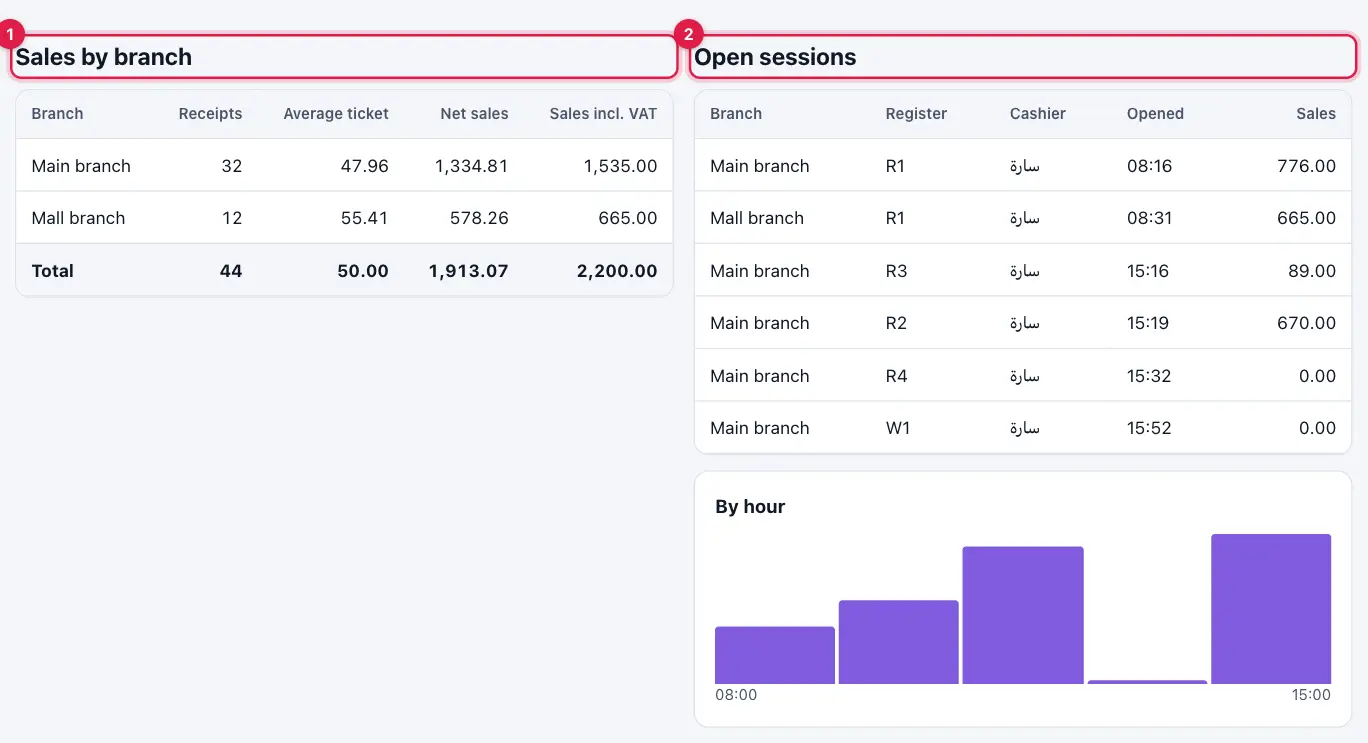
1 Each branch 2 Who is working now -
5
Open the Today page on your phone
Choose Overview → Today. It is a phone-friendly page with today's sales, open tills, approvals and items at their reorder point. You can add it to your phone's home screen and open it like an app.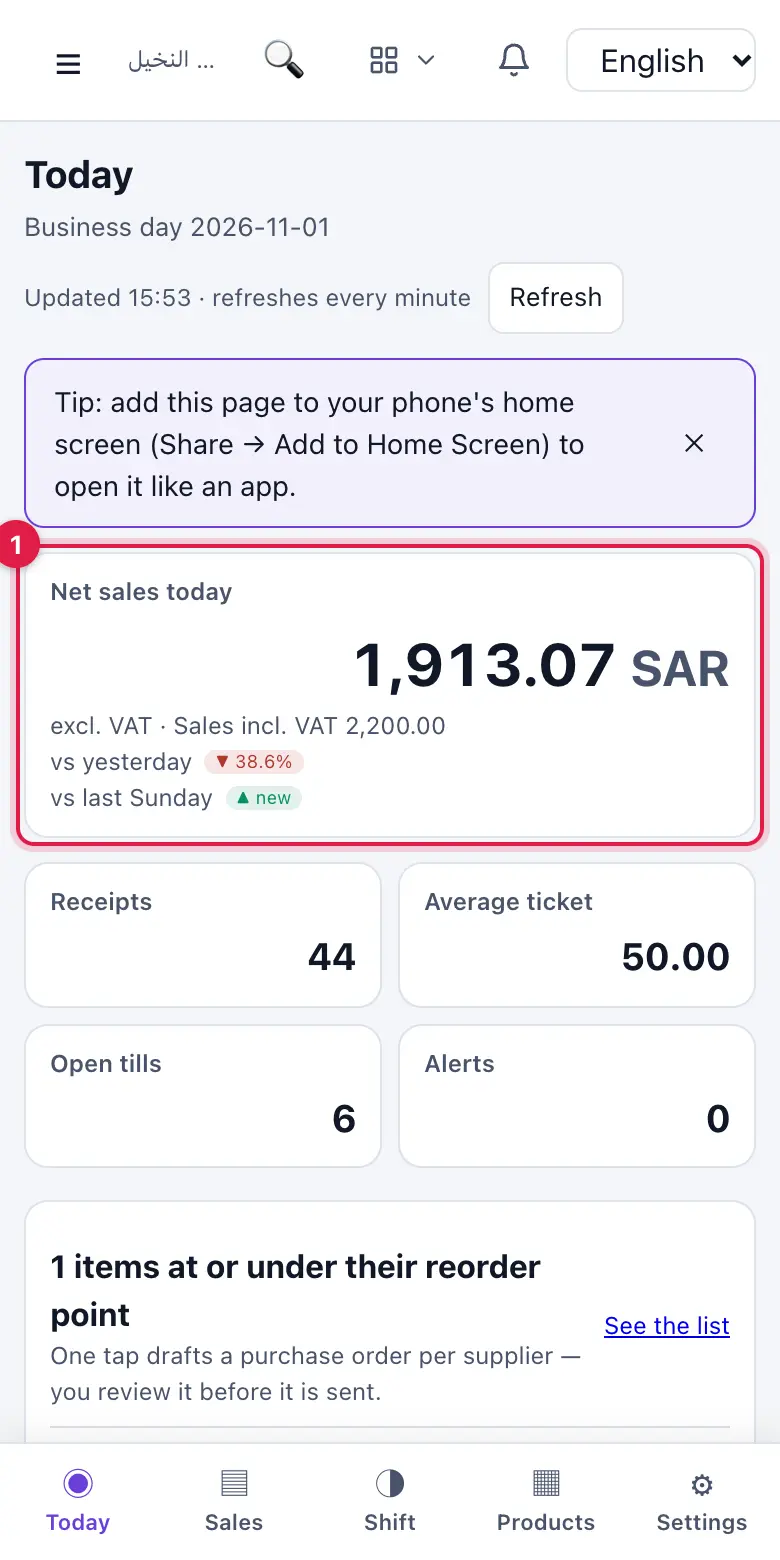
1 Today's sales against yesterday and last week
Did this guide help?