-
1
Open the Business page
In the back office choose Settings → Business. This page is for owners and managers. The top of the page shows your plan and time zone.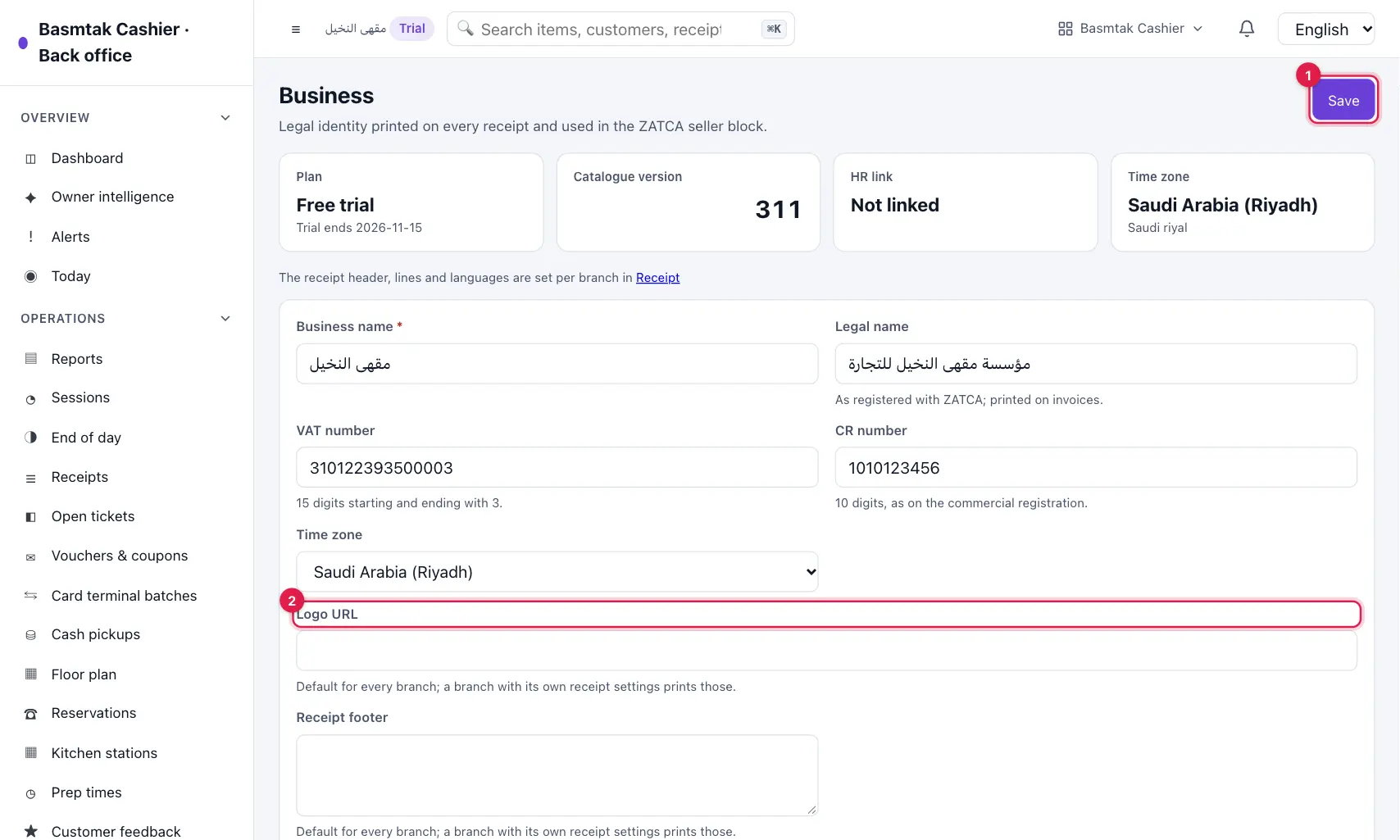
1 The save button. 2 The logo URL. -
2
Edit the legal details
Edit Business name, Legal name, VAT number and CR number. A VAT number is 15 digits starting and ending with 3, and a CR number is 10 digits. These details print on your invoices. Careful: Once devices are linked to ZATCA, changing the VAT number asks you to confirm. Read the message carefully before clicking Yes, change it.
-
3
Set the time zone
Choose your country in Time zone. The business day and all reports follow it.
-
4
Add the logo
The easiest way is to upload the image under Settings → Receipt settings, then Upload logo. The Logo URL box here takes an image address starting with https, and it is the default for any branch without its own logo. Good to know: The logo and receipt details reach devices that are online about a minute after you save, with no need to pair them again. A device that is offline takes them when it reconnects.
-
5
Change a branch address if needed
The national address is not kept on this page. It is set per branch under Organisation → Branches.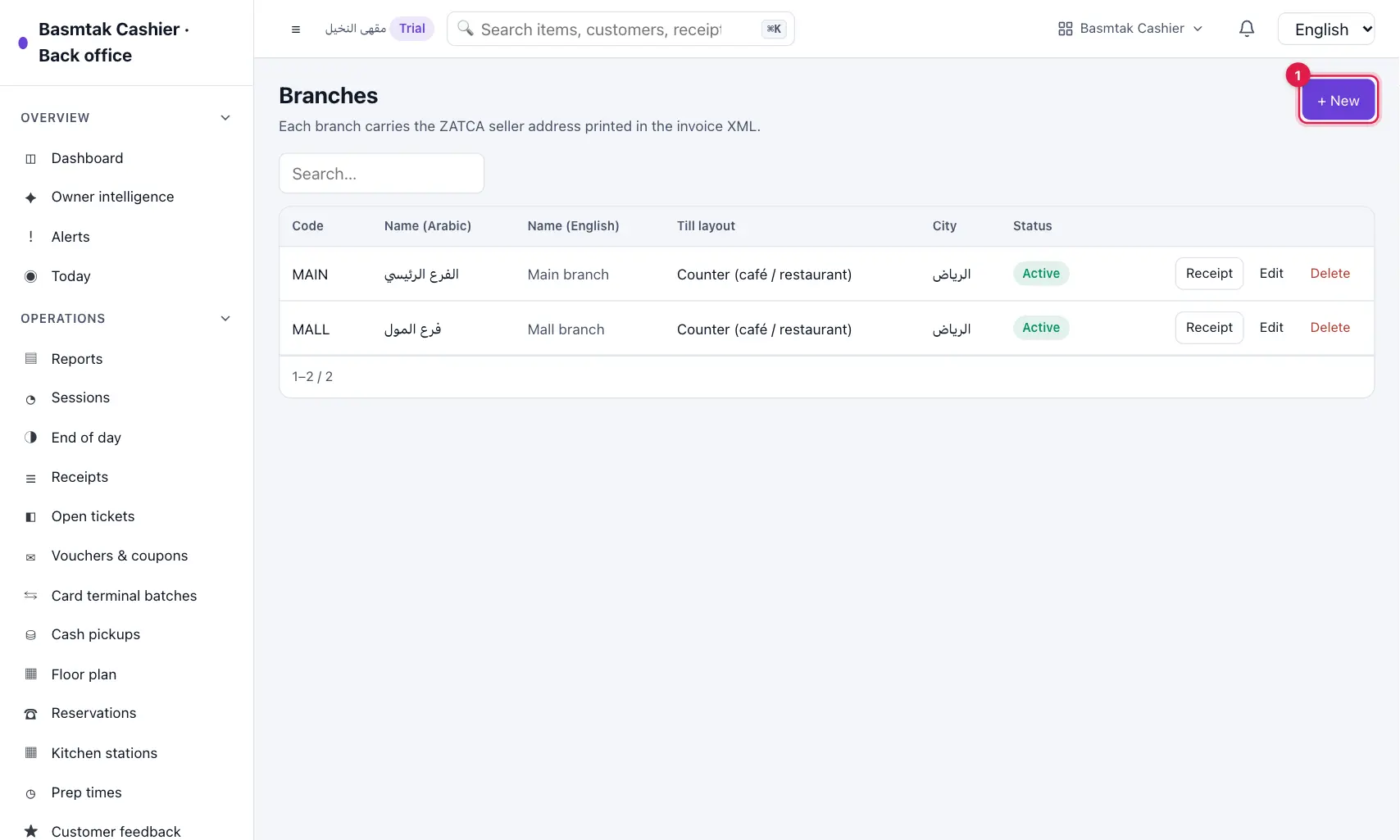
-
6
Save
Click Save at the top of the page. You will see Saved.
Did this guide help?