-
1
Plug in the scanner and test it
Connect the scanner to the till by USB or Bluetooth; it works like a keyboard. On the sell screen scan any item and it is added straight away. To test it, open Printers, then the Scanner and scale tab, and scan a barcode; the number shows in the box.
1 What the scanner ends each code with. 2 The test box. Tip: If the number shows but the item is not added, set Scanner ends each code with to what your scanner sends. Most scanners end with Enter. -
2
Scan with the camera
No scanner? Press the camera button next to the search box on the sell screen. In the settings choose Back camera or Front camera.
-
3
Choose how you use a scale
On the same tab set Scale to No scale — type the weight so the cashier types it, or Weight in the label barcode if your scale prints labels. Scales connected directly by cable or Bluetooth need the installed Cashier app.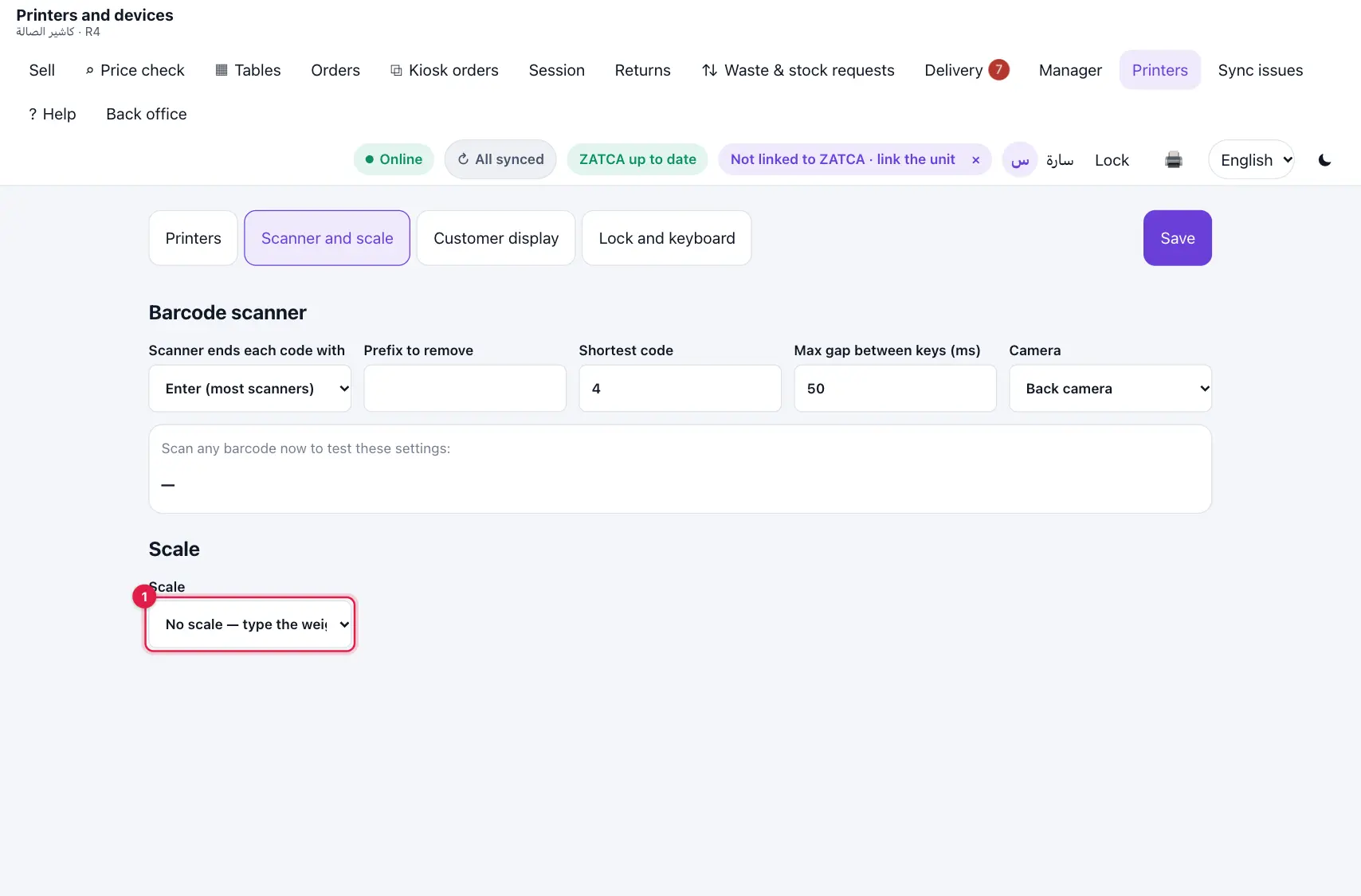
The scale choices for the register. -
4
Set up the scale items
In Catalogue → Scale items press Scale item. Choose the item and type the PLU, tare and shelf life. Turn on Let the till read this scale’s labels and press Save. Then press Export PLU file (CSV) and load the file into the scale's software. Good to know: The till reads labels starting with 21 (weight in the barcode) or 23 (price in the barcode). Scan the label like any item.
Did this guide help?