Good to know: Open your shift first. If it is closed, a message asks you to open one before selling.
-
1
Get to know the screen
The sell screen has two sides. On the items side you pick what the customer buys. On the ticket side you see what you added and the amount. The ticket is the customer's list before payment. After payment it becomes a receipt.
1 Search. 2 Categories. 3 Items. 4 Order type. 5 Ticket lines. 6 Totals. 7 Ticket buttons. 8 Pay. -
2
Pick from the items
Tap a category in the side bar to show its items, or tap All to show everything. If a manager set up quick keys, they are under Quick keys. Three dots instead of a price mean the item has sizes to choose from after you tap it. -
3
Check the ticket
Above the lines you see the order type, Add customer and the number of parked tickets. The ticket gets a number such as Order 515 when the first item is added. Under the lines are the totals, with VAT shown. -
4
Use the ticket buttons
Void ticket cancels all of it. Park keeps it for later. Kitchen sends new items to the kitchen and shows when the kitchen is turned on. The large Pay button opens the payment screen and shows the amount. -
5
Open More for the other options
The More button holds the ticket options you use less often, such as Call name, Guests, Pickup time, Split order and Print pre-bill. The list changes slightly with your business settings.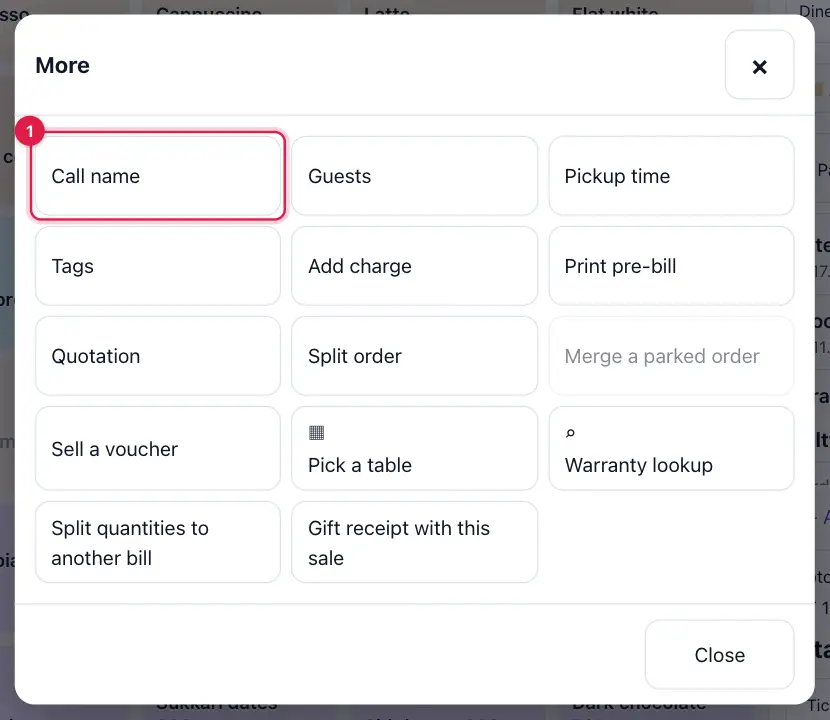
-
6
Use the keyboard shortcuts
If the till has a keyboard, this is the fastest way to work:- F2 opens Pay.
- F4 parks the ticket.
- / jumps to the search box.
- Type a number, then *, to set the quantity of the next item.
- Esc clears the search or closes the open window.
Good to know: F2, F4 and / do not work while a window such as Discount or Note is open. Close the window first.
Did this guide help?