-
1
Open Orders
Press Orders in the till's top bar. It lists today's orders on this till and works offline. -
2
Find the receipt
Type the order number, receipt number, customer name, the last 4 digits of their mobile, or the amount. To search further back choose the period Last 7 days or Last 30 days, or filter by order type and payment.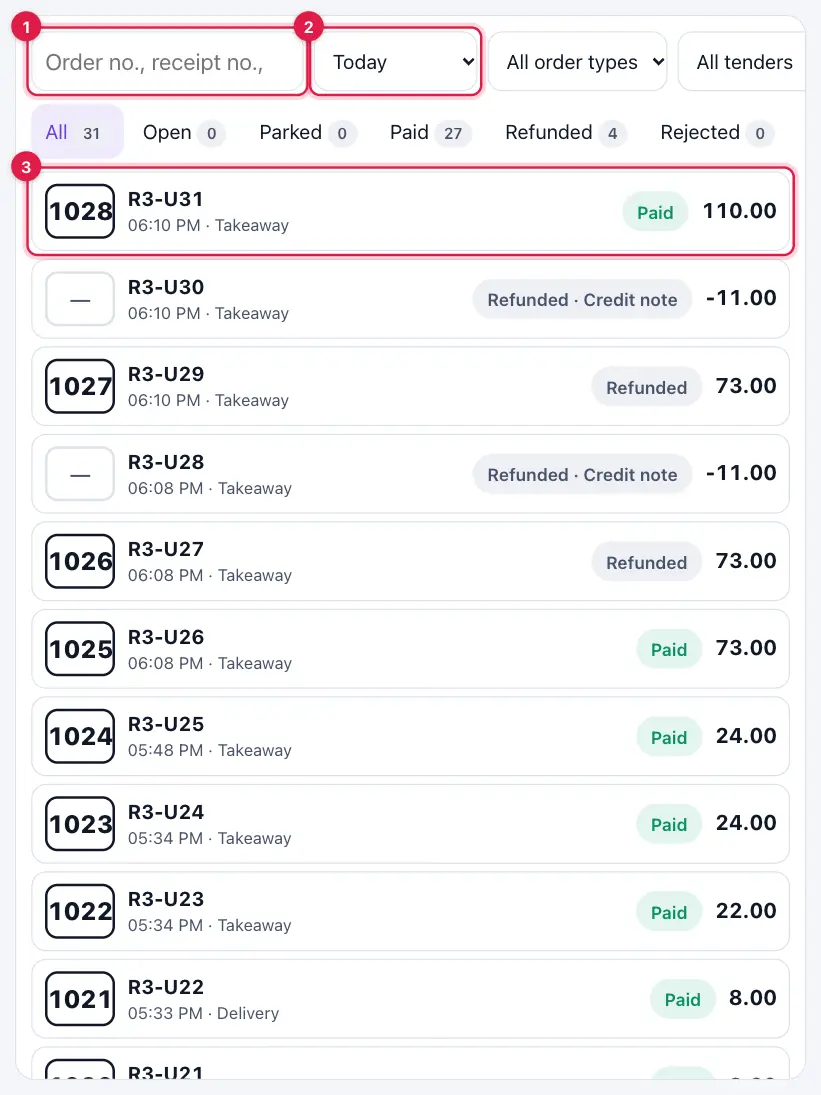
1 Search. 2 Period. 3 An order: tap to open it. 4 Older / from server. -
3
Search older receipts
Press Older / from server to fetch receipts from the server. This needs the internet. If you are not signed in as a manager, type the full receipt number, such as R1-418. To search every branch, open Operations → Receipts in the back office. -
4
Print a copy
Tap the order to open its details, then Reprint (copy). A copy prints with the same number and QR code, marked as a copy. No new receipt is created and nothing on the receipt changes.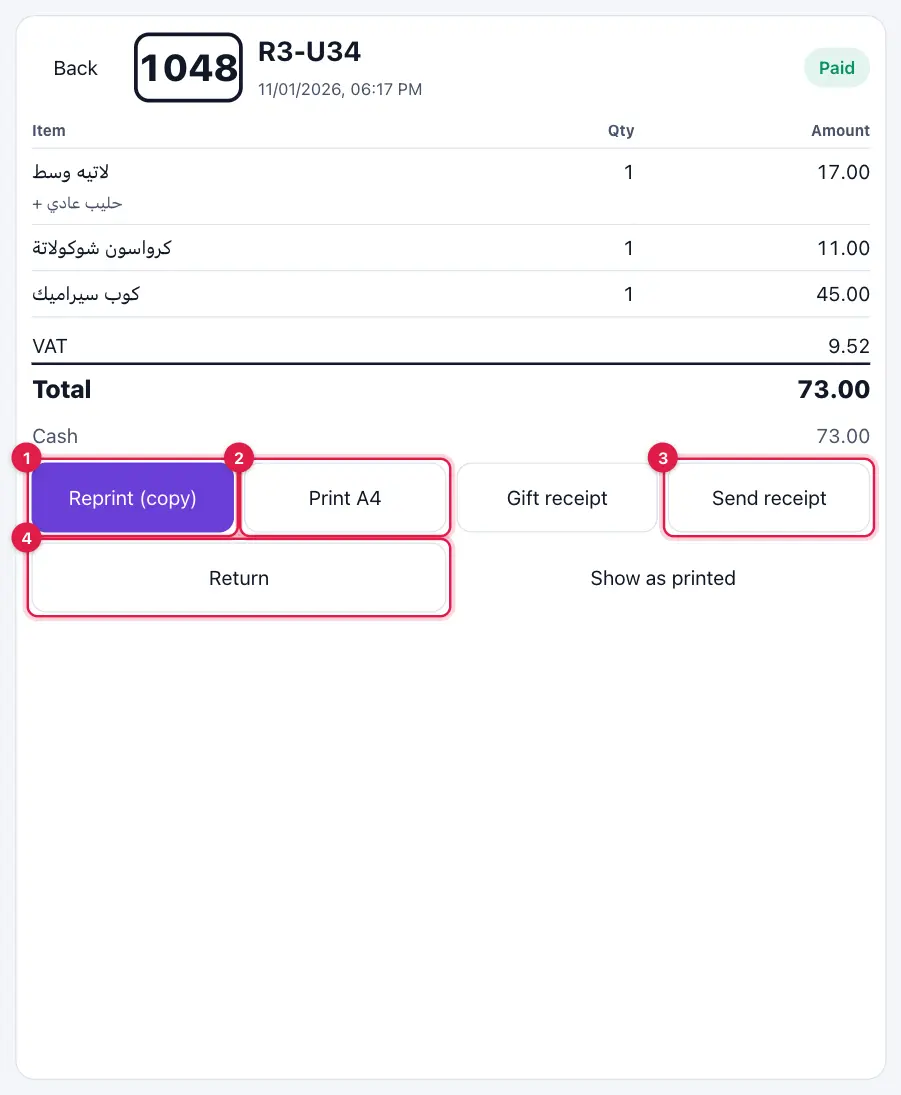
1 Reprint. 2 Print A4. 3 Send receipt. 4 Return. -
5
Use the other options
Print A4 prints it on full-size paper. Send receipt sends it to the customer. Show as printed shows it on the screen. Return takes you to Returns with this receipt.Careful: An issued receipt cannot be edited. To correct it, use Returns.
Did this guide help?