Good to know: The VAT category is an accounting decision, so check with your accountant before changing it.
-
1
Get to know the VAT categories
In the menu choose Catalogue → Tax rates. There are four ZATCA categories: S standard 15%, Z zero-rated, E exempt and O out of scope. The one marked Default applies to every item you have not given a category.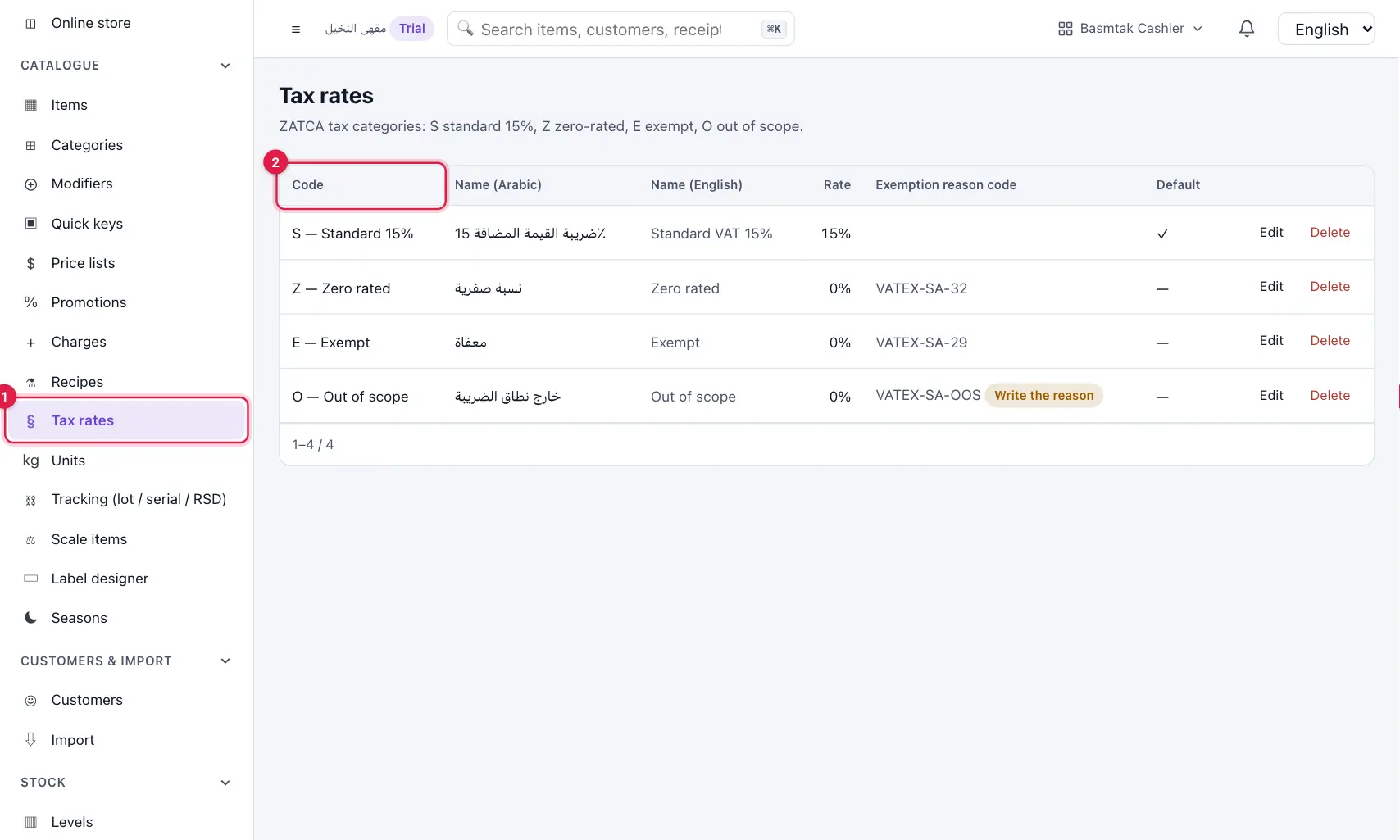
1: Tax rates in the menu. 2: The Code column. -
2
Write the exemption reason
Categories Z, E and O need a reason, written into the e-invoice. Press the category, type the Exemption reason code, such as VATEX-SA-32 for exports, and the Exemption reason text, then press Save. If you see the Write the reason badge, the current text is only a placeholder and must be changed before selling.
1: Reason code. 2: Reason text. -
3
Choose the category for the item
Open the item from Catalogue → Items. In Tax choose the category, then press Save. Leave it on Business default for normal items.
The Tax field on the item. Good to know: Item prices include VAT. Changing the category does not change the price, only the VAT worked out of it. -
4
Change many items together
On the Items screen select the items, or press Select page, then press Bulk edit. In Tax choose Set to… then the category, and press Apply.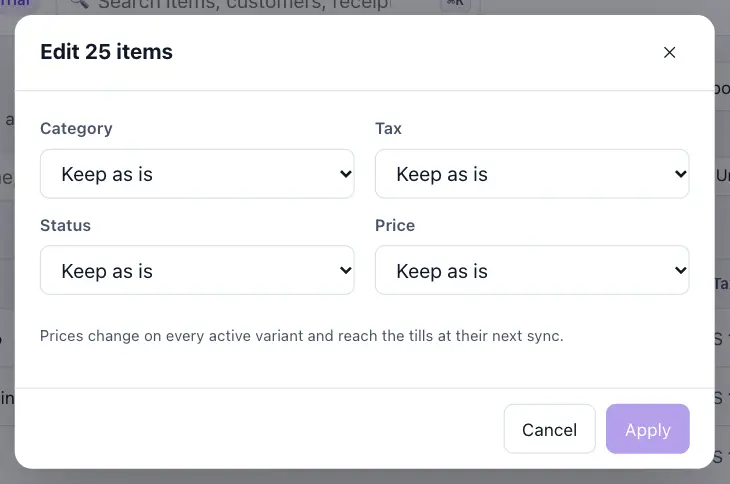
The bulk edit window.
Did this guide help?