-
1
Tap the line
Tap any line on the ticket. It is highlighted and its tools appear under it. Tap it again to hide them.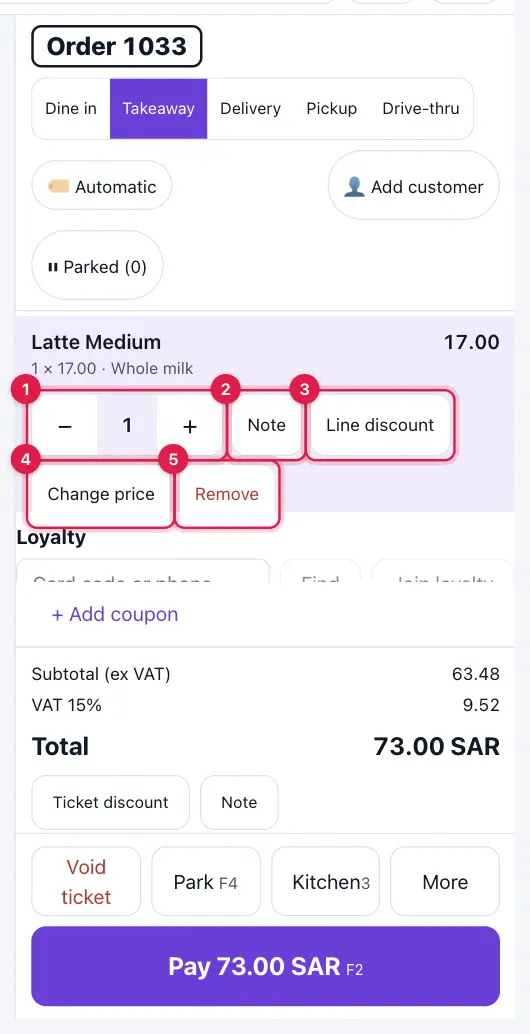
1 Quantity. 2 Note. 3 Line discount. 4 Change price. 5 Remove. -
2
Change the quantity
Press + to add one and − to take one away. For items sold by weight you see a Qty button instead: type the weight, up to three decimals, then Confirm. -
3
Add a note
Press Note, type what applies to this item, such as "no sugar", then Done. The note shows under the line. For a note on the whole ticket, use the Note button under the totals. -
4
Remove the item
Press Remove and pick the reason in the window. The line goes straight away. The same window appears if you press − when the quantity is 1. Careful: If the item already went to the kitchen, the pre-bill was printed, or part of the ticket is paid, removing counts as a void. It needs the void permission or a manager's approval. For an item already in the kitchen, the removal is sent to the kitchen too.
Did this guide help?