Good to know: A register is a till position with its own receipt numbers. Each extra till in a branch counts as an add-on in your subscription: see the pricing page.
-
1
Open Registers
Choose Organisation → Registers, then press + New.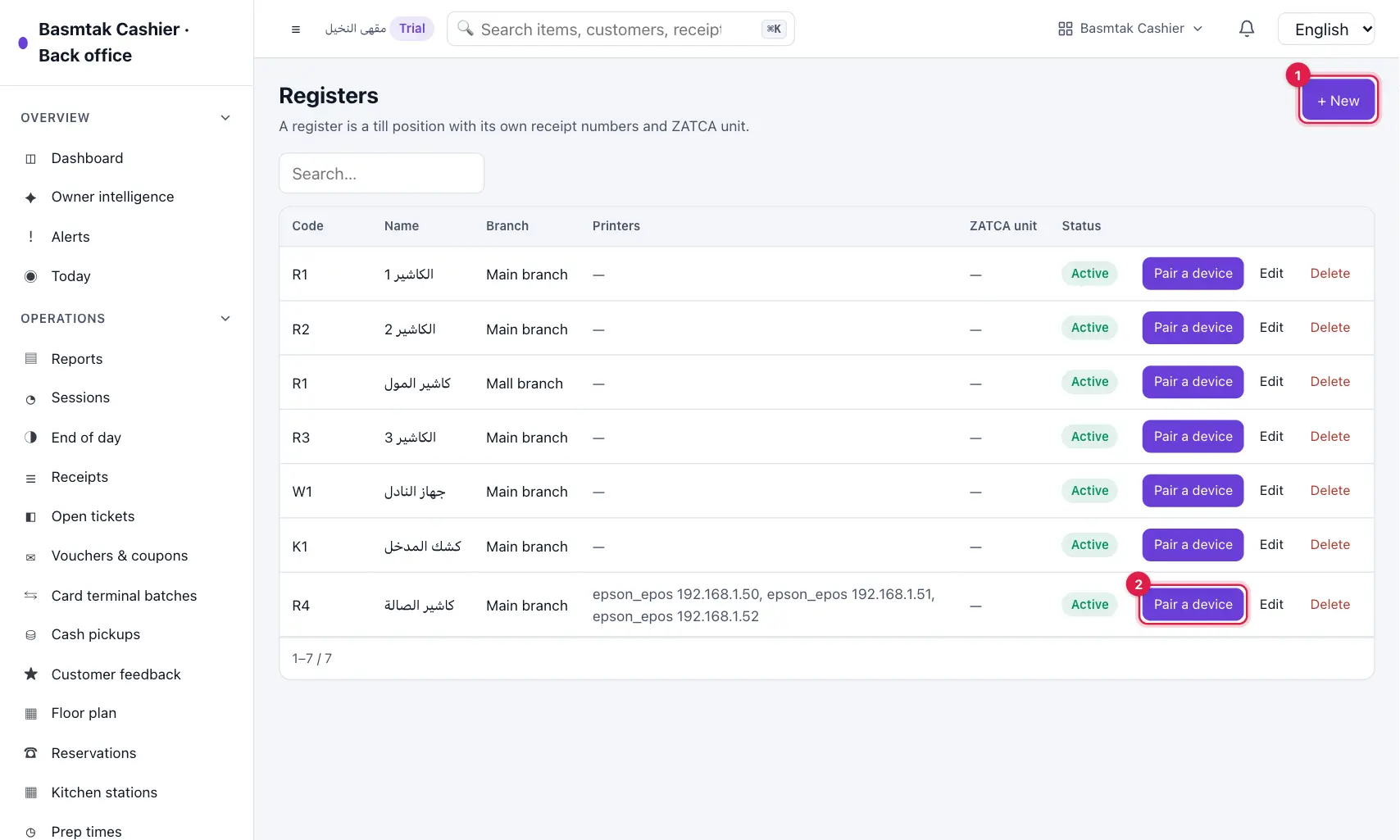
1 Add a register 2 Pair a device to an existing one -
2
Fill in the register
Choose the Branch, type a Code such as R2, then a Name, and press Save. The code is short and unique in the branch, and it becomes the receipt prefix, such as R2-418.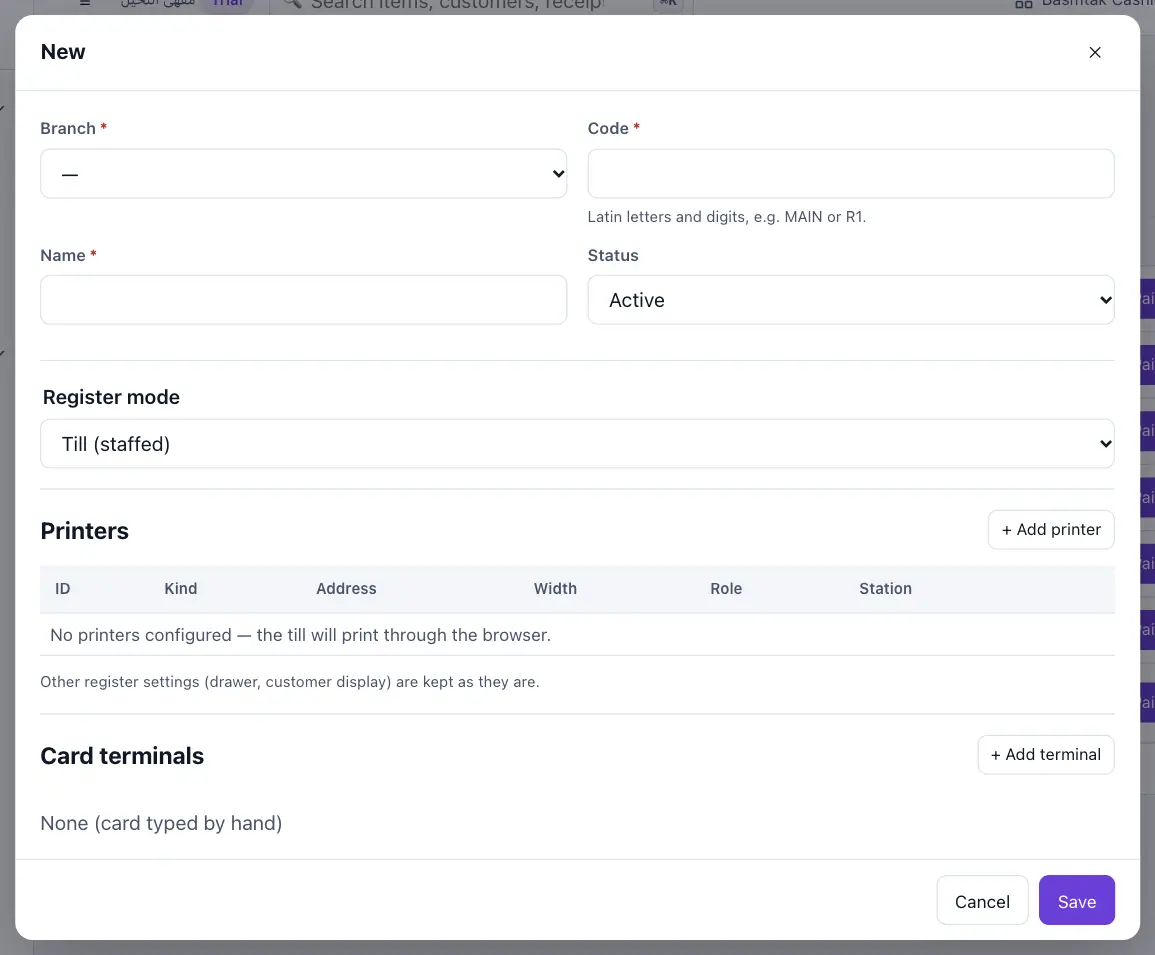
-
3
Create the pairing code
On the register's row, press Pair a device. Under Device type, choose Till or another type, such as Kitchen screen or Customer display. Then press Create code. A code and a QR appear with their expiry time.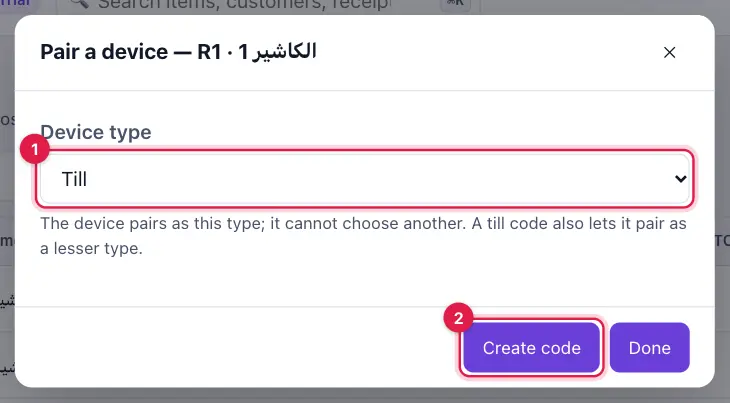
1 Device type 2 Create the code -
4
Enter the code on the device
Open the cashier app on the new device. Type the code under Pairing code or scan the QR, then press Pair. The device downloads the catalogue and is then ready.Careful: Pairing needs the internet. If the code has expired, press New code in the back office.
Did this guide help?