The till creates a payment link from your own Tap account and shows it as a QR code, and the customer pays from their phone. The money goes straight to your Tap account. The link runs on your keys, but we call it beta because it has not been run on a real merchant account yet. Start with a small payment.
Before you start
- A merchant account with Tap.
- From the Tap dashboard: the secret key, public key and merchant ID.
- An internet connection at payment time.
-
1
Enter your Tap keys
Open Compliance → Integrations → Tap Payments. Enter the Secret key, Public key and Merchant ID, then press Save.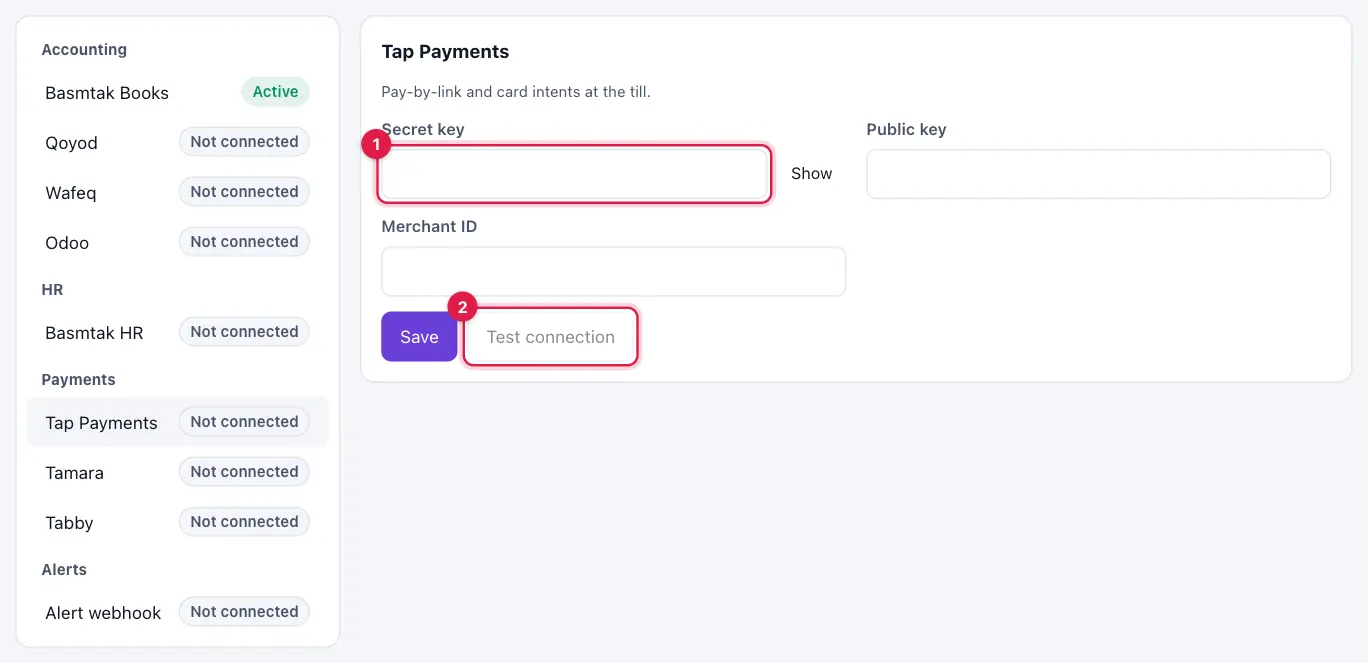
-
2
Test the connection
Press Test connection. Connected should appear. -
3
Take a payment at the till
On the Payment screen choose Tap link and create the link. The customer scans the code and pays. The till checks the payment with Tap, then adds it to the bill. The window cannot be closed while it waits unless you cancel.Careful: A link cannot be cancelled at Tap: the customer can still pay it. Cancel only if they pay another way.
What moves between the systems
| What | Direction | Details |
|---|---|---|
| Payment | To Cashier | The till confirms the payment by asking Tap directly. |
| Accounting | From Cashier | With an accounting system linked, it is booked to <b>Tap clearing</b>. |
FAQs
Where does the money go?
Straight to your Tap account, on the terms of your agreement with Tap.
Does it work offline?
No. This method needs a connection.