If your old system is not listed, any Excel or CSV file will do, and you match its columns in the preview. You can also export your current items, change prices in Excel and upload them to update.
Before you start
- An Excel or CSV file with a header row.
- An owner or a manager.
-
1
Export the file from your old system
Prepare a file with a header row. For suppliers, the supplier name is required. To update prices, choose Update products from Excel on the import screen, press Download the template (export items) and change what you need in that file. -
2
Upload the file
Open Customers & import → Import. Choose the source Excel / CSV for items, Suppliers from Excel / CSV, or Update products from Excel, pick the file, then press Upload & preview.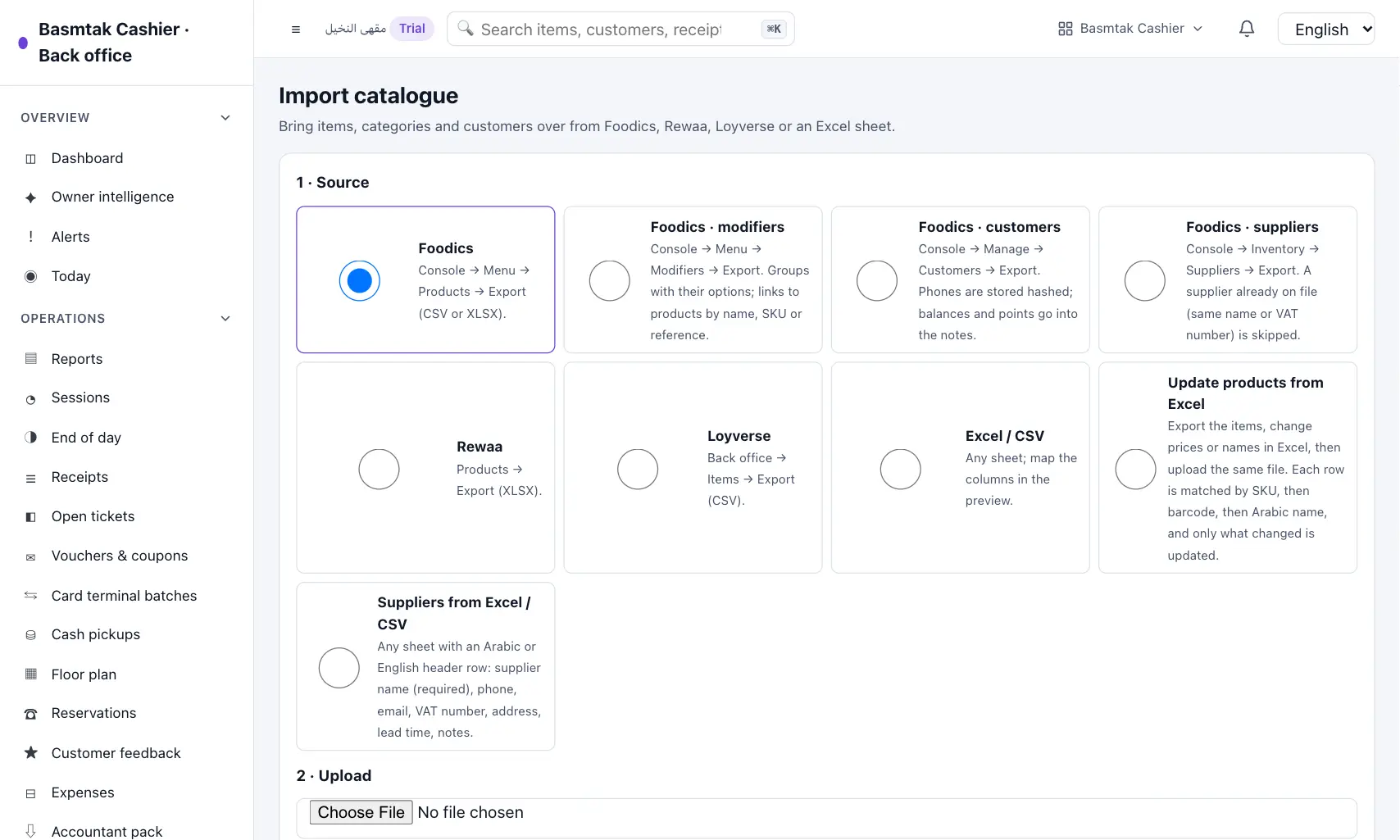
-
3
Review the preview
The preview shows the counts and the first rows. If a column is not matched, pick it under Column mapping and preview again. Nothing has been created yet. -
4
Apply the import
Press Apply import. Items already there under the same name or SKU are skipped, not duplicated. If something looks wrong, press Undo in Import history.
What moves between the systems
| What | Direction | Details |
|---|---|---|
| Items or suppliers | To Cashier | Depending on the source you choose. |
| Item updates | To Cashier | Each row is matched by SKU, then barcode, then Arabic name, and only what changed is updated. |
FAQs
Is there a template?
A new import needs no template: any sheet works, and you match its columns in the preview. To update items there is a Download the template (export items) button.
I do not need a column. What do I do?
Leave it unmatched. Unmapped columns are ignored.