The direct link is built for these six platforms, but it is in beta: each platform's formats were written from its public documentation and have not yet been activated on a real account. It needs your own integration contract with the platform and credentials the platform gives you. Contact support before you start so we can test it with you. Until then, use the manual channel.
Before you start
- An integration contract with the platform, requested by you, to open a point-of-sale link.
- From Jahez, ToYou, Mrsool and Ninja: an API key and a webhook secret. From Keeta and Noon Food: a Client ID, a Client secret and a webhook secret.
- Your store ID at the platform for each branch.
- An owner or a manager.
-
1
Open Direct platforms
Open Delivery → Direct platforms. Each platform shows its Link: Not added, Keyed in at the till or Linked directly. Press Connect directly.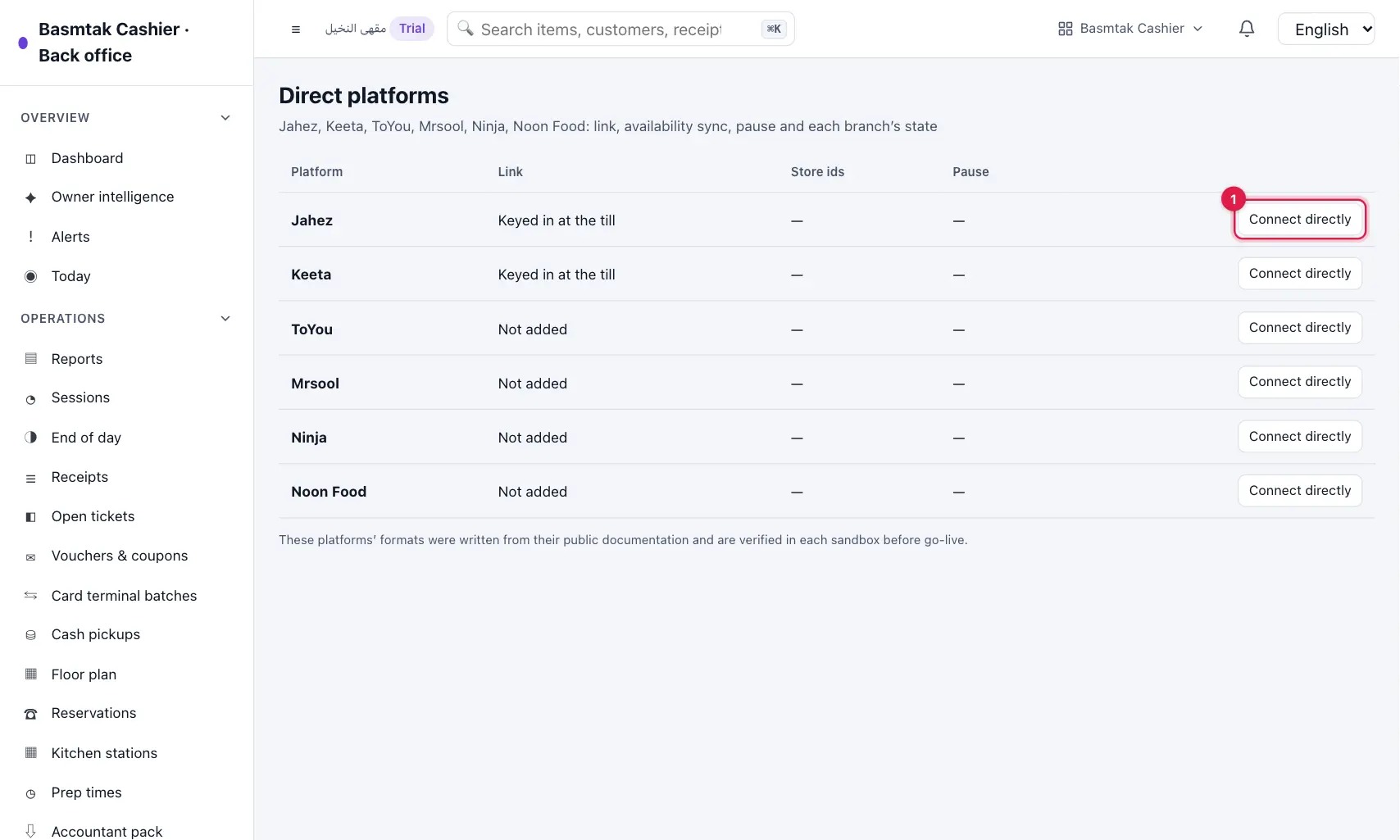
-
2
Enter the platform's credentials
Enter the credentials the platform gave you, then the Platform store ID for each branch, and press Save. With a single store, Location ID is enough.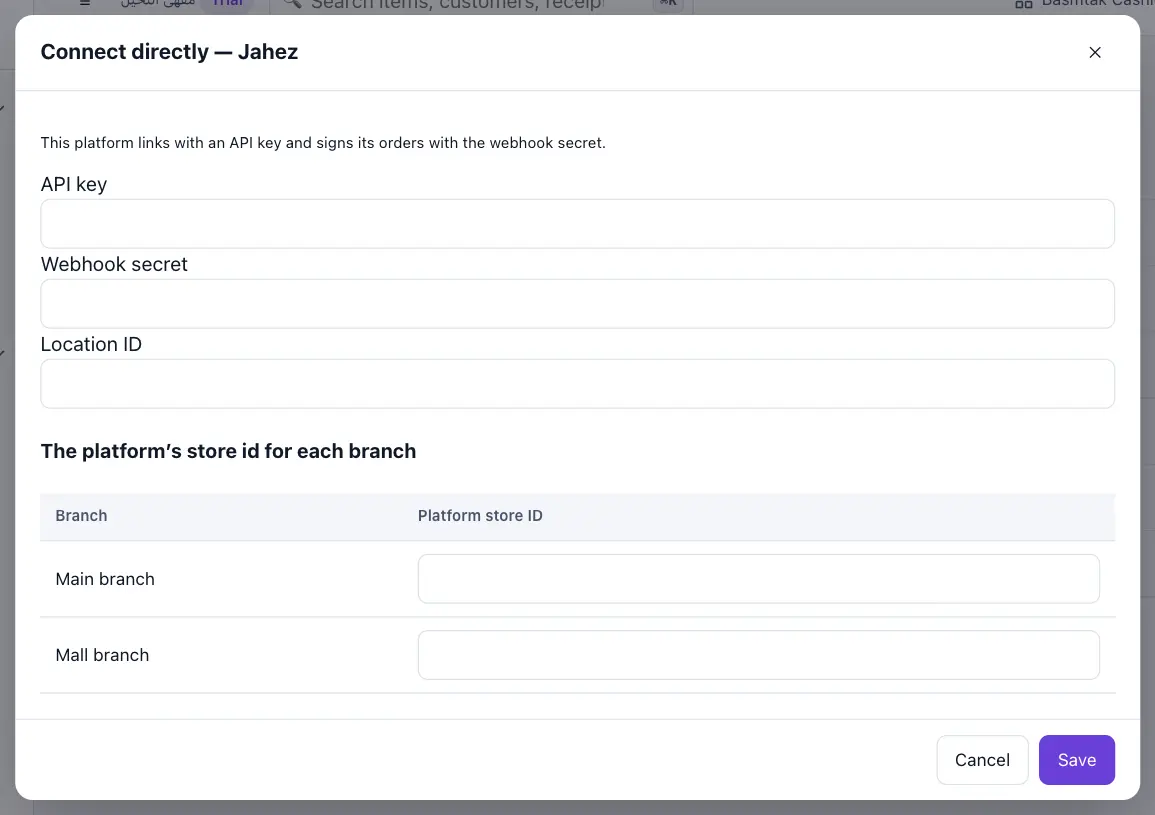
-
3
Give the platform the webhook URL
After you save, the Webhook URL appears. Copy it and give it to the platform's integration team. Orders arrive on it.Careful: The URL works like a key, so do not share it. If you change it with Rotate key, tell the platform or orders will stop. -
4
Publish the menu and match the items
From Delivery channels press Menu on the channel, review the changes, then press Publish. What changed is sent to the platform. -
5
Try an order
Open Delivery → Platform orders, press Test order, choose the channel and branch, then Send. The order reaches the till marked as a test and the platform is not told. An item that did not match shows as Unmapped: choose it from Map to item….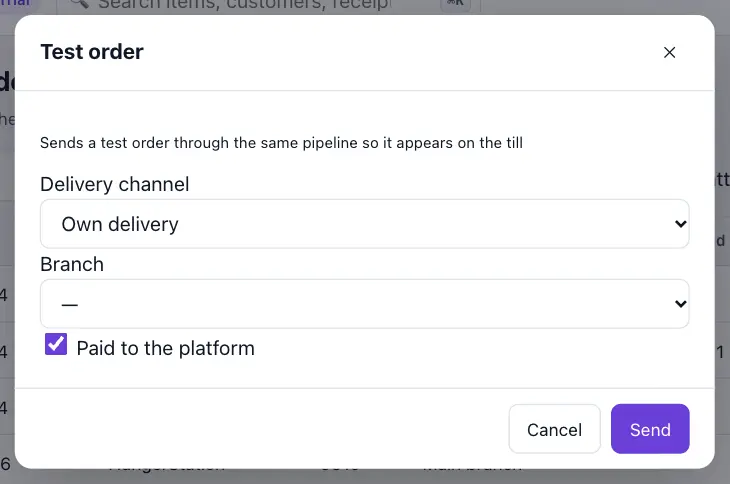
-
6
Daily work
Orders appear under Incoming orders at the till: Accept with a prep time or Reject with a reason, then Ready for pickup. Auto-accept can be turned on per branch in the channel. From the till you can pause taking orders or turn on busy mode, and Branch states shows what the platform was told.
What moves between the systems
| What | Direction | Details |
|---|---|---|
| Orders and cancellations | To Cashier | They reach <b>Incoming orders</b> in the branch that matches the store ID. |
| Order status | From Cashier | Accepted, rejected, ready, handed over and cancelled. |
| Menu | From Cashier | Items, categories and modifiers, when you press <b>Publish</b>. |
| Availability | From Cashier | A sold-out item stops by itself and returns when available. You can send it all again with <b>Sync availability</b>. The record is in <b>Availability log</b>. |
| Branch state | From Cashier | Pauses and busy mode, plus prayer and opening-hours closures if set for the branch. |
FAQs
Is the direct link ready to use?
It is built and on the screen, but it is in beta and has not run on a real account yet. Contact support before you activate it. A small change may be needed after testing with the platform.
Does your team provide the platform contract?
No. The contract is between you and the platform, and it issues the credentials to you.
Can I go back to manual?
Yes. In Delivery channels, set Provider to Manual (no link).
What if the internet goes down?
Direct orders need a connection to reach the till, and the platform controls stop too until it is back.