جاننا مفید ہے: You need a tablet or touch screen in the kitchen with internet.
-
1
Create the stations
Operations → Kitchen stations lists your stations with each one's code and status. The Code must match what you typed in Kitchen station on the categories.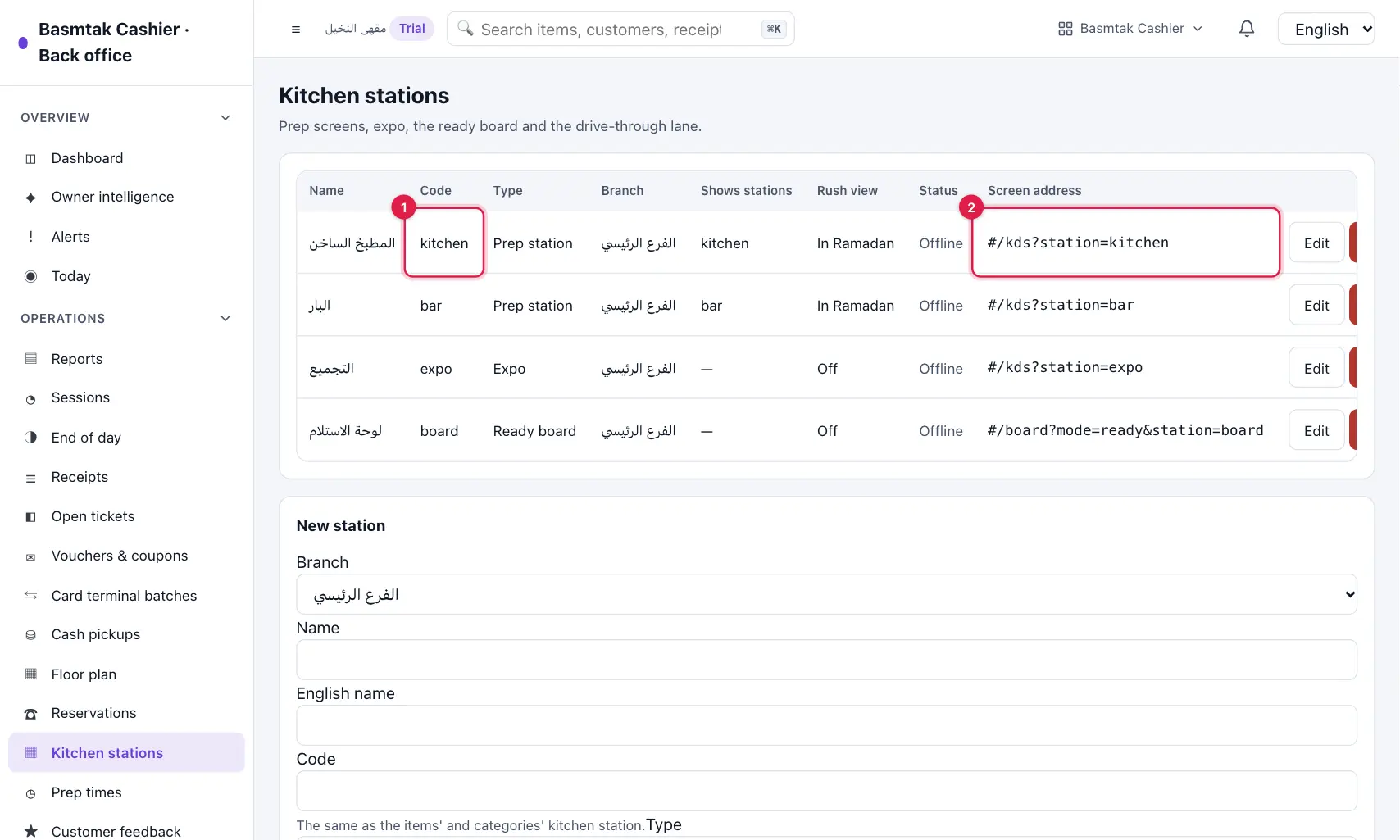
1 The station code. 2 The screen address for this station. -
2
Fill in the station
Under New station choose the branch and type the Name and Code. Choose the Type: Prep station for cooks, Expo for whoever assembles the order before it goes out, Ready board for a screen customers watch, and Drive-through lane for car orders. Set Target (seconds) and press Save. مشورہ: In Shows stations, one screen can show several stations: type their codes separated by commas, or * for everything.
-
3
Create a pairing code for the screen
In Organisation → Registers press Pair a device. Set Device type to Kitchen screen, or Order board for the customers' board, then press Create code. A code and a QR appear, and the code expires after a while.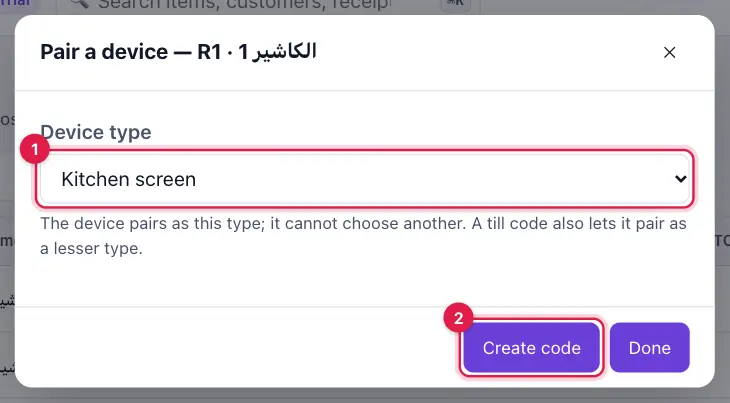
1 The device type. 2 Create the code. -
4
Pair the device and pick the station
On the kitchen device open cashier.basmtak.com/connect and type the code, or scan the QR. After pairing, pick the station from the list. The device remembers your choice next time.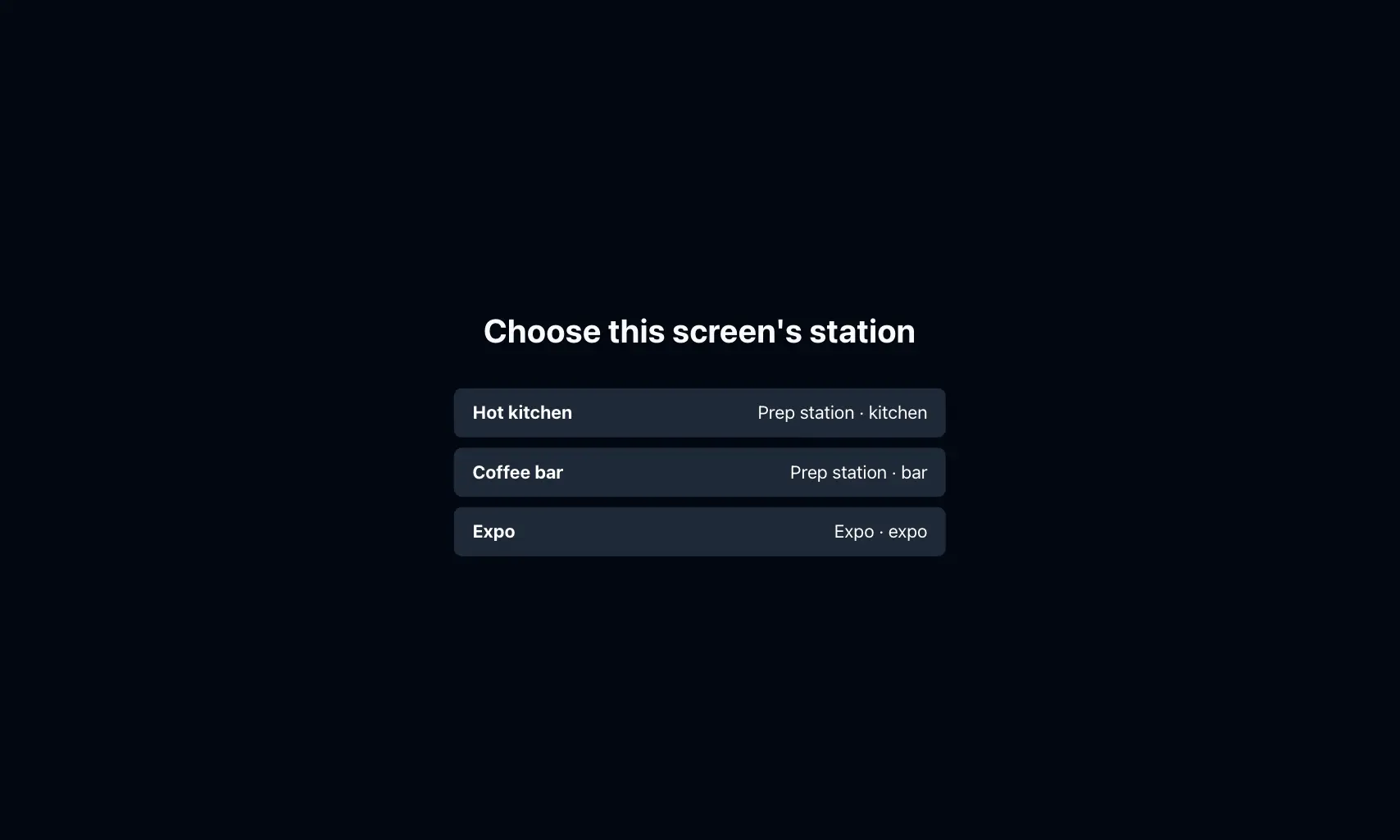
The list of stations shows after pairing. -
5
Follow and finish the orders
Each order is a card with its items and a timer. The bar on top of the card is green, turns amber at 75% of the target time and red once the target has passed. Press Start when you begin and Bump when you finish. Tap a line to tick one item. If you bump an order by mistake, press Recall at the top of the screen.
1 Start. 2 Bump. 3 The timer. مشورہ: With a bump bar: keys 1 to 9 bump the order in that position, 0 recalls the last one and Space starts the next order. -
6
Show order numbers to customers
Pair a screen as Order board and pick a Ready board station. Orders show in two groups, Preparing and Ready, and a number moves across when the kitchen finishes it.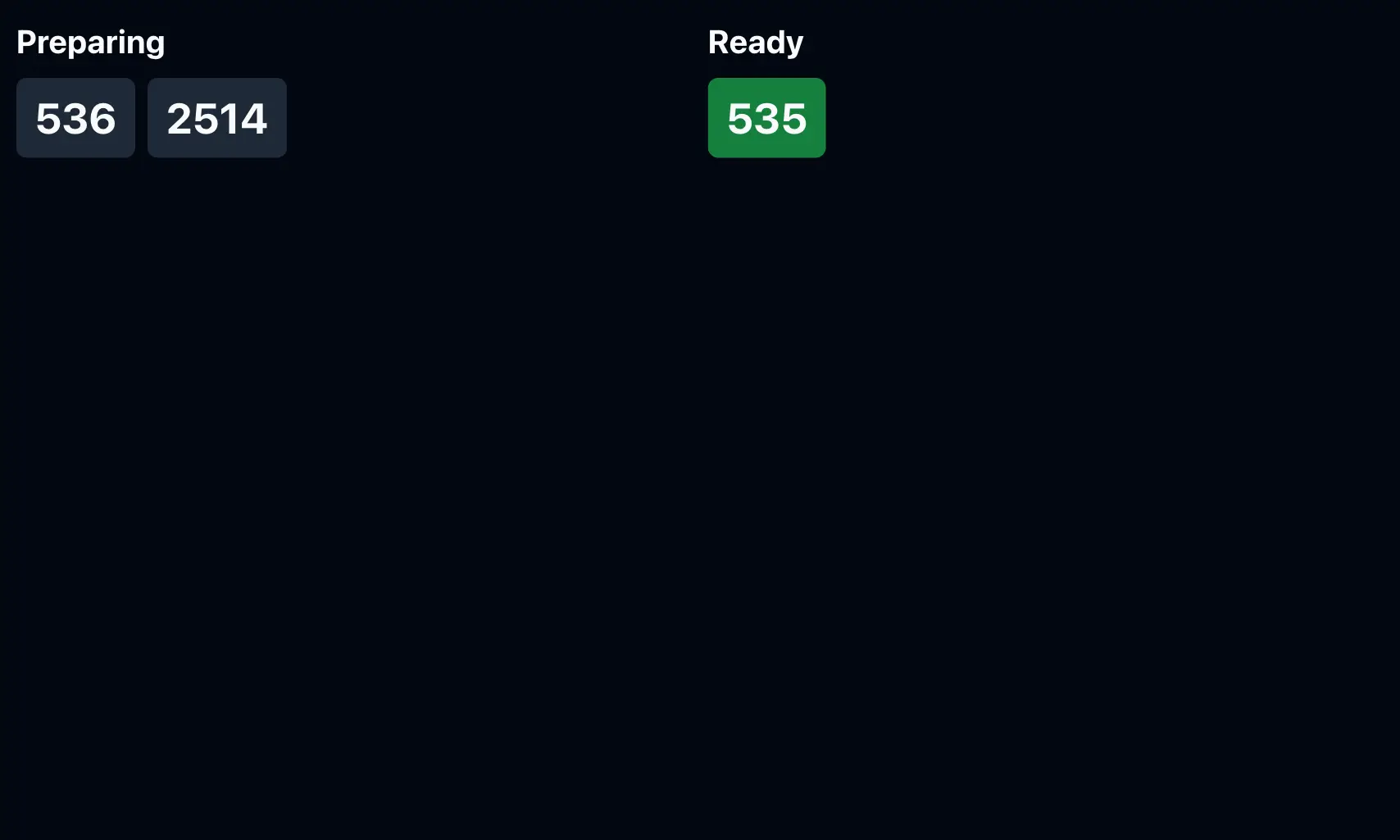
The pickup board as the customer sees it. -
7
Check the prep times
In Operations → Prep times choose the period and press Show. You see the average time and the late orders per station, hour and item. You can set Target (minutes) for each item in the same table. جاننا مفید ہے: Rush view runs by itself in Ramadan if you choose In Ramadan: identical items from all orders are added up at the top of the screen.
کیا اس رہنمائی سے مدد ملی؟