جاننا مفید ہے: You need a manager PIN and a thermal printer that is on and has paper.
-
1
Connect the printer to the network
Connect the printer to the same router as the till, by network cable if you can. Print the settings page from the printer itself to find its IP address; it looks like 192.168.1.50. -
2
Open the Printers screen
On the till press Printers in the top bar. If asked for a PIN, enter a manager PIN. Then press Add printer. In the Cashier app you also get Scan the network and USB / Bluetooth to look for the printer.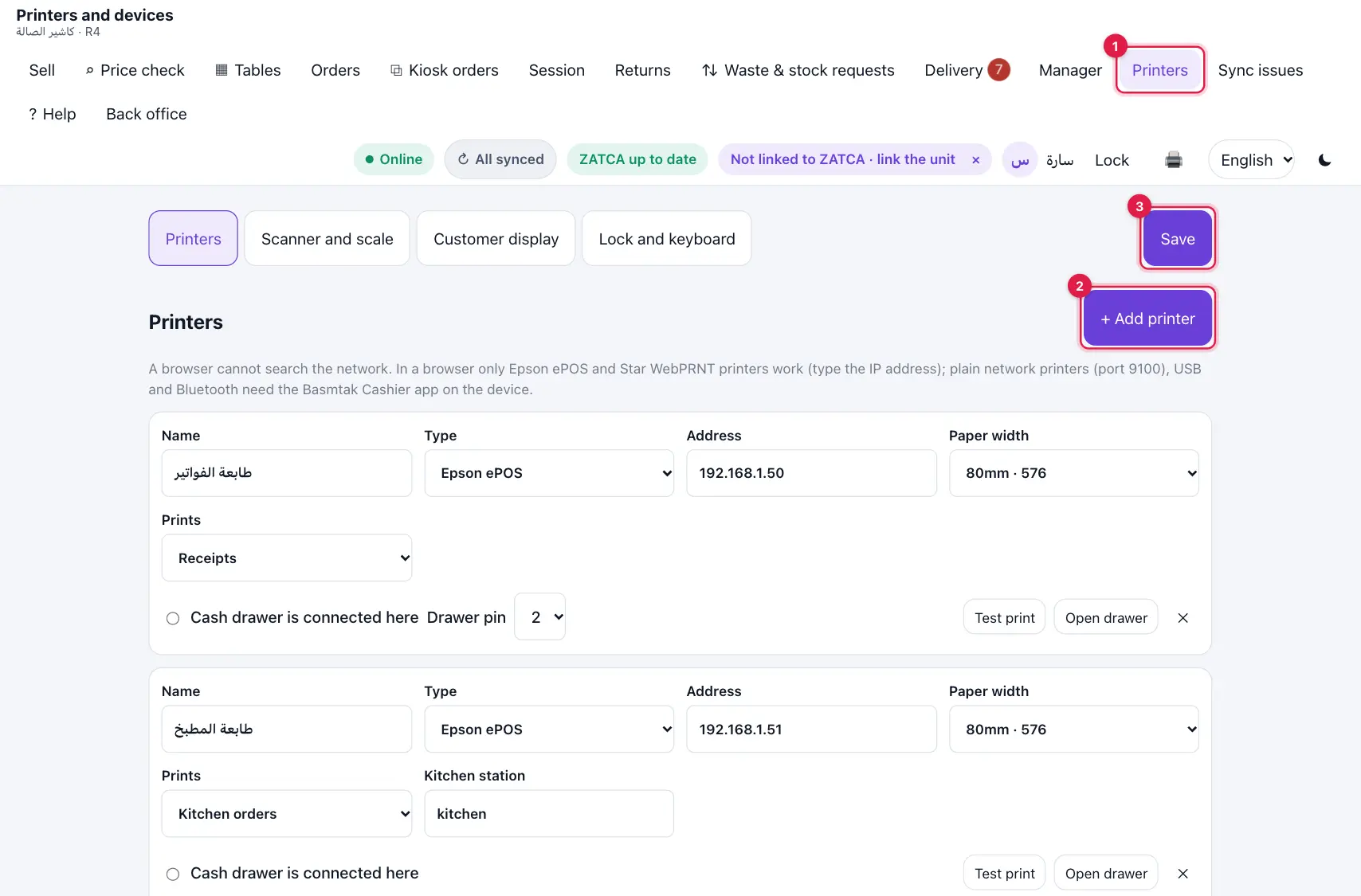
1 Printers. 2 Add printer. 3 Save. -
3
Fill in the printer
Type the Name, choose the Type, type the IP in Address and pick the Paper width, 80 or 58 mm. Set Prints to Receipts. Press Test print: a page with Arabic and English text should come out.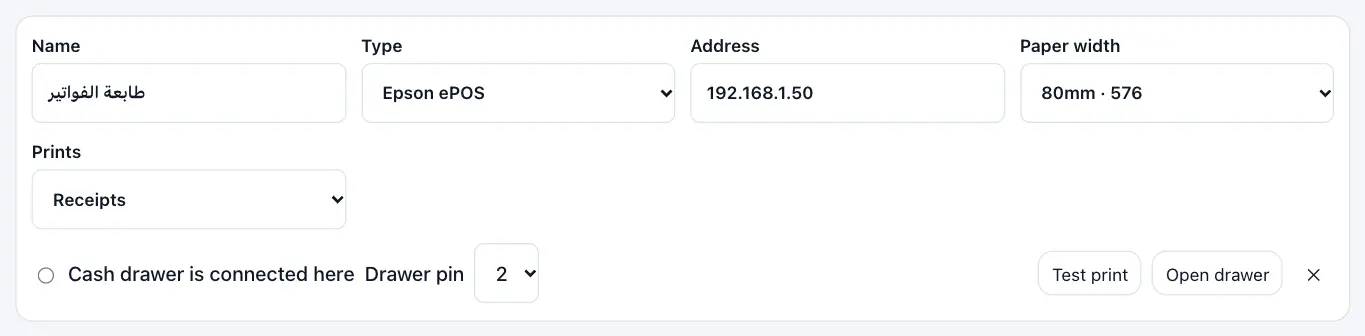
The test print button for this printer. احتیاط: In a browser choose Epson ePOS, Star WebPRNT or Browser print. Other types show a message that they need the Cashier app. -
4
Save
Press Save at the top. Saved for this register shows. The setting belongs to this register only, so repeat it if you have more than one. Saving needs the internet.
مشورہ: With no printer added, receipts print through the browser's print window.
کیا اس رہنمائی سے مدد ملی؟