جاننا مفید ہے: The receipt printer must be added already and have a DK port.
-
1
Plug the drawer into the printer
Plug the drawer's cable into the DK port of the receipt printer. The cable looks like a phone cable (RJ11), so do not put it in the network port. Drawers that only have a USB cable are not supported. -
2
Choose the printer the drawer is on
Open Printers. On the right printer choose Cash drawer is connected here. Leave Drawer pin on 2, and try 5 if the drawer does not open. Press Save.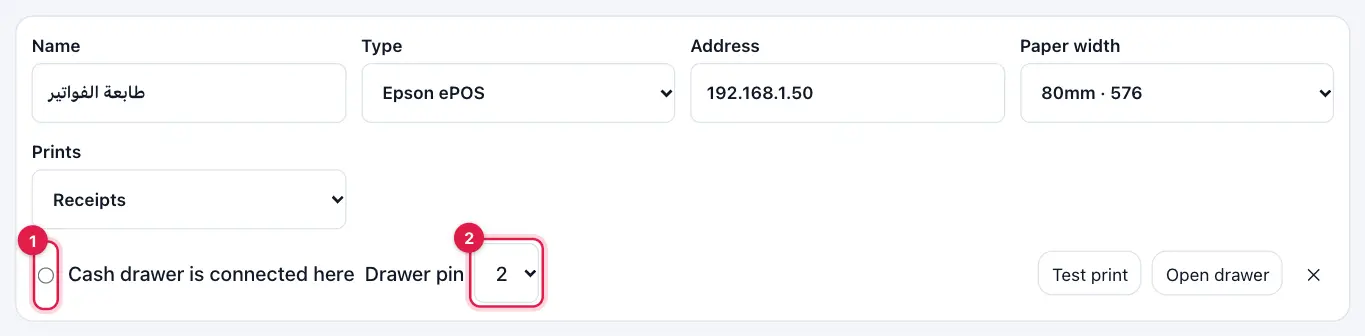
1 The printer the drawer is on. 2 The drawer pin. 3 The test button. -
3
Test the drawer
Press Open drawer next to the printer. Drawer command sent shows and the drawer should open. If This printer cannot open a cash drawer shows, the chosen printer type has no drawer support, such as Browser print.
-
4
When does the drawer open?
It opens by itself on every sale with cash, on a cash refund, and when you record cash in or out. It does not open when you print a copy of a receipt. The shift logs each opening.مشورہ: You can add a second drawer in Organisation → Registers → Edit → Cash drawers; each drawer has its own session and count.
کیا اس رہنمائی سے مدد ملی؟