जानने योग्य: You need an owner or manager account and a plan that includes the online store. See the pricing page.
-
1
Create the store
Open Delivery → Online store, press New store and pick the branch. Each branch has one store and one link. The link appears under Store link after saving.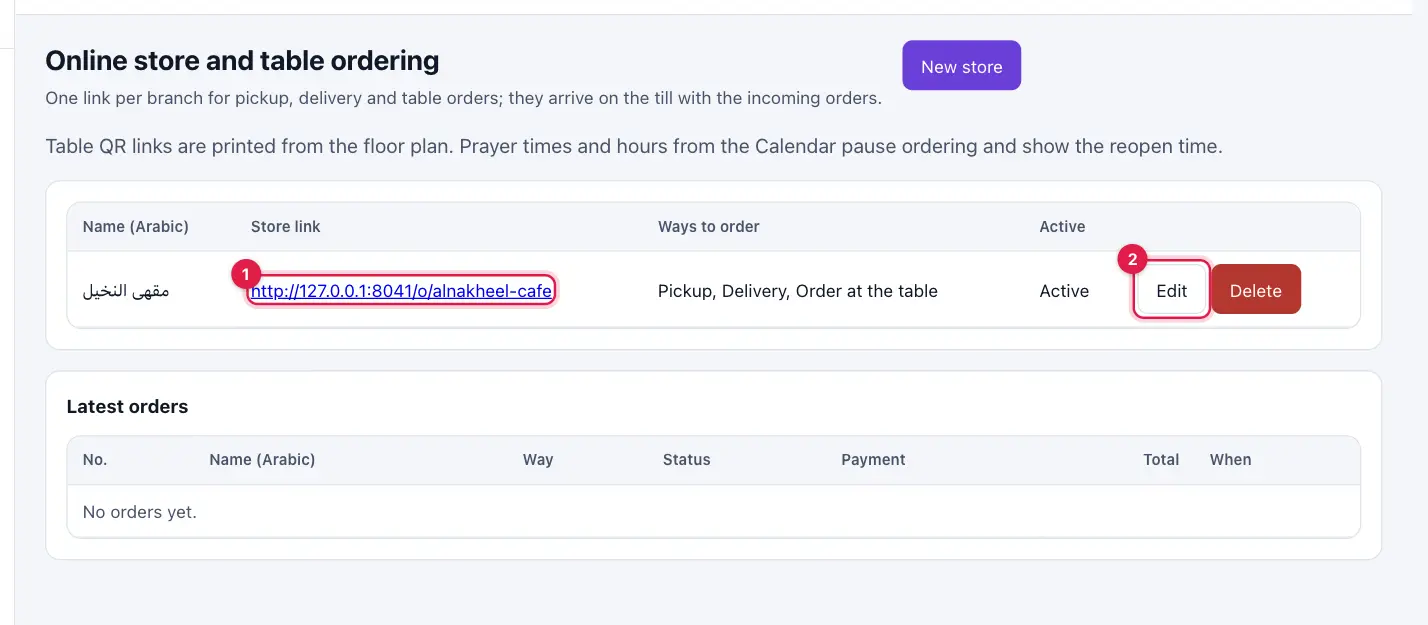
1 the store link, 2 edit the store. -
2
Set the ways to order and pay
Type the Link in lower-case English letters, and the name. Under Ways to order choose Pickup, Delivery or Order at the table. Under Payment methods choose what you accept, then set the Minimum order. जानने योग्य: Online payment only shows to customers once Tap is connected under Integrations.
-
3
Add delivery areas and times
If you turned on Delivery, the Delivery areas and fees section appears. Press Add area and type the code, name and fee, plus a minimum and a time if you wish. Set the Lead time and Pre-orders up to, then press Save. सुझाव: Turn on Accept orders automatically if web orders should not wait for Accept.
-
4
Share the link with customers
Copy the Store link and put it on your accounts or shop window. The customer opens it on a phone and picks items. For pickup and delivery they confirm their mobile with a code sent by text. Codes go to Saudi mobile numbers only.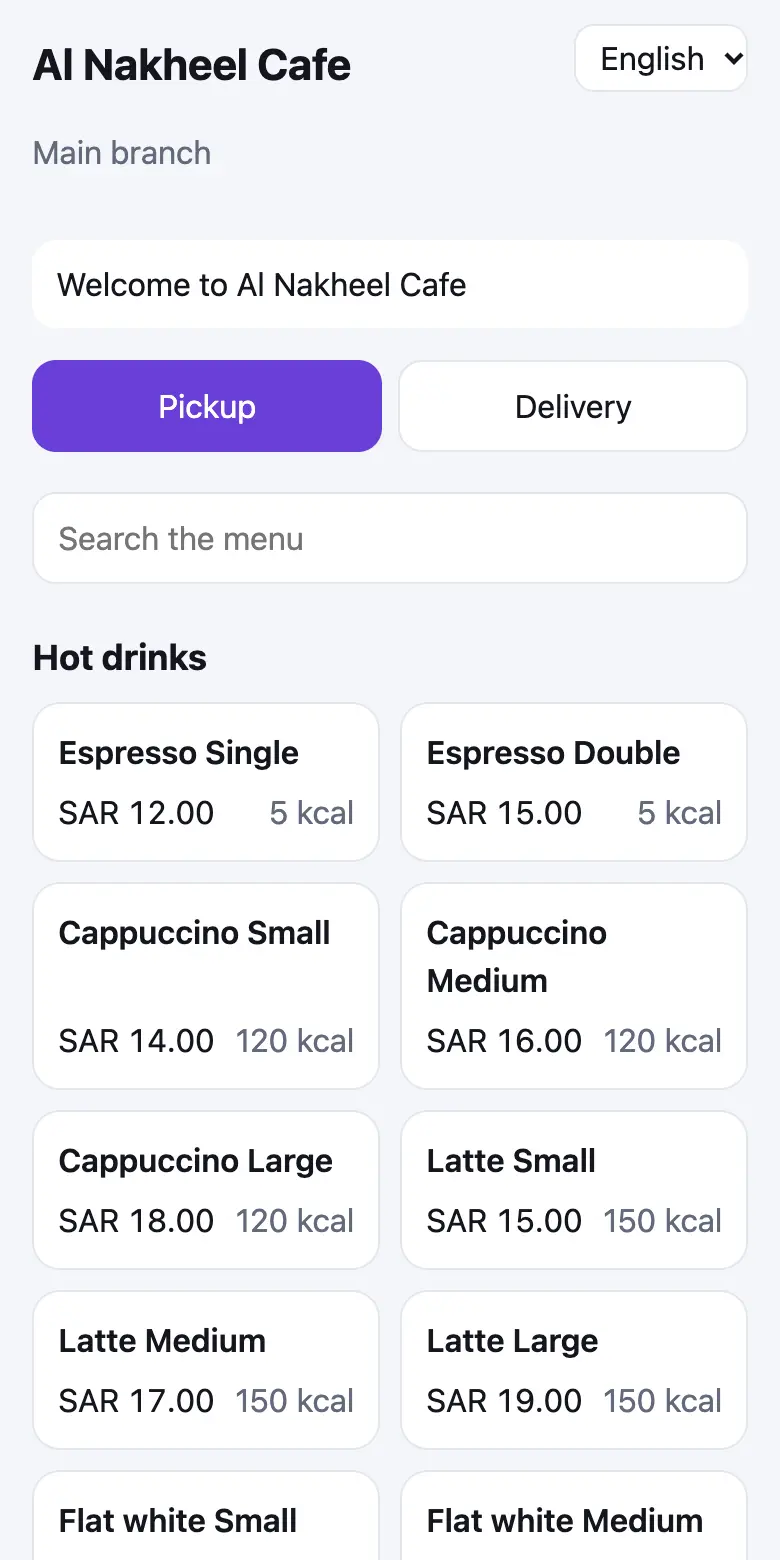
-
5
Prepare table QR codes
Open Operations → Floor plan and select the table. The Order-at-table QR appears. Print it and place it on the table. It works once Order at the table is on in the store. If a print is lost, press New code; the old code stops at once. जानने योग्य: A table order normally needs no mobile number. If the table is not open, the customer is asked to confirm a mobile or have staff open it. To always require it, turn on Confirm the mobile number for table orders.
-
6
Receive the orders
Store and table orders reach Incoming orders on the till with the app orders, and you handle them the same way. The customer follows the status on the order page. The latest orders are at the bottom of the Online store page.
Have a Salla or Zid store? Link it under <b>Online stores</b>. जानने योग्य: Salla and Zid have their own screen: Delivery → Online stores. Products, stock and prices stay in sync and orders reach the till. It needs a plan that includes it: see the pricing page.
क्या इस गाइड से मदद मिली?