جاننا مفید ہے: Finish any open bills first, or park them.
-
1
Open the close screen
Choose Session from the top menu, then press Close session.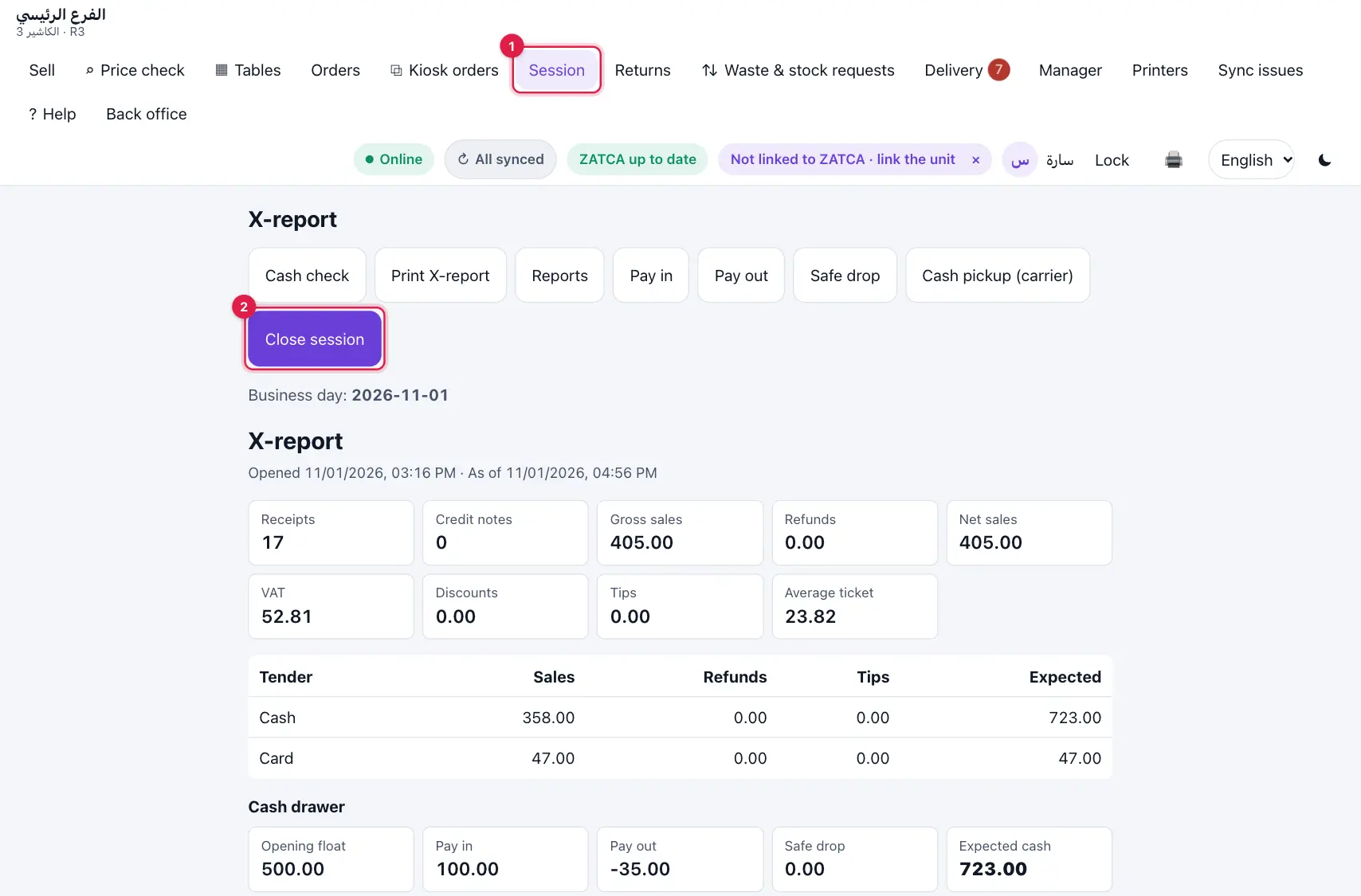
1: the <b>Session</b> menu. 2: the <b>Close session</b> button. جاننا مفید ہے: If open tickets show, pay or void them first. Parked tickets carry over to the next shift. -
2
Count the cash
Count what is really in the drawer. Use By denomination or Enter amount. This is a blind count: the expected amount stays hidden until the close, so the count stays honest.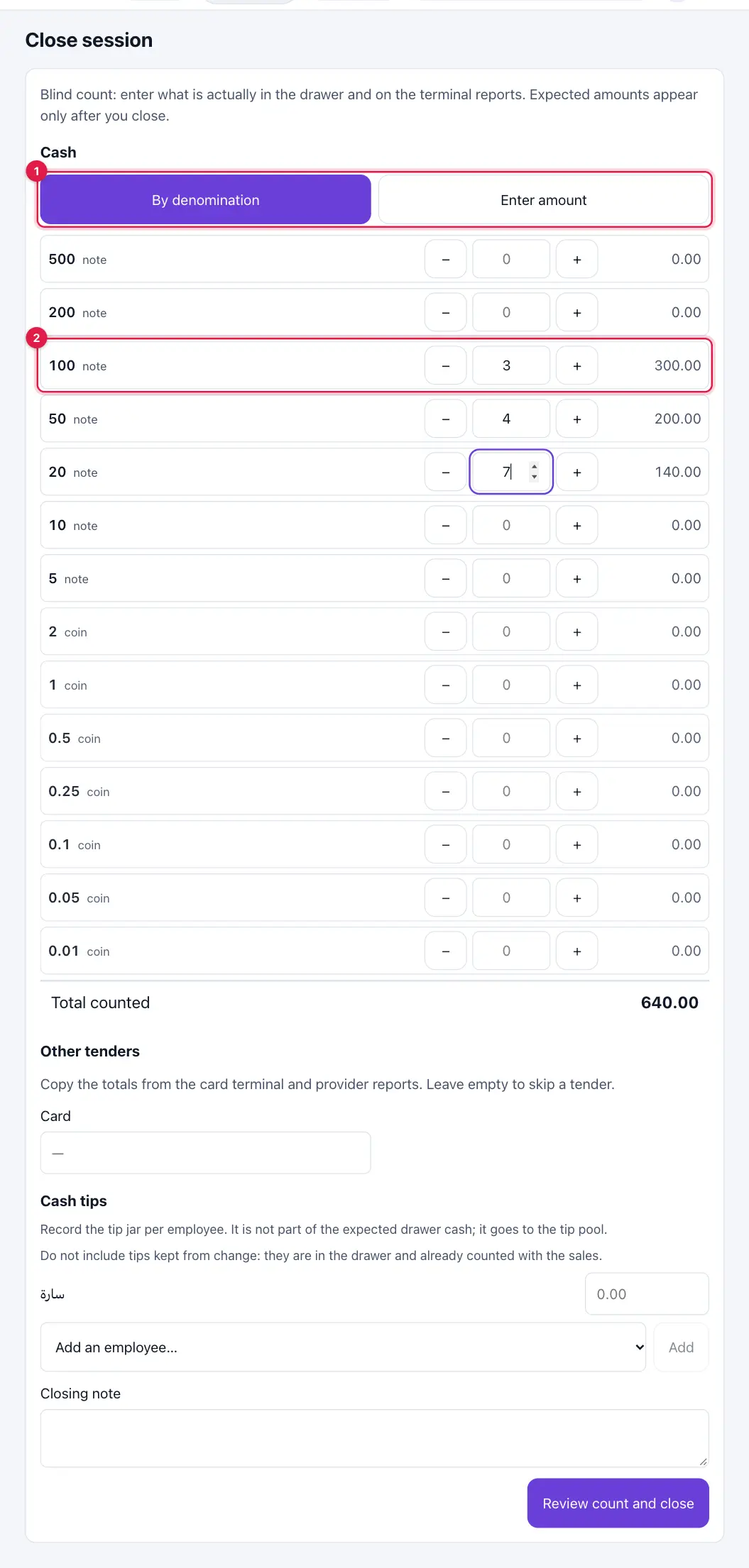
1: the way of counting. 2: enter the number of each note or coin. -
3
Fill in the rest
Under Other tenders copy the totals from the card terminal and the payment providers' reports. Leave a field empty to skip it. Record any tip jar, and write a Closing note for the next shift. Then press Review count and close.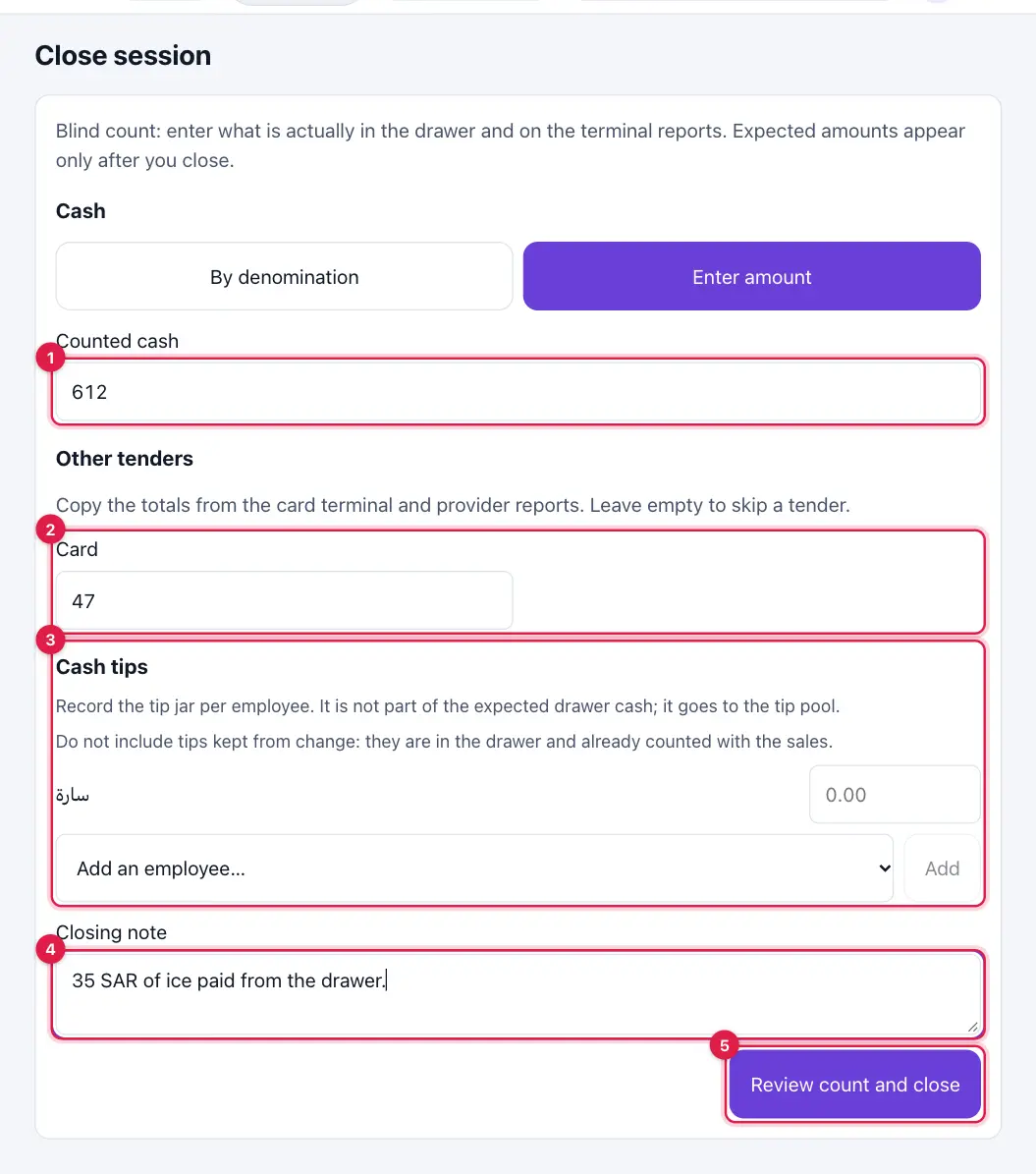
1: counted cash. 2: other tenders. 3: tips. 4: the closing note. 5: the review button. جاننا مفید ہے: If a driver still holds cash, a warning shows. Settle it first, or ask a manager for Close anyway (manager). -
4
Review, then close
A summary of your count shows. If something is wrong press Back to the count. If it is right press Close and print Z-report.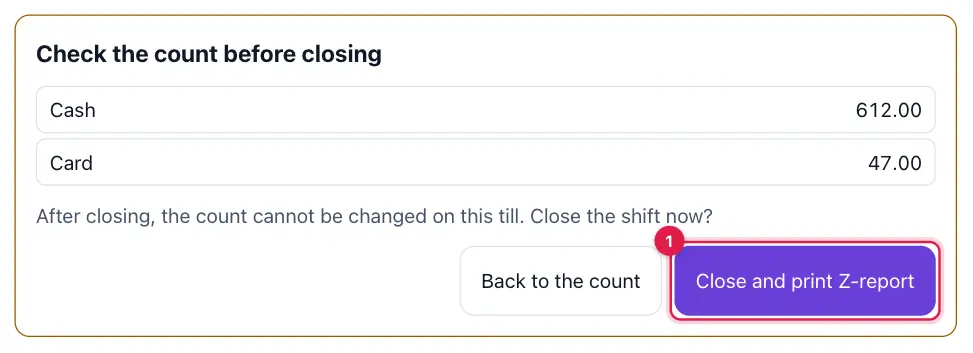
1: the final close button. احتیاط: After closing, the count cannot be changed on the till. An owner or manager can correct it in the back office. -
5
Check the Z-report
The Z-report shows and prints once, with expected, counted and variance for each tender. Press Print Z for another copy, or Open session to start a new shift.
کیا اس رہنمائی سے مدد ملی؟