جاننا مفید ہے: Back-office users are not cashiers. A cashier signs in on the till with a PIN. A user signs in to the back office with an e-mail and a password.
-
1
Open Users
Choose Organisation → Back-office users, then press + New. Only an owner or a manager sees this page.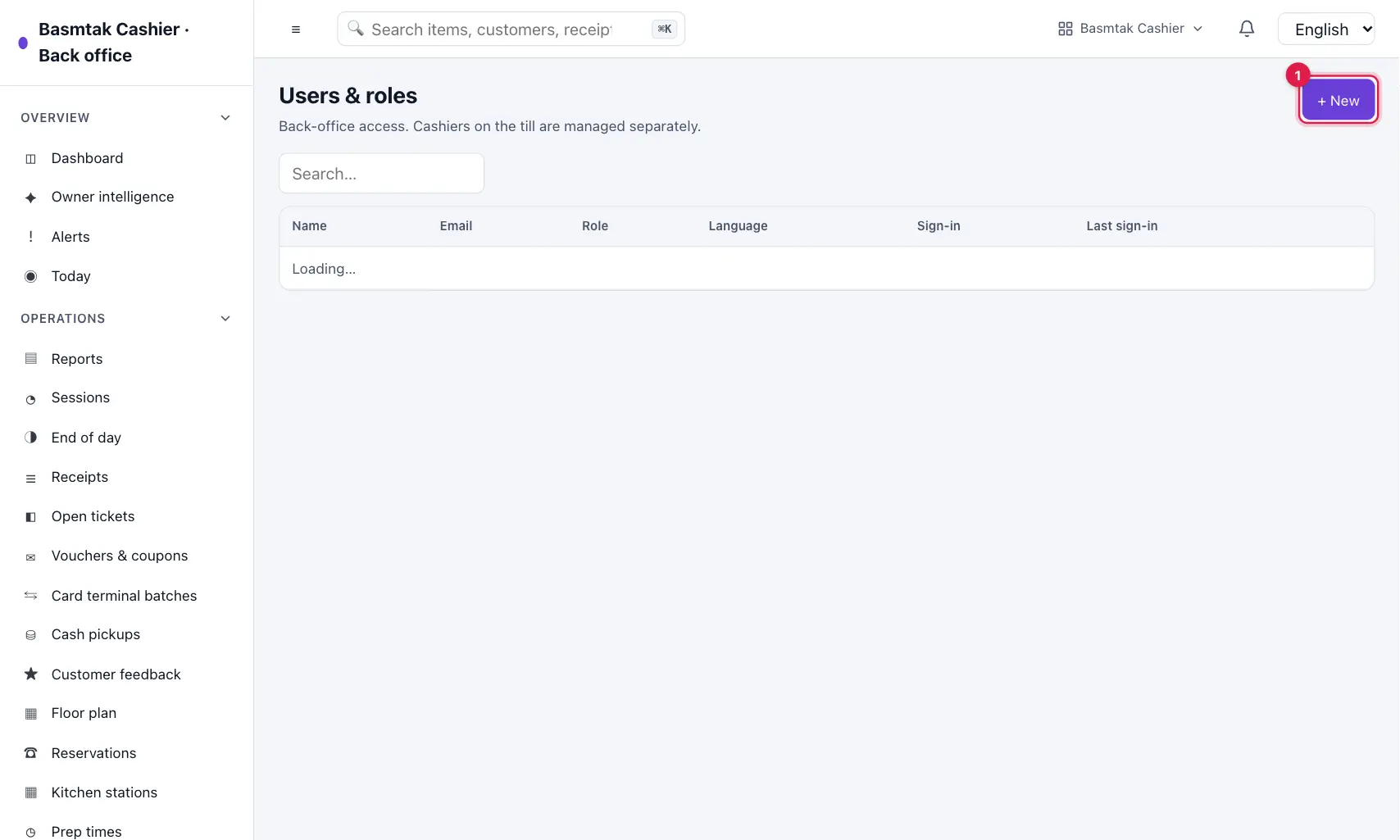
1 Add a user -
2
Enter the user's details
Type the Name and Email, and choose the Language. Then type a Password of at least 8 characters and give it to the user. They can change it later.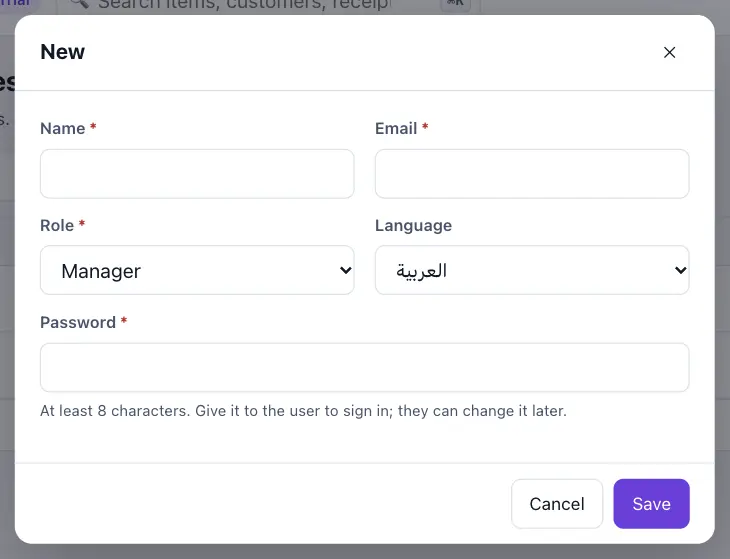
-
3
Choose the right role
Under Role, choose- Owner: everything, including the setup wizard and changing other users' sign-ins.
- Manager: works in and changes settings on nearly every screen, but cannot edit an owner's account.
- Accountant: reads, and sees money screens such as End of day and the Accountant pack, but does not change settings.
- Staff: reads the general screens only, such as reports, items and receipts.
جاننا مفید ہے: Only an owner can add another owner, or change another user's e-mail or password. -
4
Save and tell the user
Press Save. The user signs in to the back office with their e-mail and password, and sees only the menus their role allows.
کیا اس رہنمائی سے مدد ملی؟