जानने योग्य: An owner or a manager adds cashiers in the back office.
-
1
Open the Cashiers page
Choose Organisation → Cashiers, then press + New.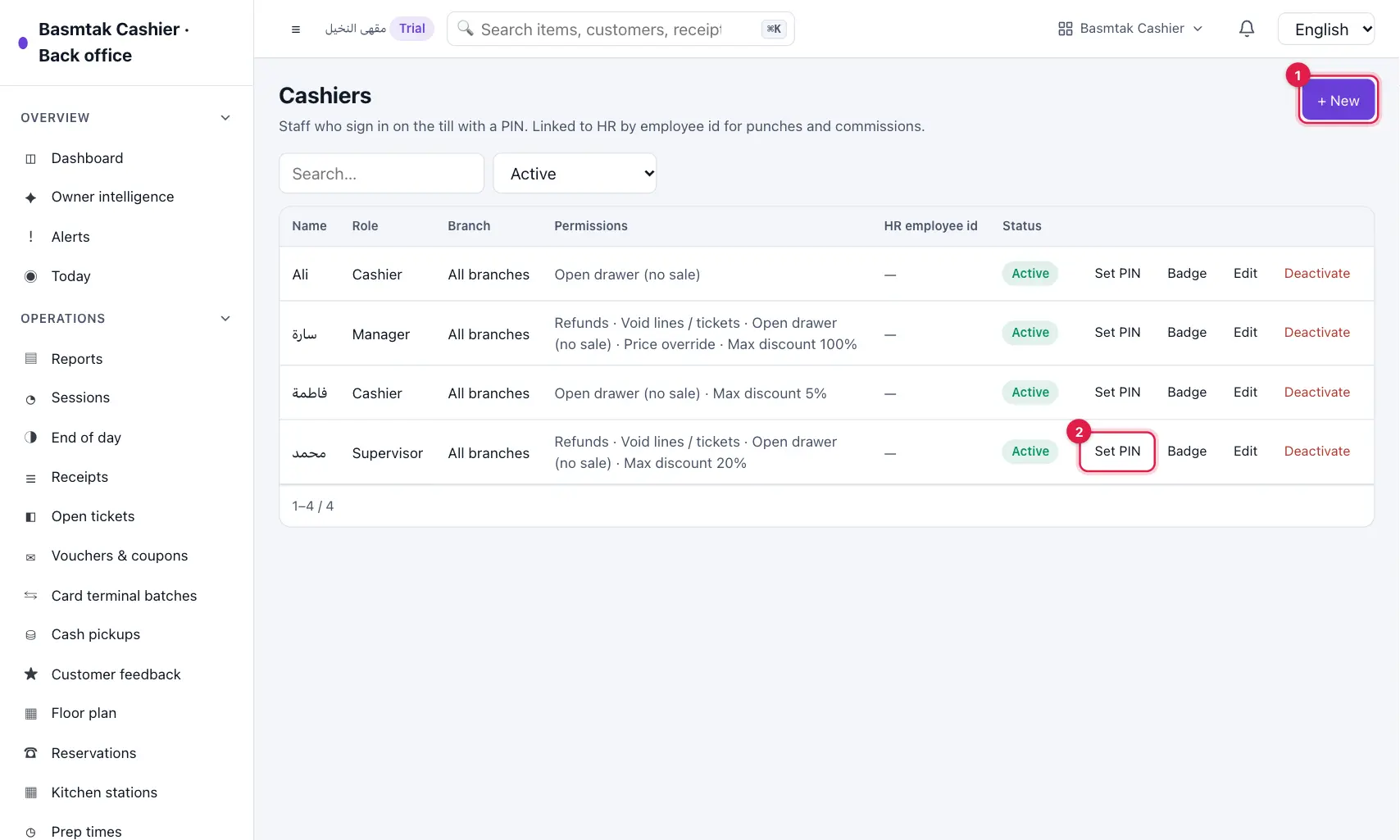
1 Add a cashier 2 Change a PIN -
2
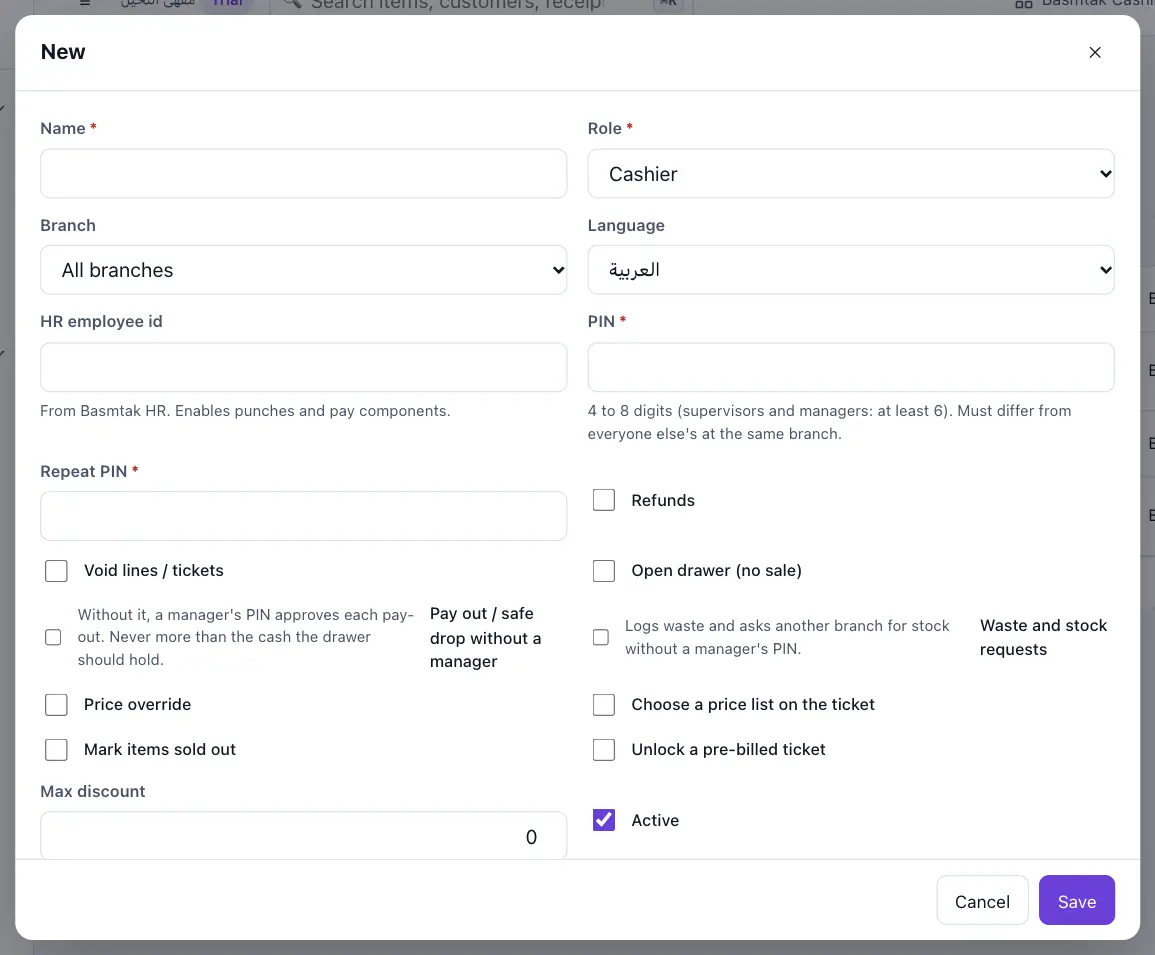
Enter the name and the role
Type the Name. Under Role, choose- Cashier: sells within the permissions you set.
- Supervisor: like a cashier, and can approve what you give them permission for.
- Manager: holds every permission on the till.
-
3
Pick the branch and the language
Choose the Branch, or leave All branches if they work in more than one. Then choose the Language they see on the till. -
4
Set the PIN
Type the PIN and repeat it. It has 4 to 8 digits, at least 6 for supervisors and managers, and must differ from everyone else in the branch. -
5
Choose the permissions
Turn on what they may do without a manager, such as Refunds, Void lines / tickets and Price override. Set Max discount as a percentage. Anything left off needs a manager's PIN. Then press Save.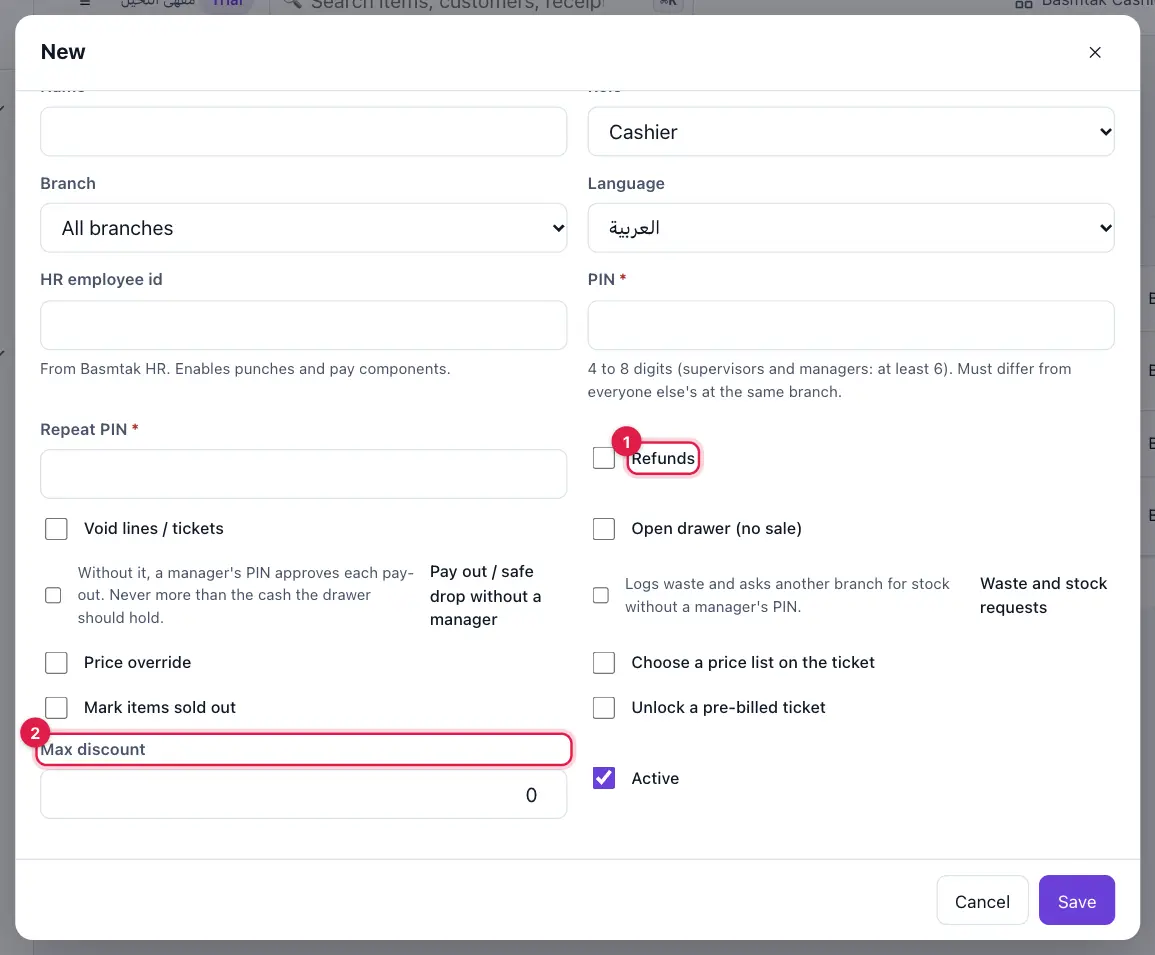 जानने योग्य: Tills pick up changes at the next sync.
-
6
Change a PIN or deactivate a cashier when needed
If someone forgets their PIN, press Set PIN on their row. If they leave, use Deactivate: they cannot sign in after the next sync, and their sales and records stay as they are.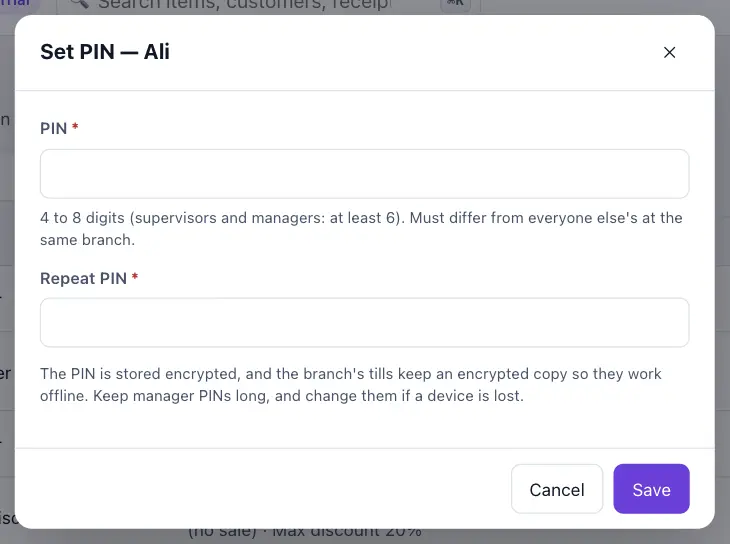
क्या इस गाइड से मदद मिली?