-
1
Open quick keys
In the menu choose Catalogue → Quick keys. Choose the branch at the top. Leave the second list on All registers of the branch, or choose one register to give it its own pages.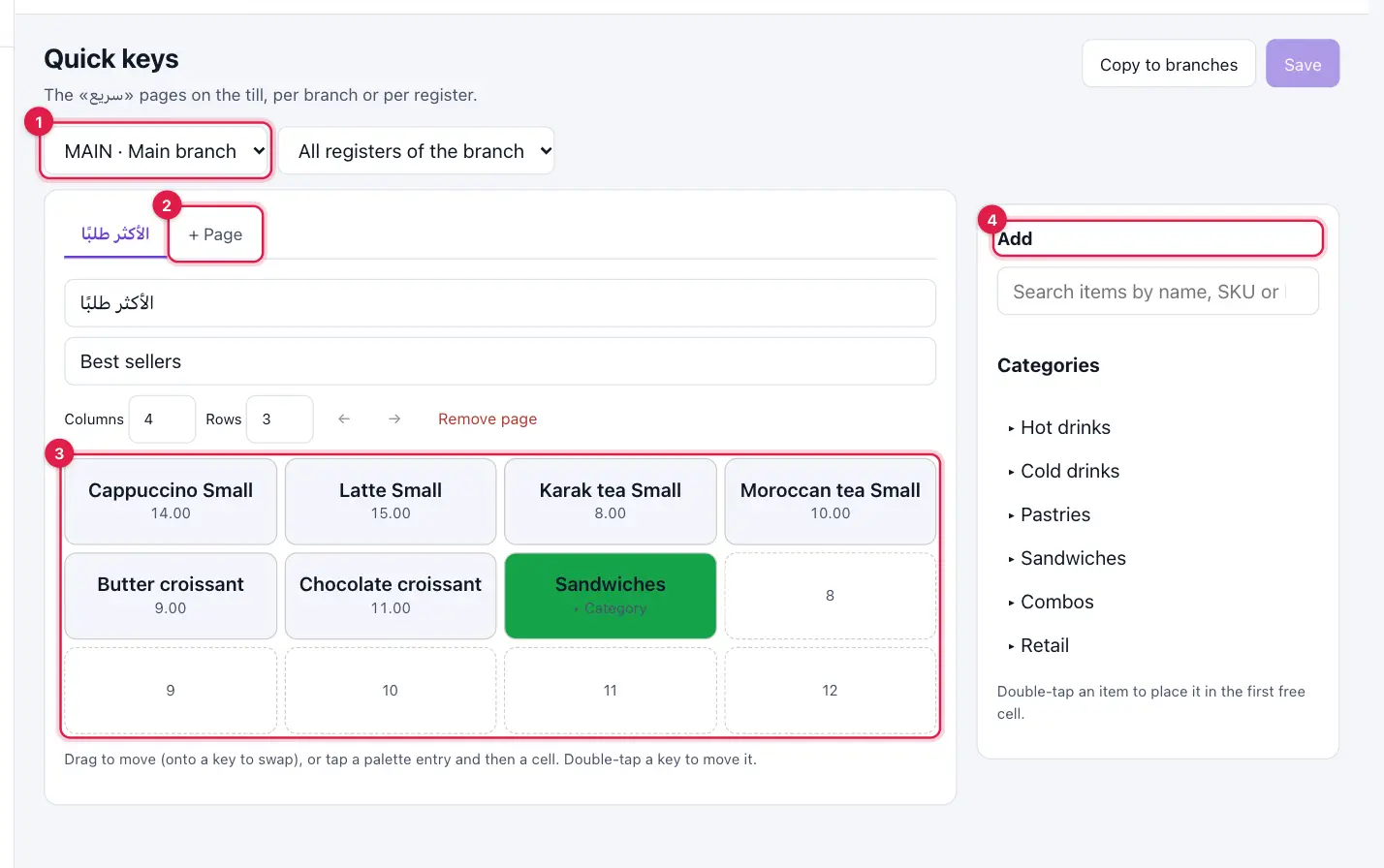
1: Branch. 2: Add a page. 3: The key grid. 4: The add list. -
2
Add a page
Press + Page and type its name, then set the Columns and Rows. A grid can reach 10 columns by 10 rows, and you can add up to 20 pages. -
3
Put items on the cells
Search for the item in the Add box, then drag it onto a cell. On a tablet, tap the item and then the cell. Double-tapping an item places it in the first free cell. You can also put a whole category on a key.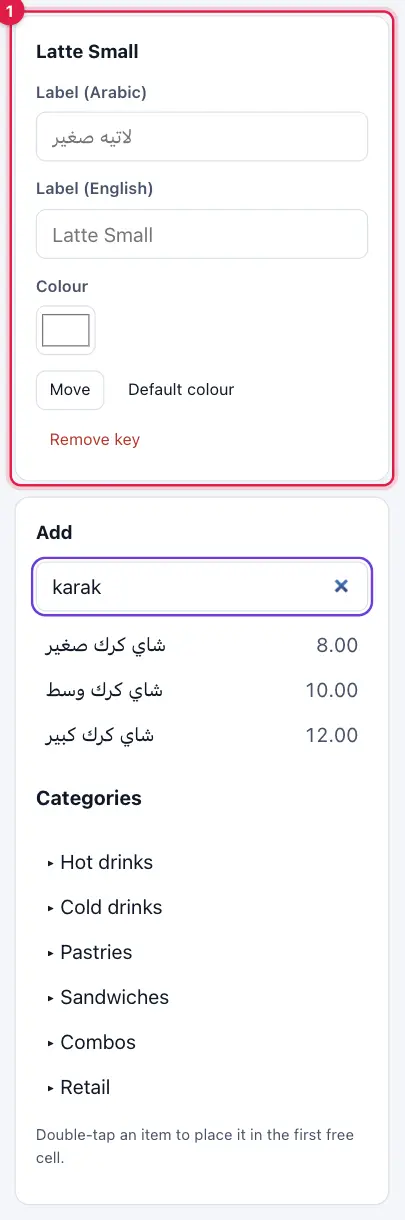
Tap a key to edit it, and search for an item to add it. -
4
Change how a key looks
Tap the key on the grid. You can type a short label, choose a Colour, Move the key or Remove key. Drag one key onto another to swap them. -
5
Save and copy to branches
Press Save and the keys reach the tills at their next sync. On the till, a ★ Quick keys button appears in the category bar. To use the same pages in other branches, press Copy to branches and choose them.
Quick keys on the sell screen. সতর্কতা: Copying replaces the branch-wide pages of the chosen branches. A register with its own pages shows only those.
এই গাইড কি সাহায্য করেছে?