-
1
Open price lists
In the menu choose Catalogue → Price lists. A price list is a set of alternative prices for items you choose. An item not in the list keeps its normal price. Press + New.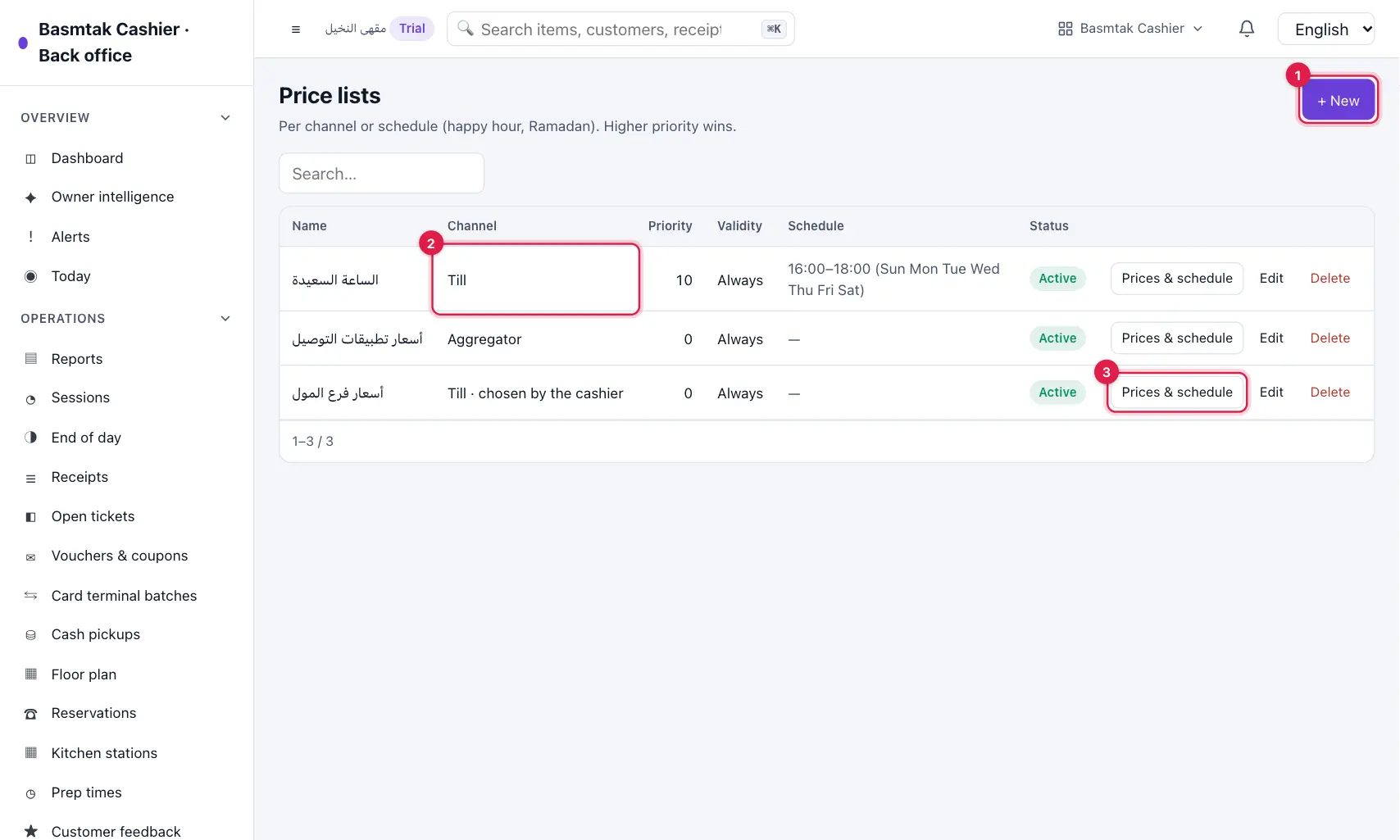
1: New list. 2: The list's channel. 3: Prices & schedule. -
2
Choose the right channel
Type the list's name, then choose the Channel:- Till: applied automatically to till sales in every branch. Good for happy hour.
- Till · chosen by the cashier: applied only when a cashier picks it or you link it to a branch. Good for one branch's prices, wholesale and VIPs.
- Aggregator: for delivery app prices.

1: Channel. 2: Priority. -
3
Enter the prices
Press Prices & schedule beside the list. Search for each item, add it, and type the List price. To change prices together, type a percentage in the ± % box (such as 15 or -5) and press Apply % to visible; they are worked out from the base price. Then press Save.
1: Add an item. 2: Percentage change. 3: List price. -
4
A list for one branch
Open Organisation → Branches and press the branch to edit it. In Price list choose the list and press Save. These become the branch's default prices, and anything not in the list keeps its normal price.
The price list field on the branch. সতর্কতা: Do not use the Till channel for a one-branch list: that channel applies in every branch automatically. Choose Till · chosen by the cashier. -
5
A list for a delivery app
Create a list on the Aggregator channel and enter its prices. Then open Delivery → Delivery channels, press edit beside the app, choose the list in Price list and press Save. Each app can have its own list. When the cashier picks the app on a ticket, new items are priced from its list, and the menu published to the app uses the same prices.
The price list field on a delivery channel. জেনে রাখুন: An order arriving directly from the platform keeps the price the customer paid there. Modifier price changes are not affected by price lists. -
6
Schedule a list
On the Prices & schedule page pick the days and the start and end times so the list runs at set hours, such as happy hour, then press Save. Leave the schedule empty for all day.
The days and times schedule. -
7
Pick a list at the till
On the sell screen the cashier presses the price list button above the ticket, which reads Automatic. They pick the list, then decide whether to reprice the items already on the ticket. This needs the Choose a price list on the ticket permission or a manager's approval.
Price lists on the till.
এই গাইড কি সাহায্য করেছে?