جاننا مفید ہے: You need back-office access as an owner or manager, and your items already added.
-
1
Turn on stock tracking for the item
Open Catalogue → Items and choose the item. Turn on Track stock and save. From now on, each sale takes the quantity off the stock of the branch that sold it. جاننا مفید ہے: A raw material is always tracked. A dish with a recipe has its components deducted when sold, so it needs no stock of its own.
-
2
Enter the opening balance
The opening balance is what you really hold on the day you start. Open Stock → Waste and choose the branch and the item. Under Kind, choose Opening balance. Type the quantity and the Unit cost, then press Post. Repeat for each item in each branch.
1 Kind, 2 Quantity, 3 Unit cost, 4 Post. احتیاط: Type the unit cost for an opening balance if you know it. If you leave it empty, the quantity comes in at the average cost, or at the item's cost if it has no average yet. If the item has no cost either, it comes in at zero and your stock value shows lower than it really is. -
3
Check your stock levels
Open Stock → Levels. For each item in each branch you see On hand, Avg cost and Value. Search by item name, pick a branch, or tick Low stock only to see what is running out.
1 Low stock only, 2 Stock value, 3 How many items are at or below their reorder point. جاننا مفید ہے: An item appears here after its first movement in the branch, such as an opening balance, a receipt or a sale. -
4
Set when to reorder
Click the item's row in Levels. The Reorder point is the quantity at which the item shows Low and is suggested on purchase orders. The Par level is the quantity you want to reach after buying. Press Save.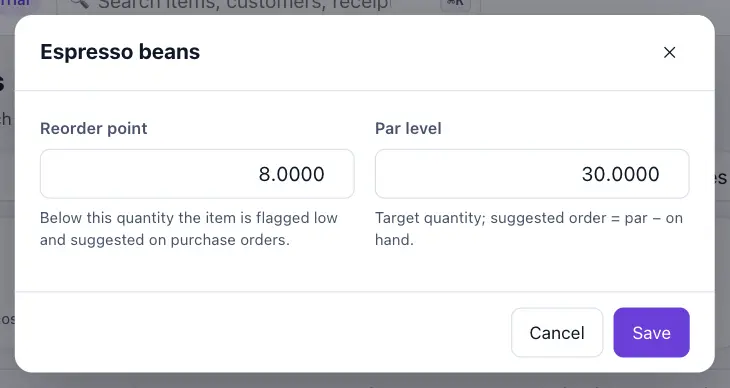
-
5
Export or print the levels
Press Export Excel to download a file, or Print for a clean sheet. It covers every item that matches your search, branch and Low stock only filter, not just the page on screen.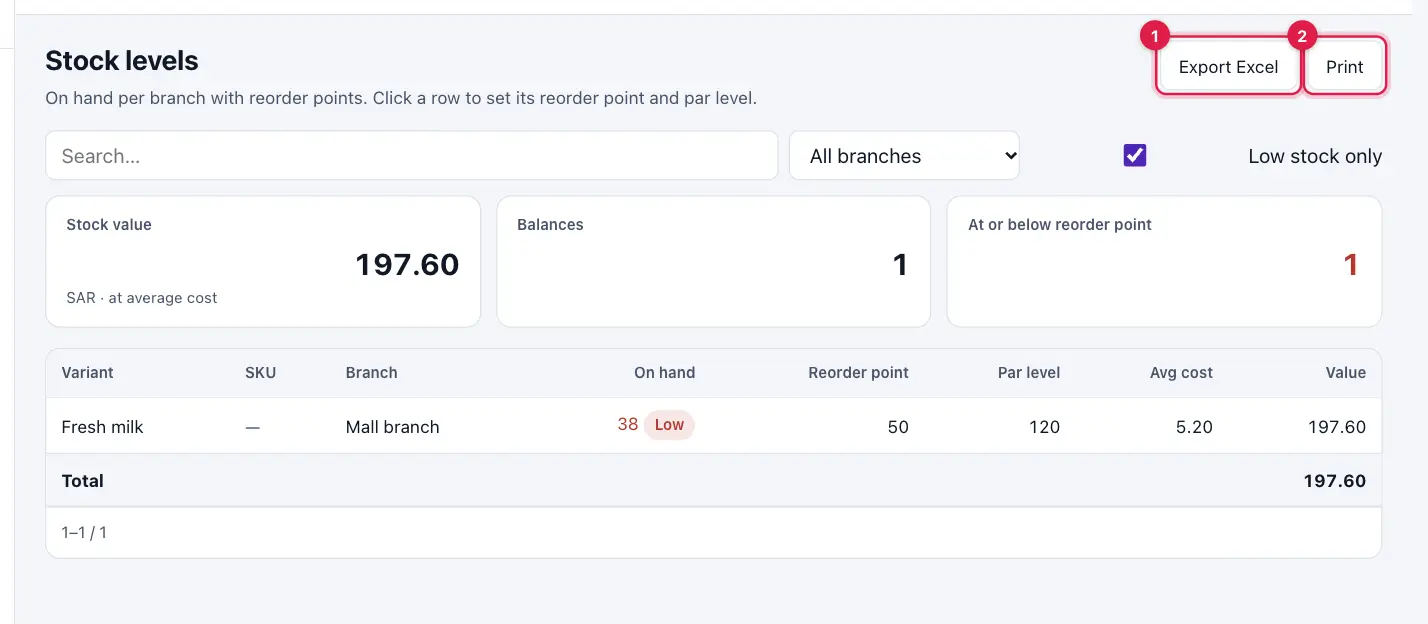
-
6
See your stock value and the cost of what you sold
Open Stock → Valuation & COGS. The Valuation tab shows the Stock value: quantity × average cost. The COGS tab shows what the goods you sold cost in the period you choose. Press Apply after choosing a branch, and Export CSV to download the table.
1 Valuation, 2 COGS, 3 Stock value. مشورہ: The average cost is recalculated with each receipt at a new price. A negative balance is not counted in the stock value.
کیا اس رہنمائی سے مدد ملی؟