جاننا مفید ہے: You need an owner or manager account and a device connected to the internet.
-
1
Open Registers
In the back office choose Organisation → Registers. Then click Pair a device on the row of the register you want.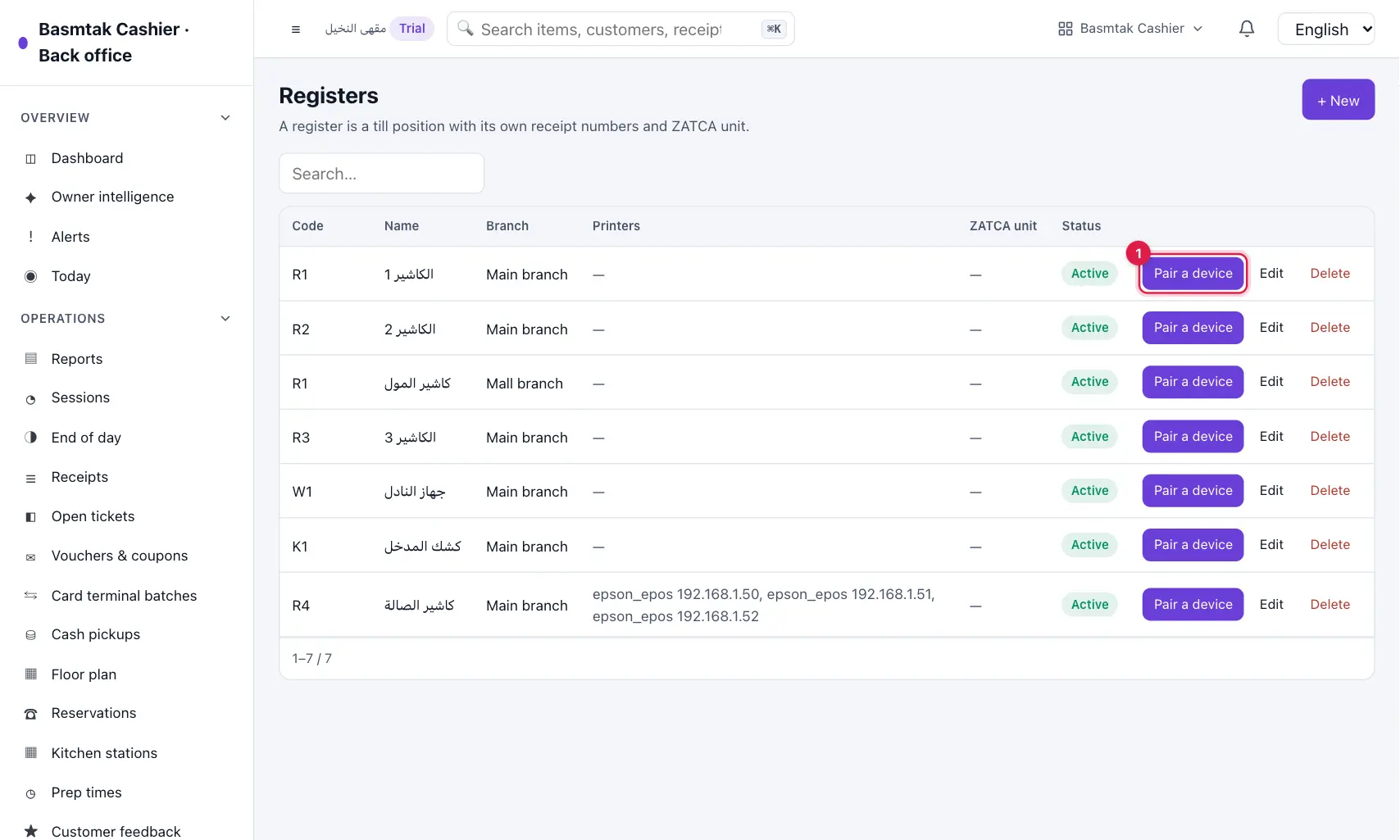
-
2
Create the code
Choose Till under Device type and click Create code. A code and a QR appear. The code lasts 15 minutes and its expiry shows below it. If it runs out, click New code.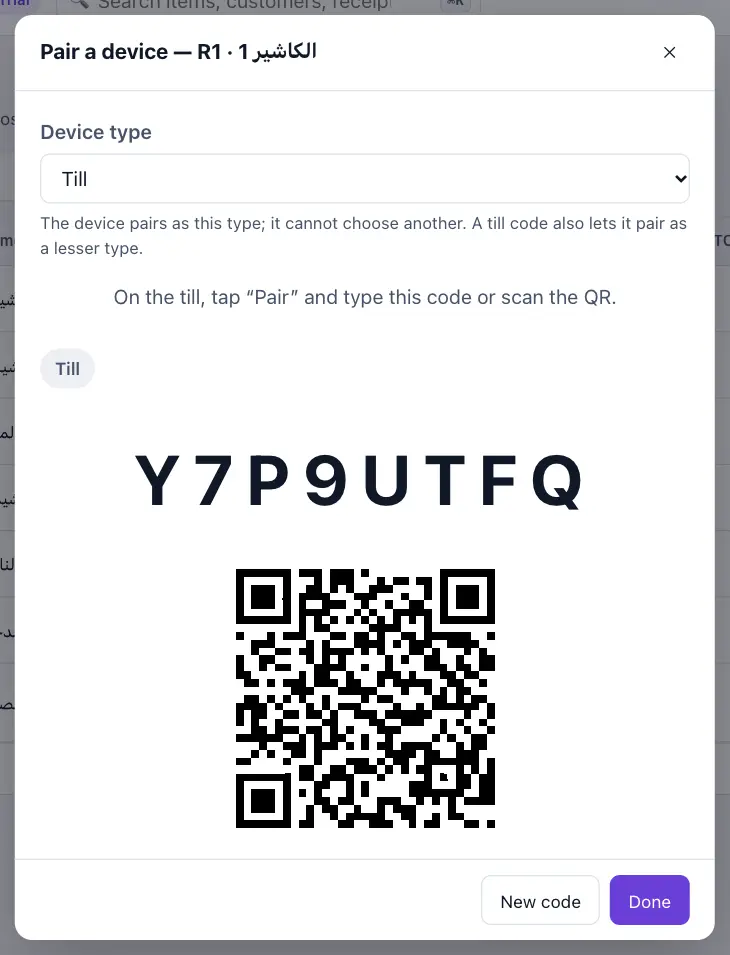
-
3
Open the pairing screen on the device
Open the Basmtak Cashier app on the device, or open cashier.basmtak.com/pair in a browser. The device needs the internet while pairing. احتیاط: If the till runs in a browser, give it a browser profile used only for this app, because the device's data is protected by that profile alone.
-
4
Type the code or scan the QR
Type the code into Pairing code. You can name the device in Device name (optional). Then click Pair. Or scan the QR with the device's camera, and the till opens and pairs by itself. -
5
Wait for the items to download
You will see Downloading the catalogue…, then a confirmation. Click Continue. -
6
Sign in with a PIN
The Enter your PIN screen appears. Staff type their PIN, and the device is ready to sell.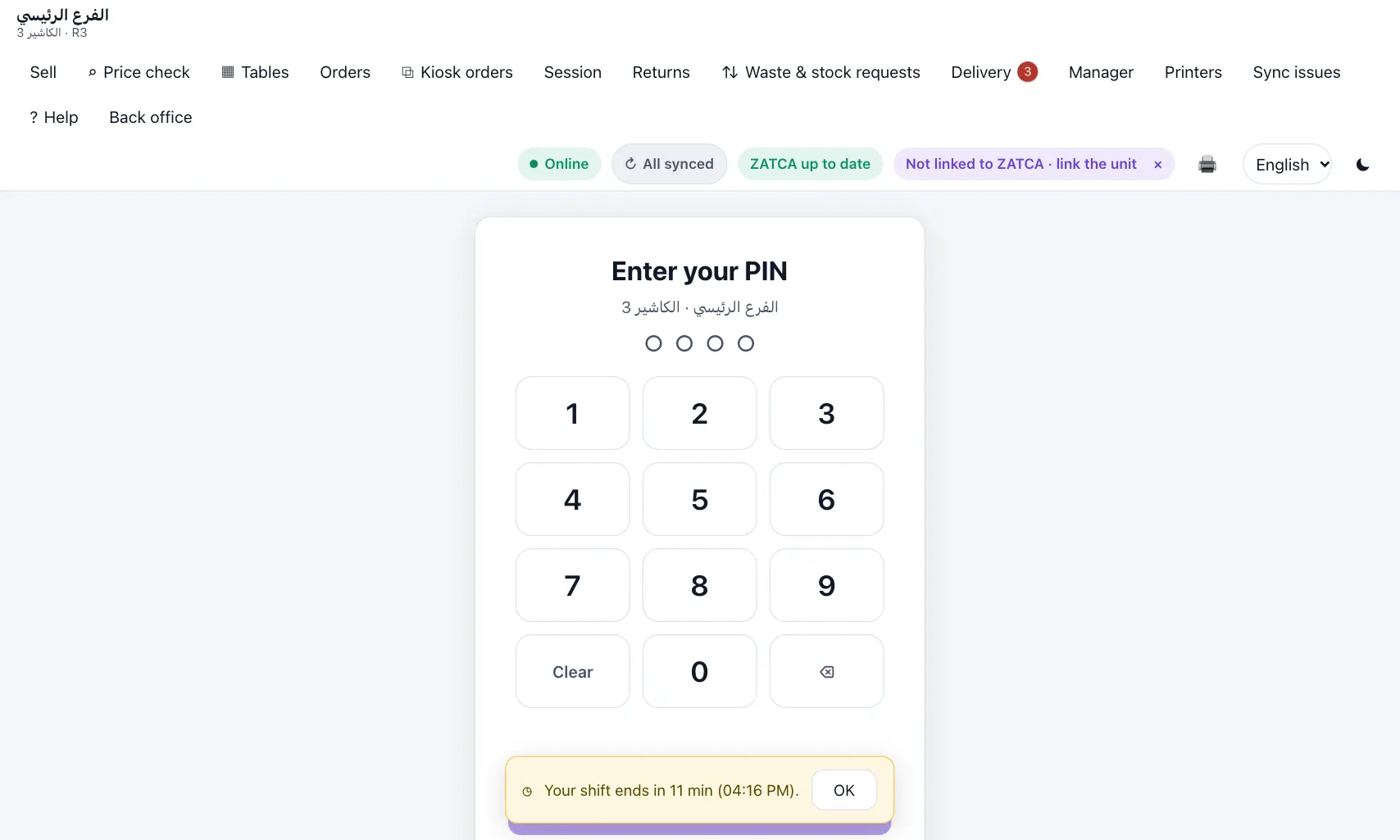 جاننا مفید ہے: Each branch includes one till, and extra tills are billed on the subscription. See the pricing page for details.
کیا اس رہنمائی سے مدد ملی؟