جاننا مفید ہے: You need the internet and a ready ZATCA unit for the branch.
-
1
Save the customer's VAT number
In the back office choose Customers & import → Customers. Press + New or open an existing customer. Enter the VAT number and CR number, then press Save. A VAT number has 15 digits, starting and ending with 3.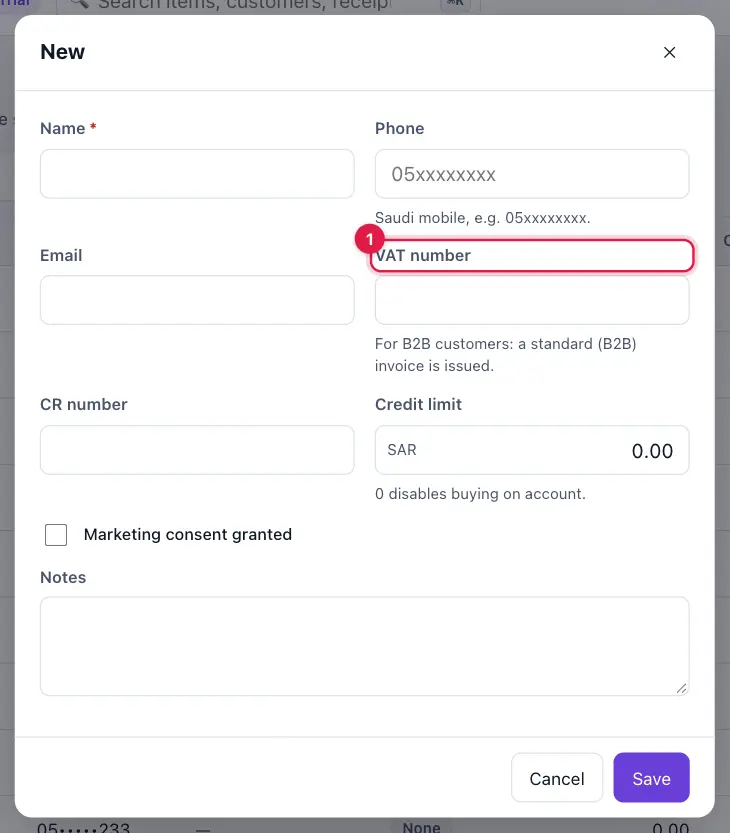
1 The customer's VAT number -
2
Add the customer to the ticket
On the till, press Add customer. Type the phone, the name or the VAT number, then click the customer in the results. You can also create one with New customer, which needs the internet.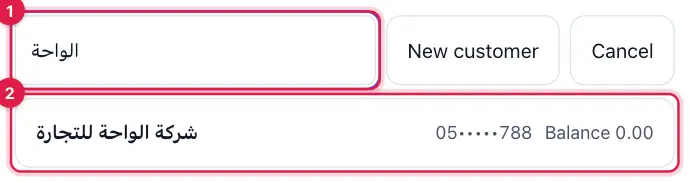
1 The search box 2 The customer in the results -
3
Choose the tax invoice
Once a customer with a VAT number is on the ticket, the Tax invoice (B2B) button appears on it. Press it to turn it on, then take the payment.احتیاط: A tax invoice needs the buyer's name and full national address, or it is refused and not issued. The customer form has no address field today, so contact support before you promise a customer a tax invoice. -
4
If ZATCA refuses it
A message shows the reason, and nothing is issued. Correct the customer's details and press Done again to issue a new invoice. If the internet is down, a message says tax invoices are signed online.
کیا اس رہنمائی سے مدد ملی؟