جاننا مفید ہے: An owner or a manager adds a branch. Have the branch's national address ready. A branch is part of your subscription: see the pricing page.
-
1
Open the Branches page
Choose Organisation → Branches, then press + New. The branch form opens.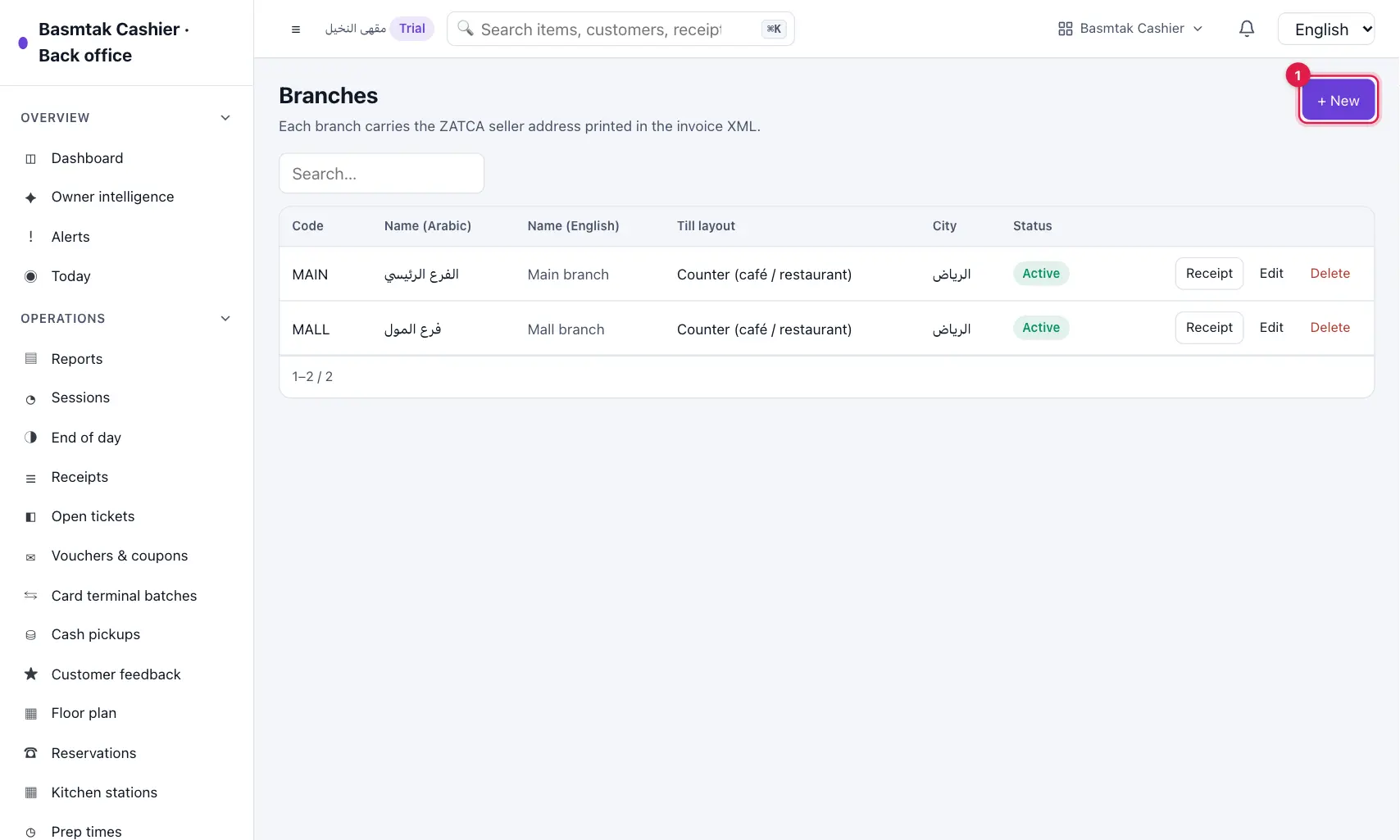
1 The button that adds a branch -
2
Enter the name and the code
Type the Code in Latin letters and digits, such as MAIN, then Name (Arabic) and Name (English). The code and the Arabic name are required.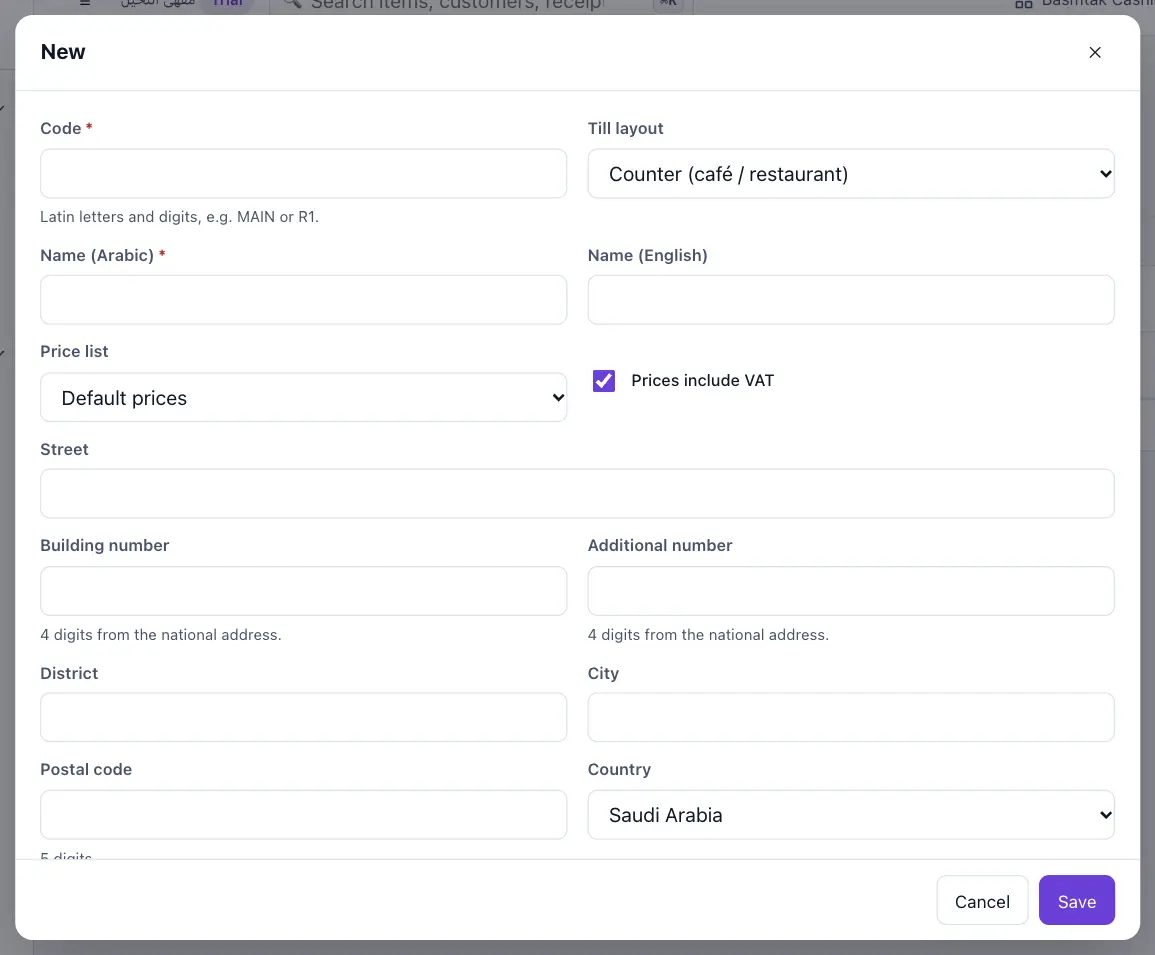
-
3
Choose the till layout and prices
Under Till layout, choose Counter (café / restaurant) or Retail (scanner-first). Pick a Price list if the branch has its own prices, and set Prices include VAT. -
4
Complete the national address
Enter the street, building number, district, city and postal code. The building and additional numbers are 4 digits, and the postal code is 5 digits. Then press Save. احتیاط: A branch cannot link to ZATCA until its address is complete, because the address goes into the e-invoice.
-
5
Get the branch ready to sell
Add a register to the branch and pair a device to it, then add your cashiers. In Saudi Arabia, link the branch to ZATCA before you issue real invoices.جاننا مفید ہے: A branch with registers, or the account's last branch, cannot be deleted.
کیا اس رہنمائی سے مدد ملی؟