-
1
Open the subscription page
In the back office, in a browser, choose Settings → Subscription & billing. You see your plan, the renewal date, your branches and tills, and the saved card. Managers and accountants can read the page too, but only the owner pays or changes the plan. जानने योग्य: This page is not in the phone and iPad apps. Open it in a browser.
-
2
Check the business address
The pay button stays off until the national address under Business address on your invoices is complete. If it is missing, click Edit, then Save address.
-
3
Choose a plan and pay
Under Plans, choose Annual or Monthly, then click Pay by card on the plan you want. You move to Tap's secure page, then come back to see Payment received — thank you. See the pricing page for prices.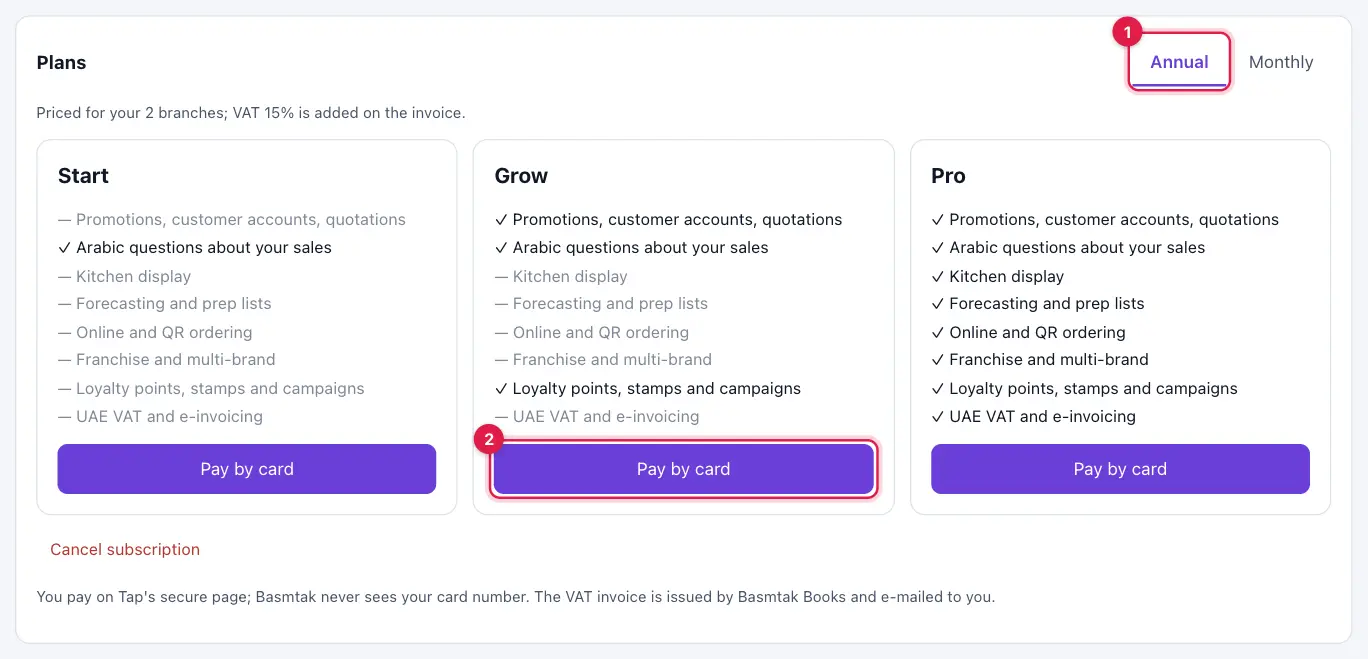
1 The billing term. 2 The pay button. -
4
Add a branch
Choose Organisation → Branches, then click + New. Plans are per branch, so a new active branch joins your next renewal invoice.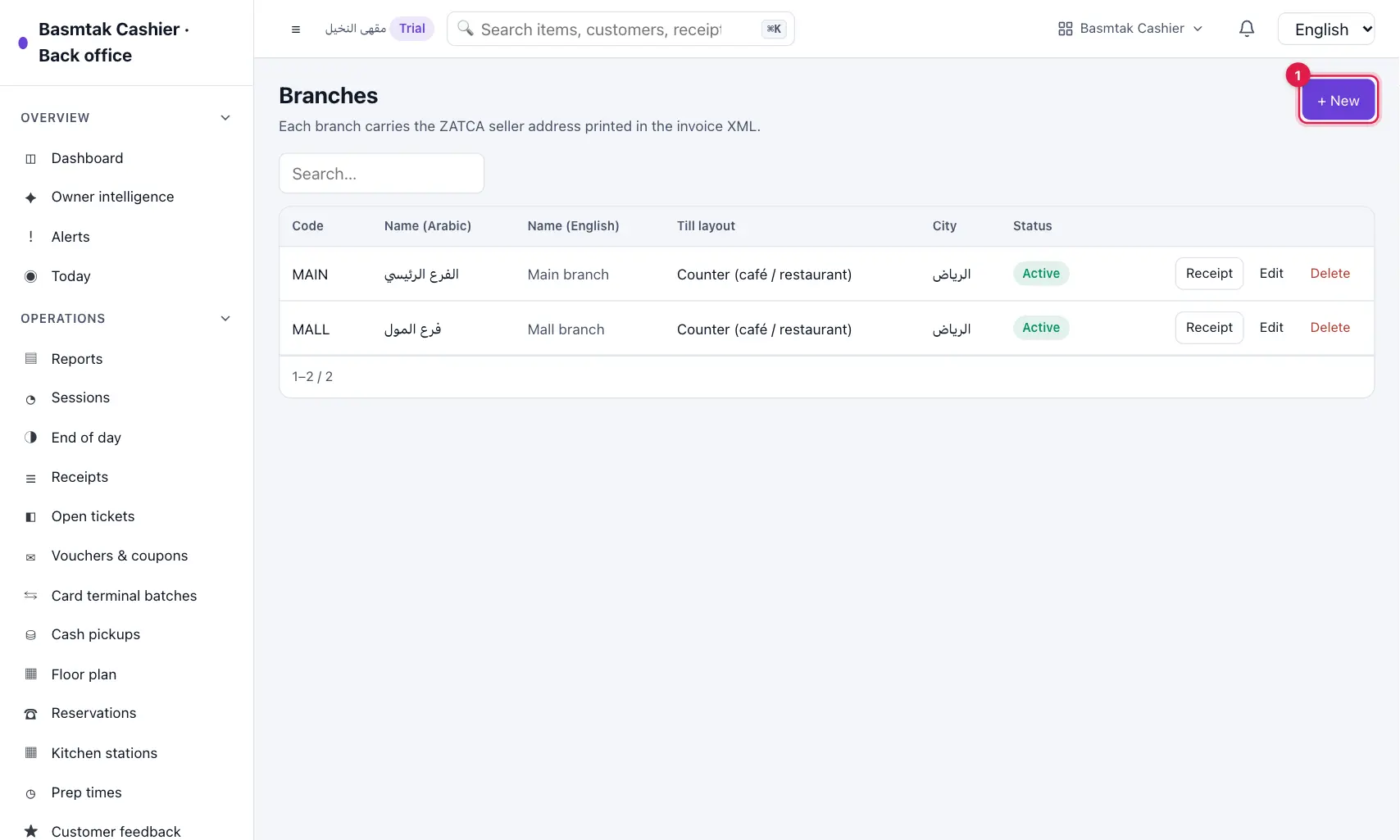
-
5
Add a till
Choose Organisation → Registers, click + New, then pair the device with Pair a device. Each branch includes one till, and an extra till is added to the invoice. See the pricing page for details.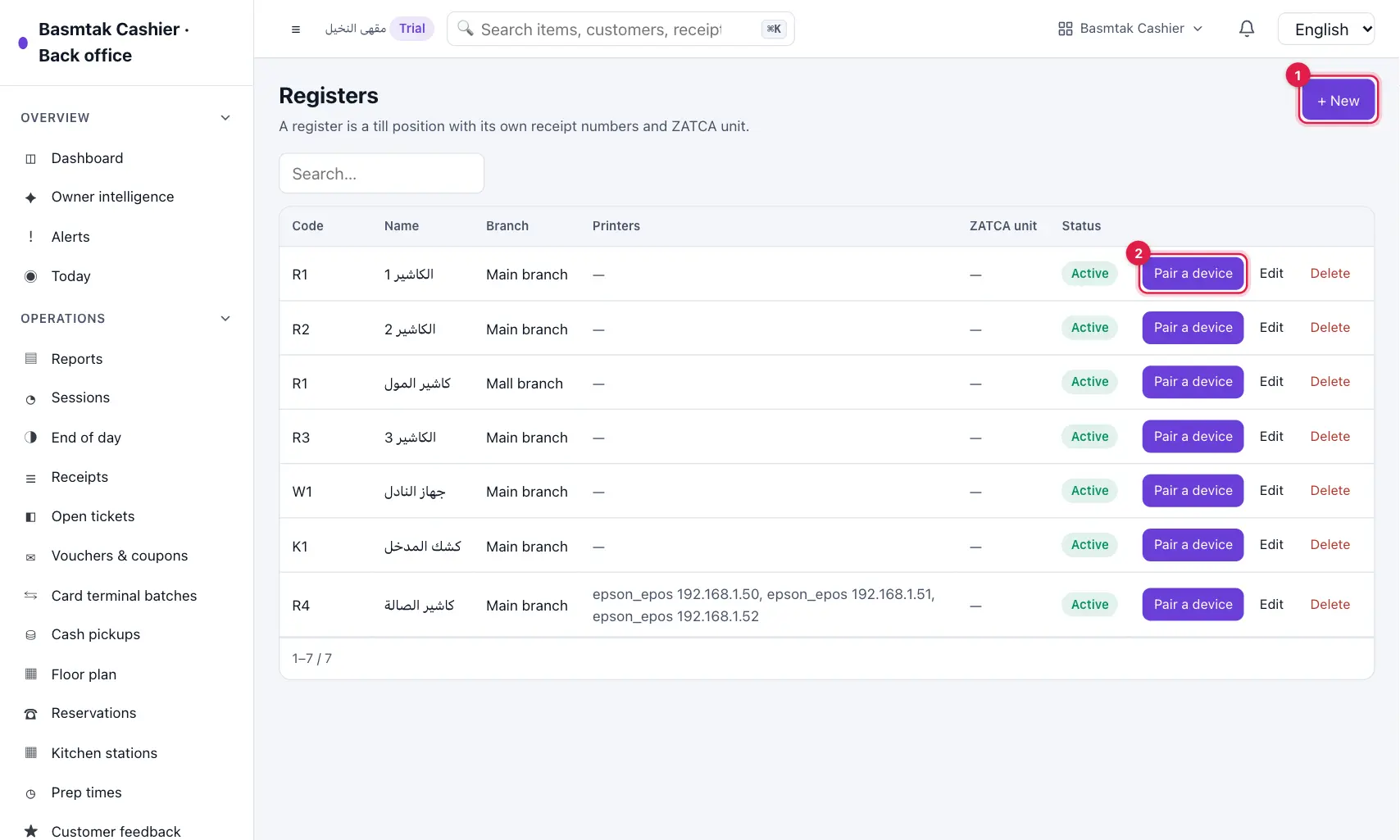
-
6
Change the plan or cancel
Click Switch to this plan to change plans. An upgrade starts once the rest of the period is paid, and a move to a lower plan starts when the period ends. To cancel, click Cancel subscription: it stays active until the end of the paid period and your data is kept. -
7
Review your invoices
The Invoices section at the bottom lists every invoice and its status. The VAT invoice also reaches you by e-mail.
क्या इस गाइड से मदद मिली?