जानने योग्य: You need a back-office sign-in.
-
1
Open Reports
Choose Operations → Reports. The groups are at the top: Sales, Profit, Money & tills, Discounts & voids, VAT and Stock. Click a group, then pick a report from the row below it.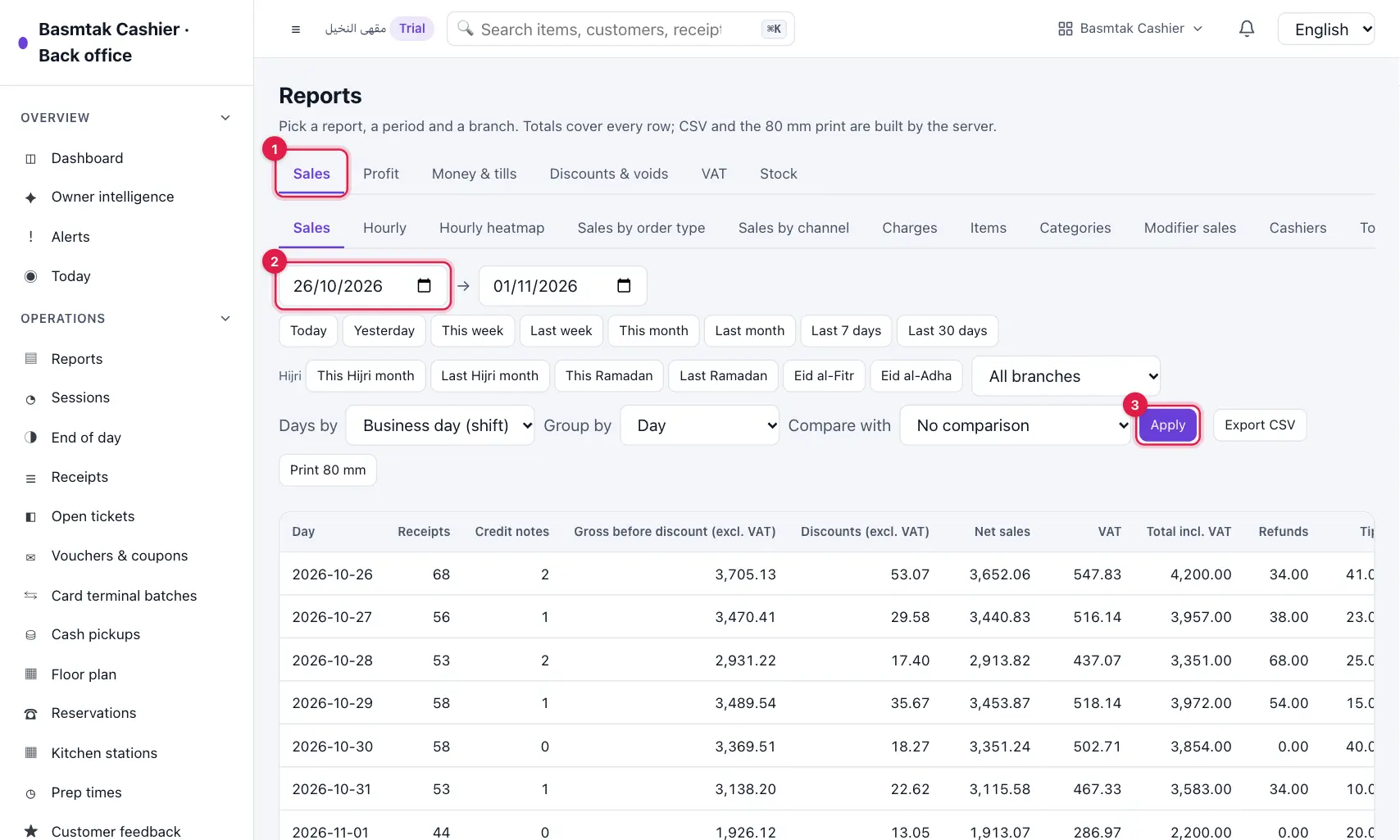
1 Report group 2 Period 3 The Apply button -
2
Set the period and the branch
Pick a ready period or two dates, then pick a branch or leave all branches. In the Sales report, use Group by for one row per day, per branch, or per day and branch.जानने योग्य: One report can cover up to 400 days. -
3
Choose how days are counted
Under Days by, choose Business day (shift) to count each receipt on its shift's day, or Calendar day to count it on its date. VAT reports always follow the invoice issue date. -
4
Compare with another period if you want
Under Compare with, choose Previous period, Same period last year or Same Hijri dates last year. A summary with the figures and the change appears above the table.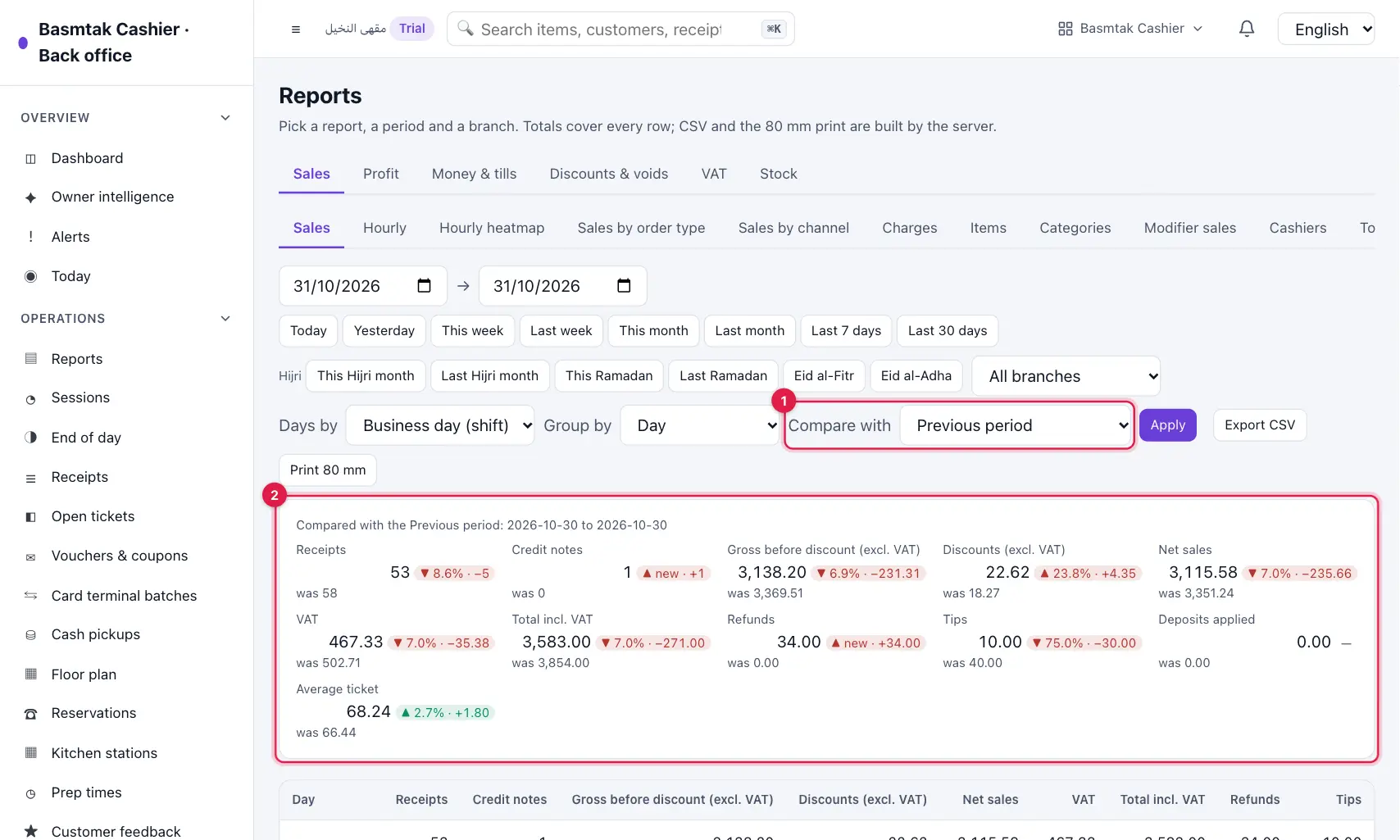
1 Choose the comparison 2 Summary of the change -
5
Export or print the report
Press Apply first. Then press Export CSV to download a file you can open in Excel, or Print 80 mm to print on a receipt printer. The total under the table covers every row, not only the page you see.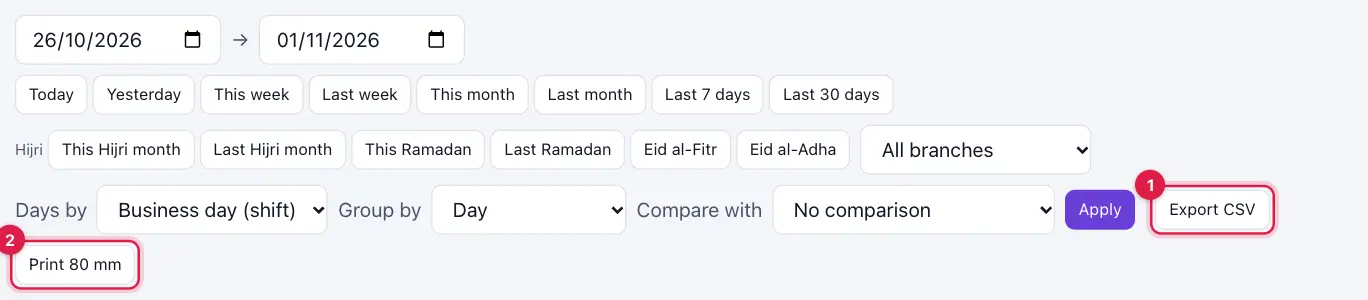
1 CSV file 2 Print on receipt paper
क्या इस गाइड से मदद मिली?