-
1
Press Add customer
The button is at the top of the ticket, next to Parked. You can add the customer before or after the items. -
2
Find the customer
Type the customer's mobile, name or VAT number. Results appear under the box. Tap the customer's name to add them to the ticket.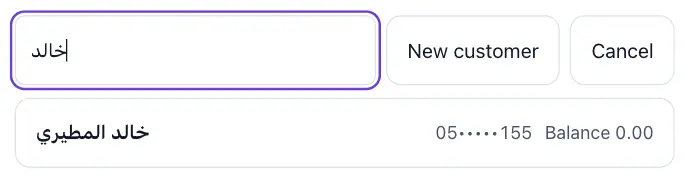 जानने योग्य: Offline, the till finds only customers saved on this device.
-
3
Create a new customer
If you cannot find them, press New customer, type the name and mobile, then Save. They are added to the ticket straight away. Do not tick marketing consent unless the customer really agreed. -
4
Check the customer is on the ticket
The customer's name replaces the add button at the top of the ticket. The × next to the name takes them off the ticket.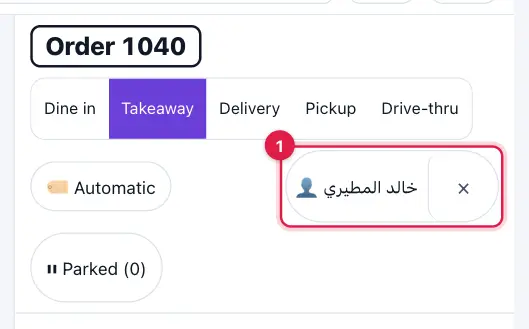
-
5
Open the customer card
Tap the name to see their account balance, points and recent purchases. Repeat order adds their last order at today's prices.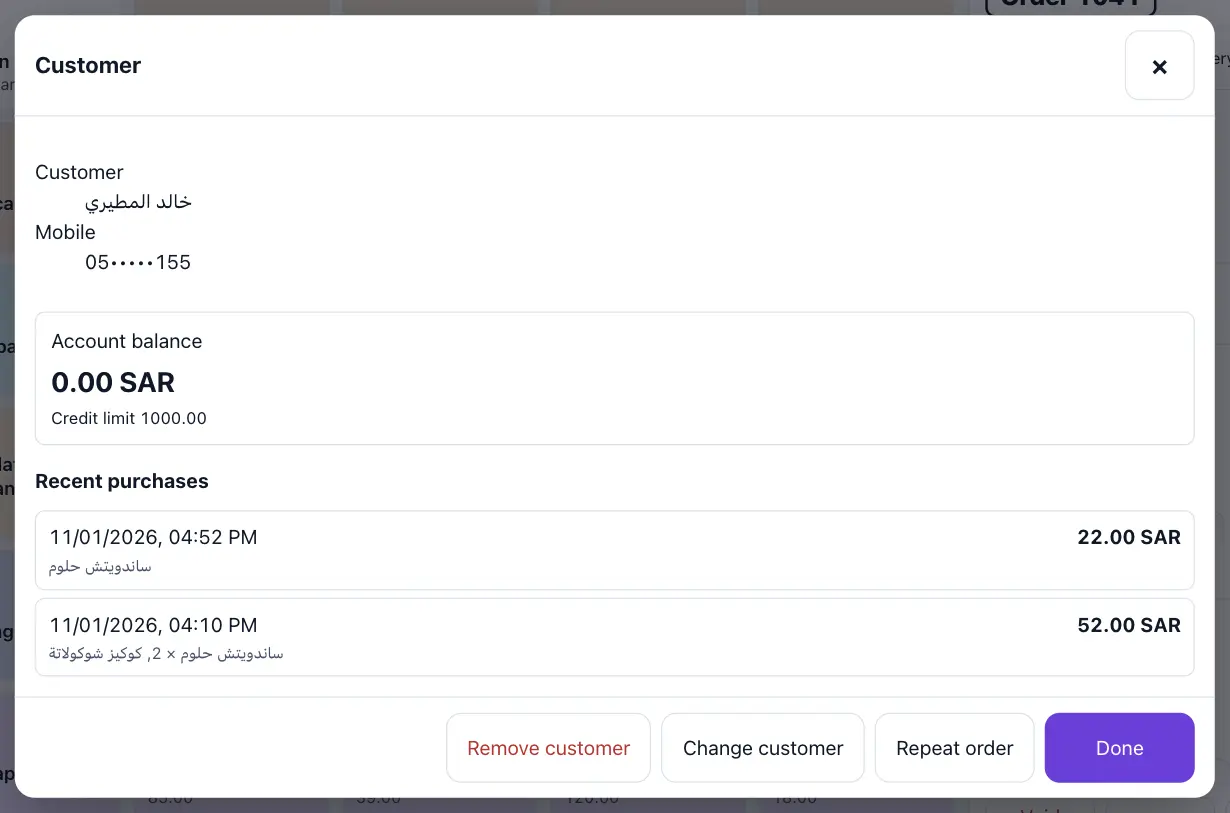
-
6
Issue a tax invoice for a business
If the customer has a VAT number, a Tax invoice (B2B) button appears under the totals. Press it before paying so the invoice is issued in the business's name. This needs an internet connection.
क्या इस गाइड से मदद मिली?