-
1
Open the More menu
Open the order on the sell screen and press More. The split and merge options are there.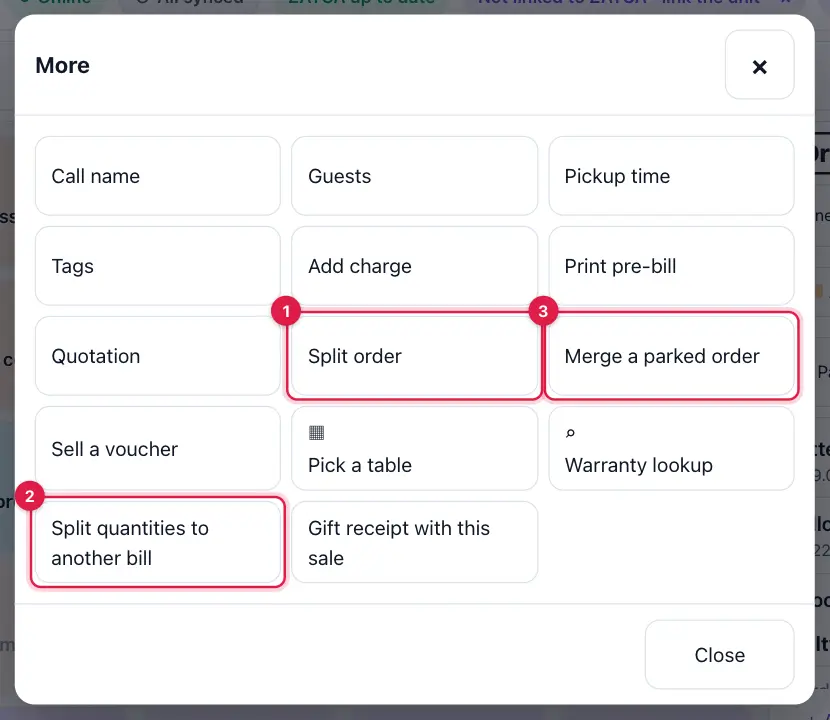
1 Split order. 2 Split quantities to another bill. 3 Merge a parked order. -
2
Move whole items
Press Split order, tick the items that leave this bill, then press Move. The ticked items become a new order under Parked, and the rest stays in front of you.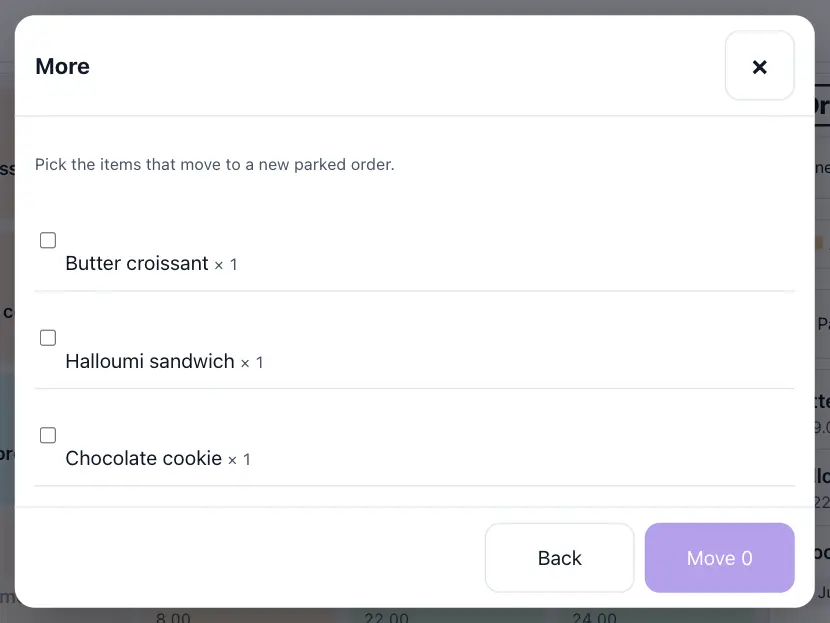
-
3
Move part of a quantity
If a line has 4 coffees and one guest wants to pay for one, choose Split quantities to another bill. Press + next to the item up to the quantity, then press Move. Meals, and lines with a fixed-amount discount, move whole.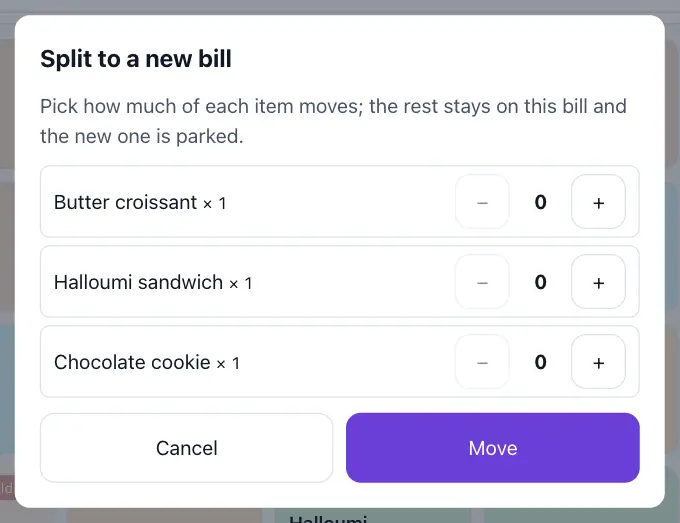
-
4
Merge two orders
Open the order you want to keep, then More → Merge a parked order. Press Merge here next to the other order. All its items move onto the open one. সতর্কতা: An order with a payment on it cannot be split or merged. If one of the orders has a whole-bill discount, remove it or give both orders the same discount first.
-
5
Split a table's bill by seat
If you recorded a seat for each item, press Split by seat in the table panel or under More. A separate check is made for each seat. Also under More, Move to another table moves the bill to a second table.পরামর্শ: To divide the payment without separating the bill, use Split on the payment screen.
এই গাইড কি সাহায্য করেছে?