জেনে রাখুন: The Delivery screen appears once the branch has a delivery channel.
-
1
See the order's path
Every order goes through the same stages: it arrives, you accept or reject it, it is prepared, then it goes to the courier. Each step you press reaches the app when it is linked. -
2
Open incoming orders
Press Delivery in the till's menu. The till checks for orders every few seconds, chimes on a new one and shows a count next to Incoming orders. Each card shows the app, order number, items, how it is paid and the total.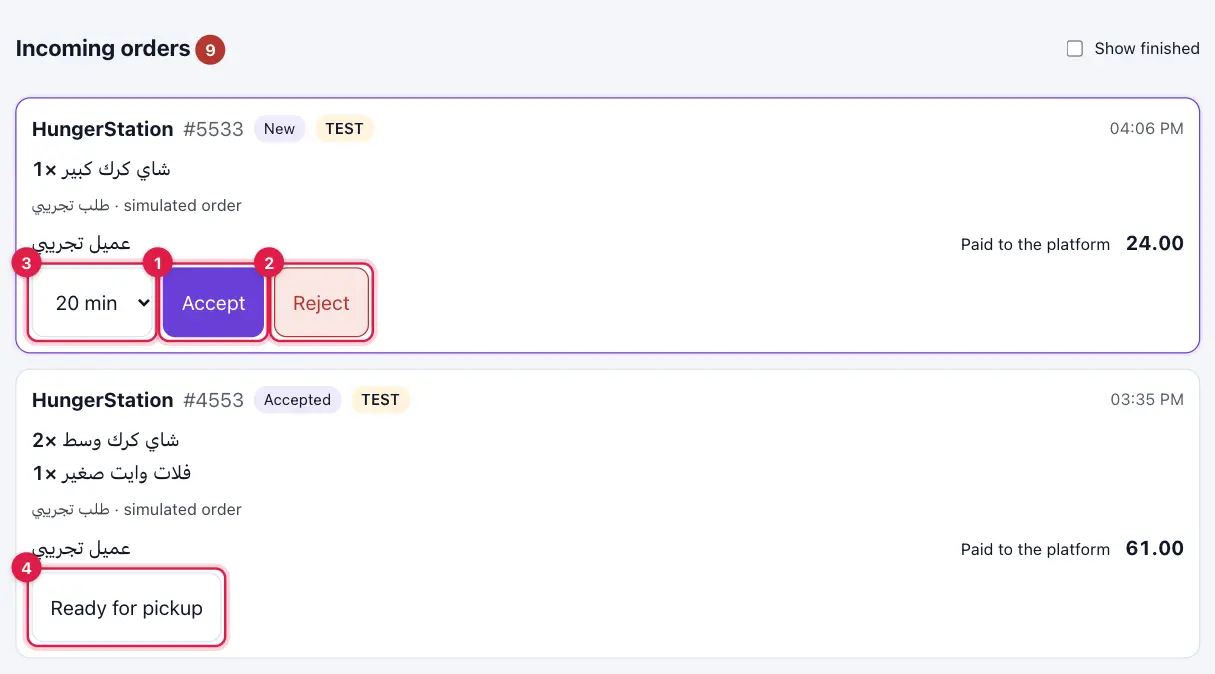
1 Accept, 2 Reject, 3 prep time, 4 Ready for pickup. -
3
Accept the order
Choose the Prep time, then press Accept. A message confirms it. The order goes to the kitchen and waits in Parked on the Sell screen. If Auto-accept is on for the branch, the order accepts itself and shows that tag.সতর্কতা: If the till loses its internet connection, orders do not reach it until the connection is back. -
4
Or reject it with a reason
Press Reject, then pick the reason: Item unavailable, Too busy, Branch closed or Other. The order closes as soon as you pick.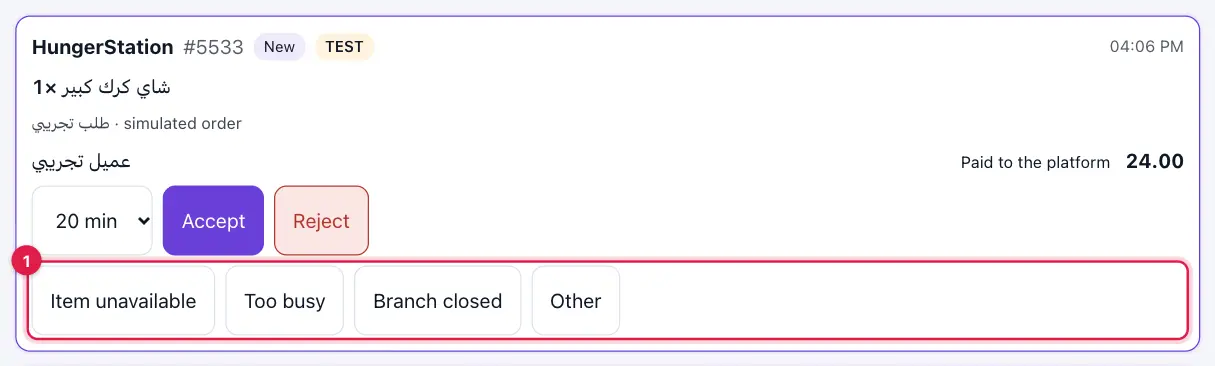
-
5
Prepare and hand over
When it is ready press Ready for pickup, then Handed to courier when it leaves. To issue the receipt, open the order from Parked on the Sell screen and finish it. An order paid to the platform has nothing due, so no cash enters the drawer. Tick Show finished to see closed orders. -
6
Fix an unmapped item
A line may show Unmapped item. It means the app's item matches nothing on your menu, so it is sold with the platform's name and price. So it matches next time, a manager opens the order under Delivery → Platform orders and picks the item in Map to item….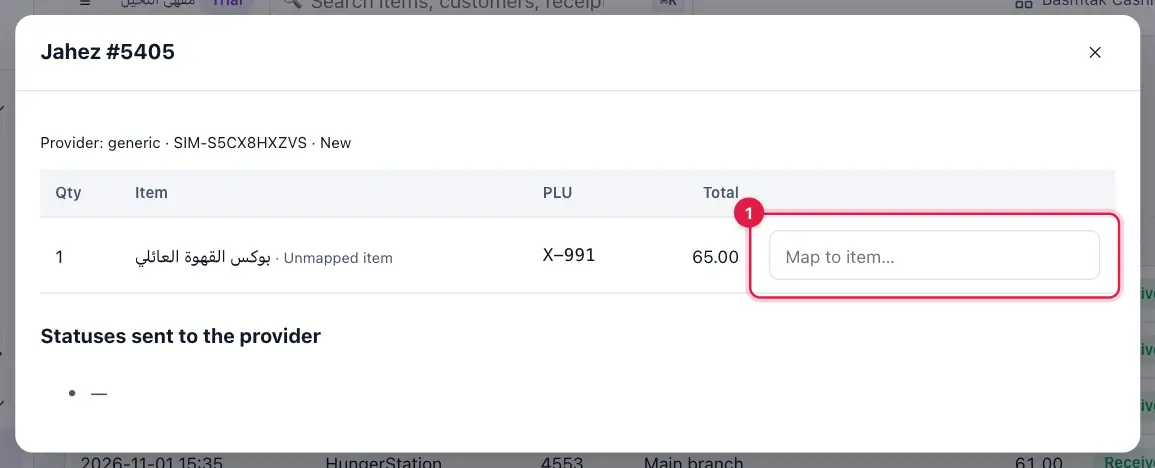
-
7
Pause an app when you are busy
On the Platforms tab of the Delivery screen, choose a Reason and a pause such as Pause 30 min. You can pause for 15, 30, 60 or 120 minutes. Or press Busy +10 min, +20 or +30 to add prep time for one hour. To go back press Reopen. A manager PIN may be asked for. জেনে রাখুন: A channel with no link shows Not linked — the platform is not told, so pause it in the platform's own app as well.
এই গাইড কি সাহায্য করেছে?